Important: Before you go through the below steps, we recommend that with your AI provider that you use a business account so that the AI provider does not train its models on your data — and we recommend you also turn off any general "improve the assistant" setting and turn off any setting in your AI provider that allows chat data to be used to improve/train the assistant.
Steps for setting up Red in ChatGPT
Open ChatGPT. On the left hand side, you’ll see an option called ‘Plugins’. Click on it.
It will bring you to this screen.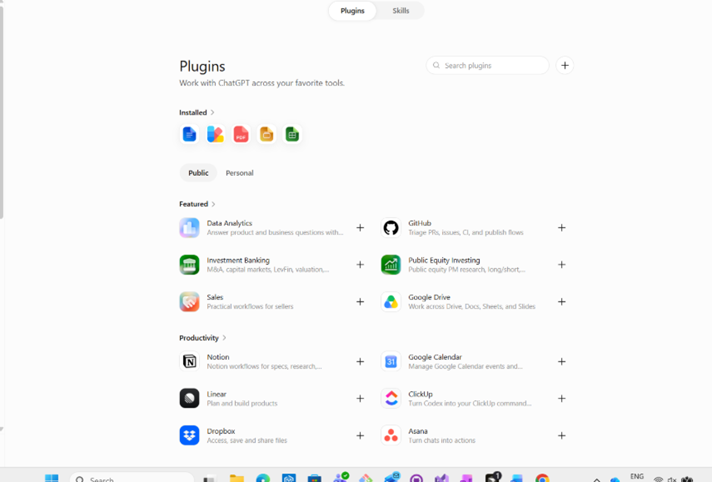
Click the ‘+’ symbol next to the search bar ‘Search plugins’ (top right).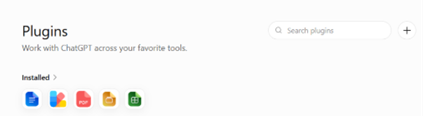
This pop up will show.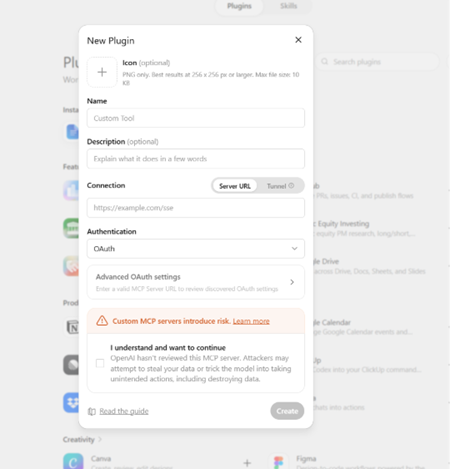
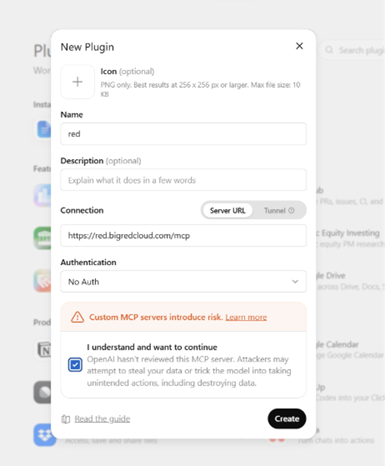
Type red in the Name box.
Use this address as the connection/server URL: https://red.bigredcloud.com/mcp
and press ‘Create’.
When this shows up press ‘Connect’.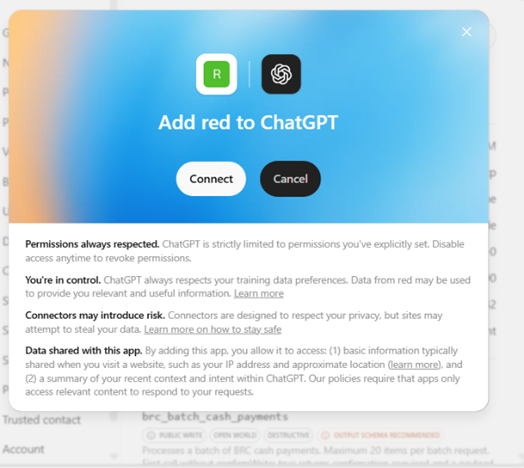
It should show that it is ‘Connected to red’.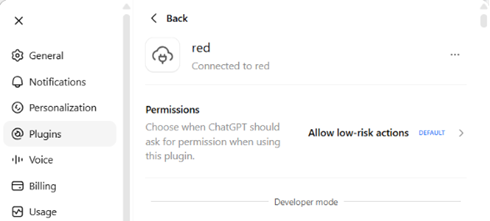
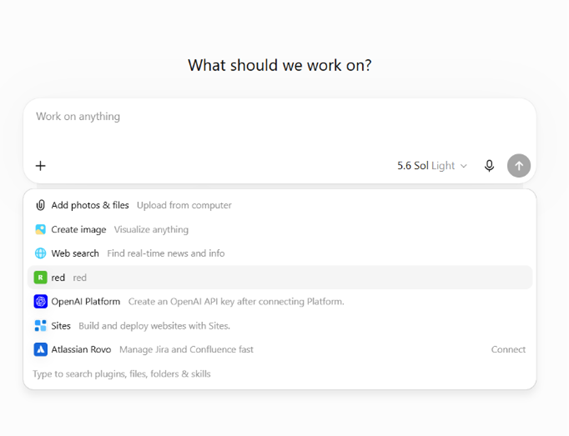
Back in your chat window, press the ‘+’ and click on ‘red’.
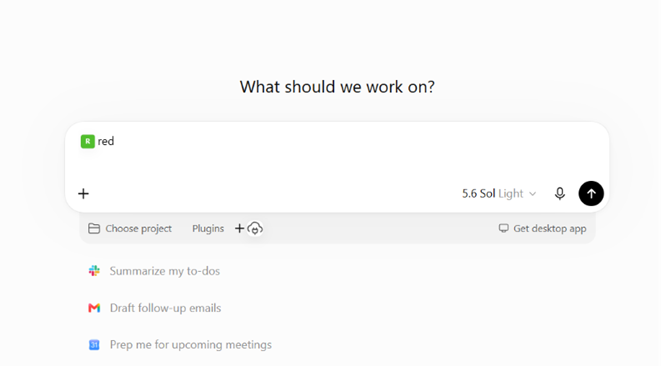
It should appear like this after you’ve selected it, you are now ready to go.
Connecting Your Companies
Adding the Red connector does not immediately give Red access to a company. When you first request company information or ask Red to perform an accounting action, Red provides a one-time secure connection link. You can also request the link by asking:
“Connect my companies.”
Important: Enter company credentials only on the secure connection page—never in the AI chat.
You can connect one company or upload a CSV containing several companies. Red validates each company separately before storing the connection. If one company fails validation, other valid companies can still connect. Red will tell you which companies connected successfully and which failed.
After completing the secure connection page, you will receive a confirmation code. Use the button on the page to copy the code, return to the chat, paste it and send it to Red to complete the connection.
Connections remain available for approximately four hours, unless you disconnect them or they expire.
You can ask Red at any time:
“Which companies are connected?”
“How much time is left on my connection?”
“Disconnect this company.”
“Disconnect all companies.”
Was this article helpful?
That’s Great!
Thank you for your feedback
Sorry! We couldn't be helpful
Thank you for your feedback
Feedback sent
We appreciate your effort and will try to fix the article