Important: Before going through the steps below, we recommend using a business account with your AI provider where possible. Review your AI provider's privacy settings and turn off any settings that allow your chat data to be used to train or improve its models.
Steps for setting up Red in Cursor
Open MCP from the Cursor chat: Open Cursor and, in the chat window, press the + symbol beside the chat box. Select MCP.
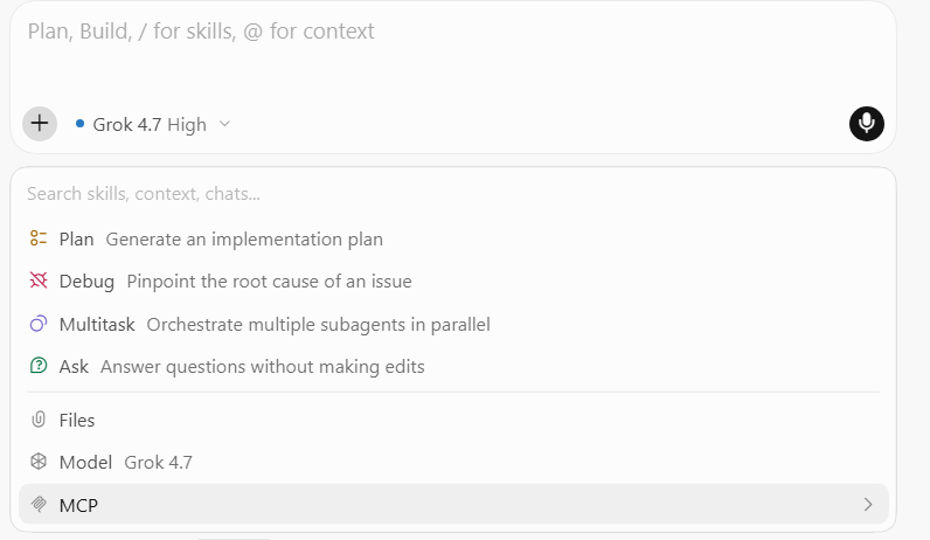
Open MCP management: From the MCP panel, click Manage in the top-right corner.
Create a new MCP server: Select New MCP Server.
Add Red: Add the following configuration to the MCP configuration file:
{
  "mcpServers": {
    "RED": {
      "url": "https://red.bigredcloud.com/mcp"
    }
  }
}
Save the file.
Important: You only need the Red MCP URL. Do not add your Big Red Cloud API key, password or other company credentials to the Cursor configuration.
If you already have other MCP servers configured, add the"RED"entry inside your existing"mcpServers"object rather than replacing your existing configuration.Start using Red: Once the configuration has been saved, Red is ready to use from the Cursor chatbot. A good first request is: "Connect my companies."
Connecting Your Companies
Adding Red to Cursor does not immediately give Red access to a Big Red Cloud company.
When you first request company information or ask Red to perform an accounting action, Red will provide a secure, one-time company connection link.
Important: Enter your Big Red Cloud company credentials only on Red's secure connection page. Never paste an API key, password or other Big Red Cloud credentials into the Cursor chat.
On the secure connection page you can connect a company (or multiple companies) and follow the on-screen instructions. After completing the connection, Red will provide a confirmation code. Return to the same Cursor chat, paste the confirmation code and send it to Red to complete the connection.
You can then ask Red questions about your connected Big Red Cloud companies and use supported Red workflows directly from Cursor.
For example:
- "Which companies are connected?"
- "Show me the customers in Company A."
- "Show me the sales invoices for Company A."
- "How much time is left on my connection?"
- "Disconnect all companies."
Your company connections remain available for approximately four hours unless you disconnect them or they expire, consistent with Red's other supported AI integrations.
Was this article helpful?
That’s Great!
Thank you for your feedback
Sorry! We couldn't be helpful
Thank you for your feedback
Feedback sent
We appreciate your effort and will try to fix the article