Overview
You can raise a sales invoice for any customer directly from the Big Red Cloud mobile app, in about a minute. Invoices saved in the app are recorded straight into your company in Big Red Cloud, so there is no need to re-enter them on your desktop.
This article walks you through creating a sales invoice on the go, from selecting the customer to saving the finished invoice.
Before you begin
Make sure the following are in place before you start:
- The app is installed. Download Big Red Cloud from the App Store (iPhone and iPad) or Google Play (Android).
- The app is connected to your company. This is done automatically for you when you log into the mobile app using the API Key, Please note: You can only log into the app using an API Key, you do not log into the app with an email and password as you would on the PC. How to create an API Key?
- The customer exists. If you are invoicing a new customer, add them first. See How to Add a Customer in App.
- Your products and analysis categories are set up in Big Red Cloud, so prices, VAT rates and categories can be selected on the invoice.
Create a sales invoice
Follow these steps to create and save a sales invoice in the app.
Open Customers. From the app's home screen, tap Customers.
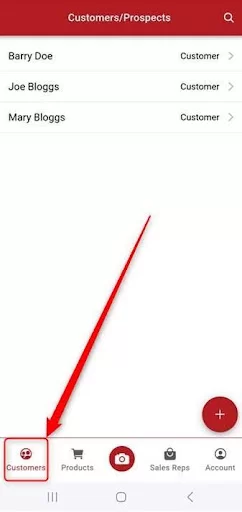
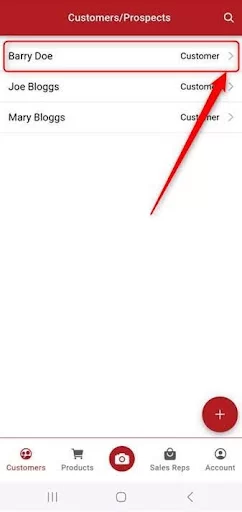
Select the customer. Tap the customer you want to invoice.
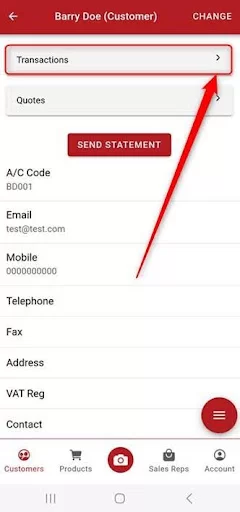
Open Transactions. On the customer's screen, tap Transactions.
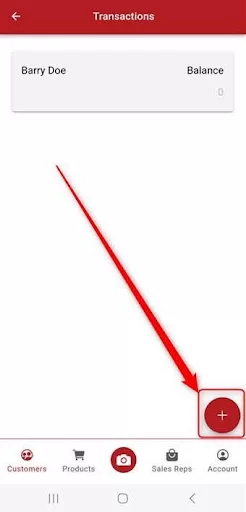
Start a new invoice. Tap the red + button.
Enter the invoice details. Complete the header fields, such as Date and VAT Type.
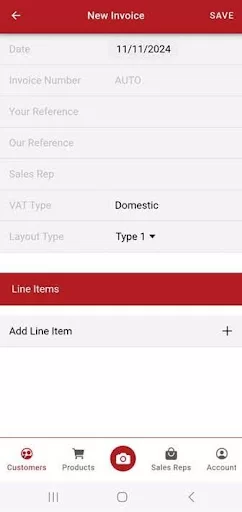
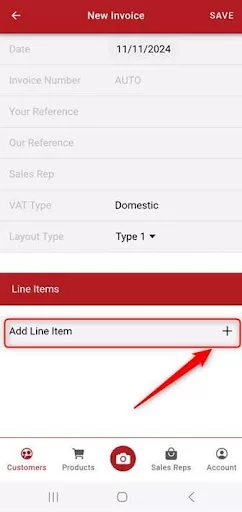
Add a line item. Tap Add Line Item.
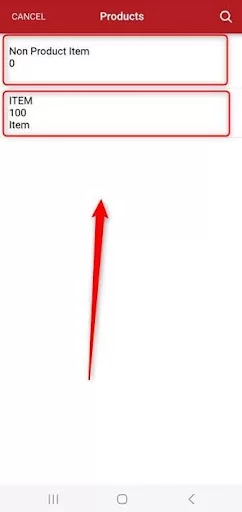
Choose a product. Select the relevant product from the list, or choose Non Product Item for a one-off charge.
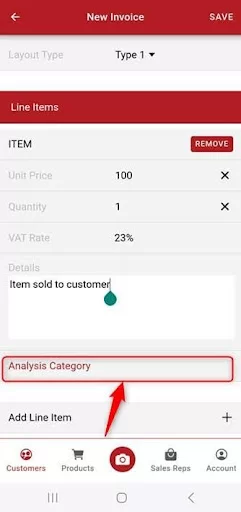
Check the line details. If you selected a product, the Unit Price and VAT Rate % usually fill in automatically. You can edit these, along with the Quantity. Use the Details box to describe the item.
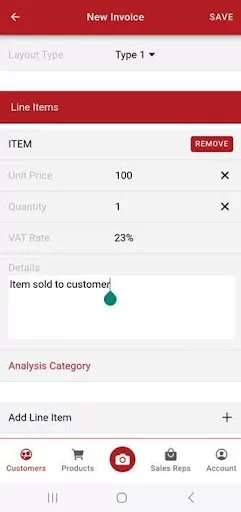
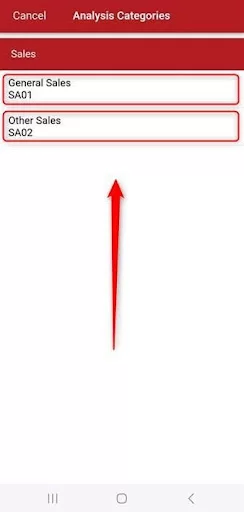
Set the analysis category. Tap Analysis Category and then select the relevant category.
Save the invoice. When you are happy with the invoice, tap Save, then OK.
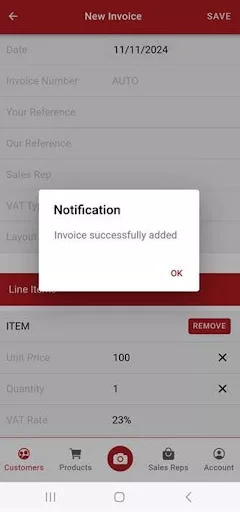
The invoice is now saved in the app and in Big Red Cloud.
Adding multiple line items
An invoice can include as many line items as you need. Before saving, tap Add Line Item again and repeat steps 7 to 9 for each additional product or service. Save the invoice once all lines are complete.
Tips and good practice
- Review before saving. Check the date, VAT type, prices and quantities before you tap Save, as the invoice posts directly to your company's books.
- Use products where possible. Selecting a set-up product fills in the price and VAT rate for you, which saves time and reduces errors.
- Keep descriptions clear. A short, specific entry in the Details box helps your customer understand the charge and makes reconciliation easier later.
- Choose the right analysis category. Accurate categories keep your sales reporting meaningful.

Was this article helpful?
That’s Great!
Thank you for your feedback
Sorry! We couldn't be helpful
Thank you for your feedback
Feedback sent
We appreciate your effort and will try to fix the article