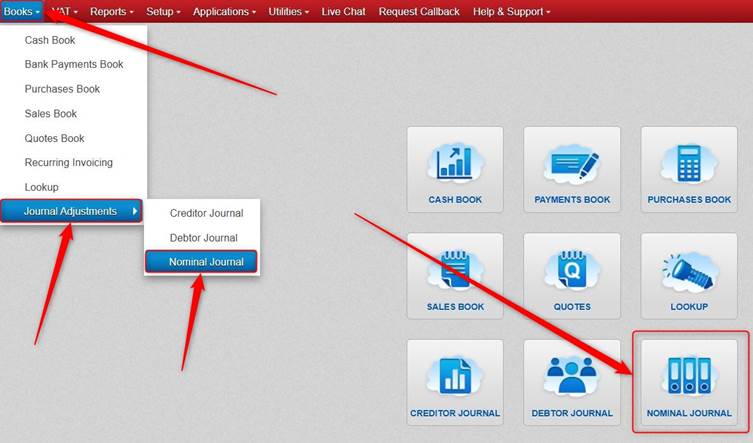
Click Nominal Journal.
Or click Books > click Journal Adjustments > click Nominal Journal.
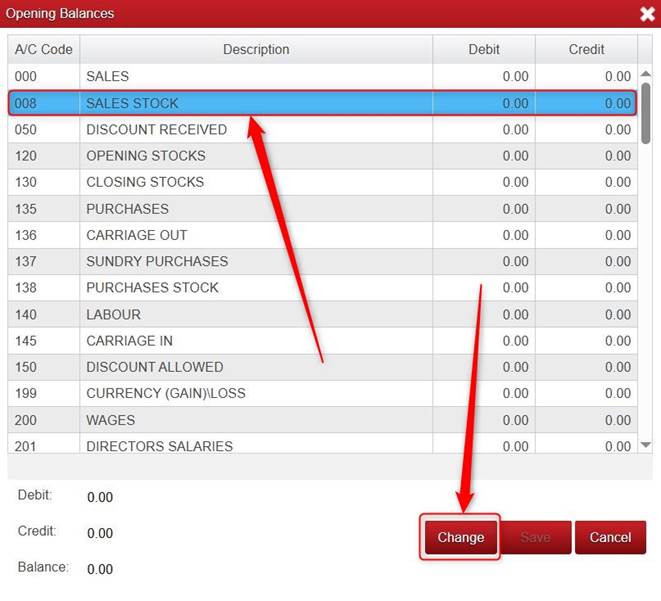
Select one of the Nominal Accounts that you want to add/change the Opening Balance on and click Change.
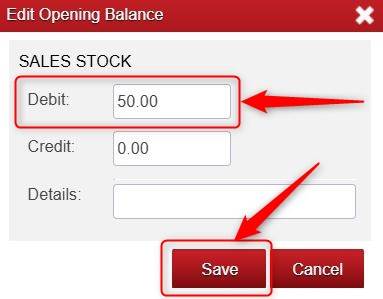
Type the relevant figure into either the Debit box or Credit box (depending on which it should be).
You can enter something into the Details Box (if you want to).
Click Save.
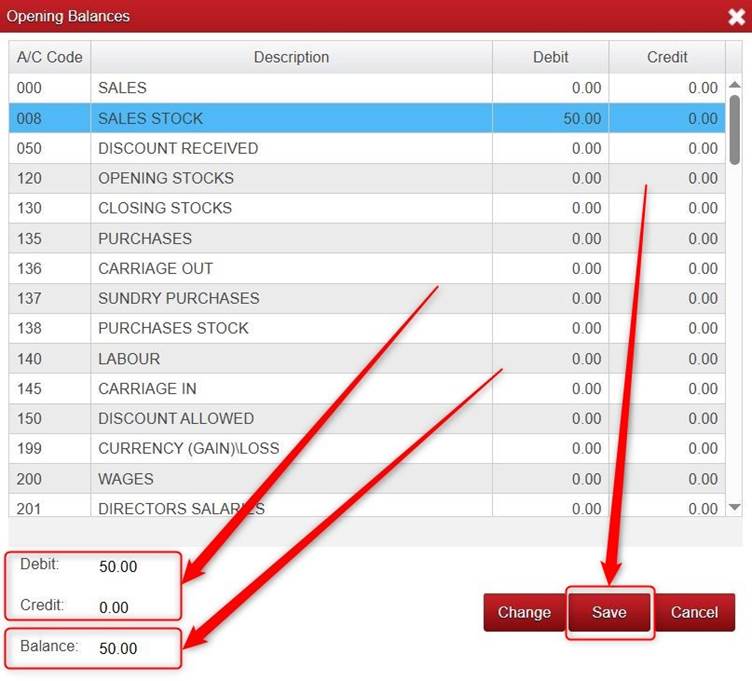
Please note that after this:
- The Debit and Credit boxes do NOT match.
- The Balance does NOT show 0.00.
- This means that as it stands it does not allow the Opening Balance change to be fully saved.
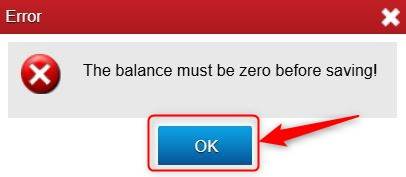
- Click Save to see the message.
Click OK.
We will add another Nominal Opening Balance.
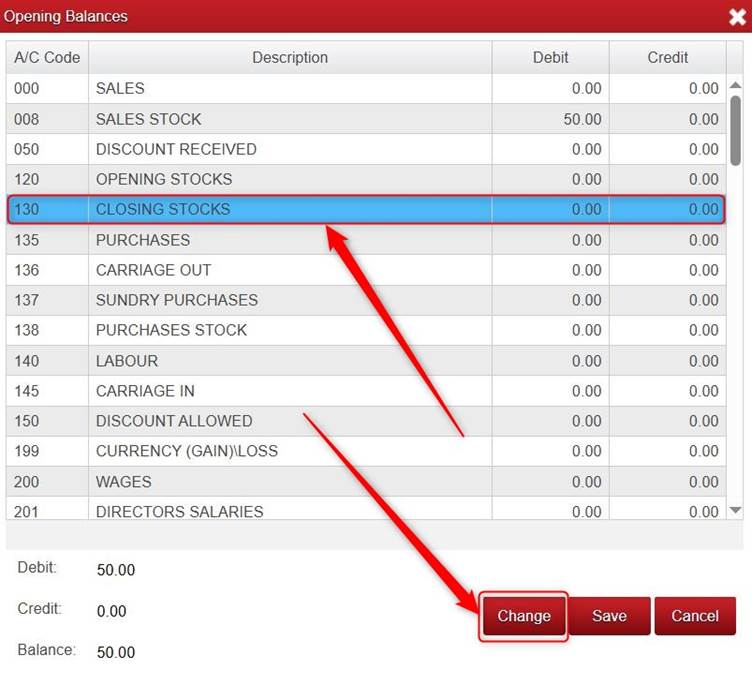
Highlight a Nominal Account that you want to add/change the Opening Balance on and click Change.
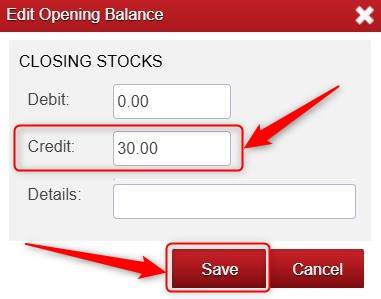
Enter the relevant amount into the Debit or Credit box (depending on which it should be), and click Save.
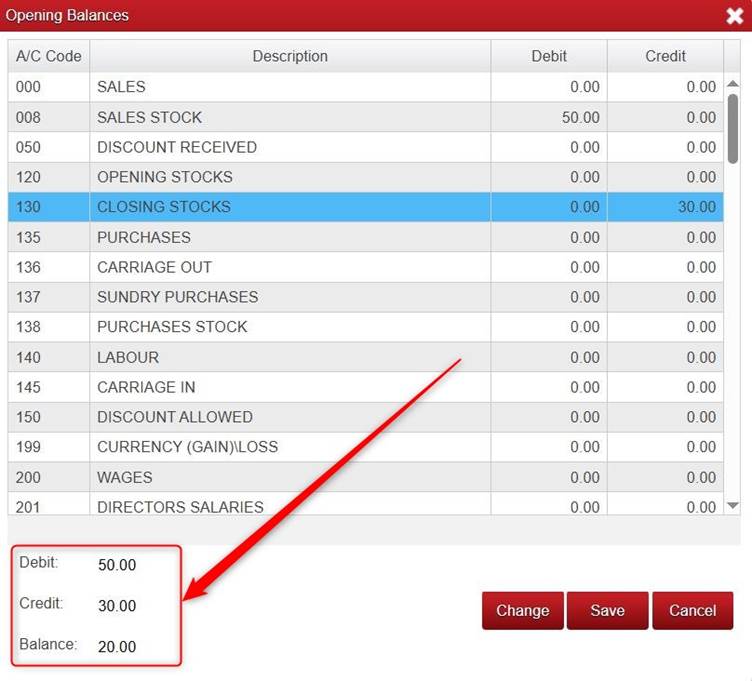
Please note that after this:
- The Debit and Credit boxes still do NOT match.
- The Balance still does NOT show 0.00.
- This means that as it stands it does not allow the Opening Balance changes to be fully saved.
We will add another Nominal Opening Balance.
Highlight a Nominal Account that you want to add/change the Opening Balance on and click Change.
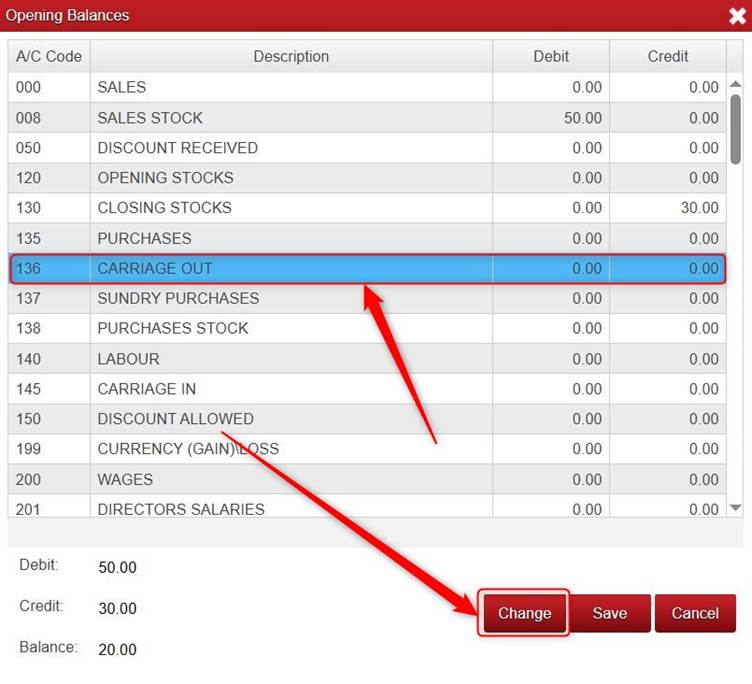
Enter the relevant amount into the Debit or Credit box (depending on which it should be), and click Save.
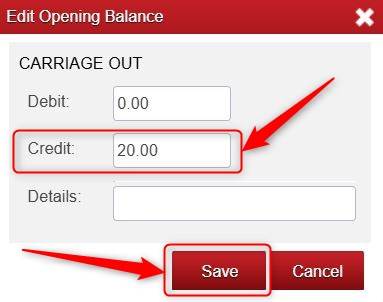
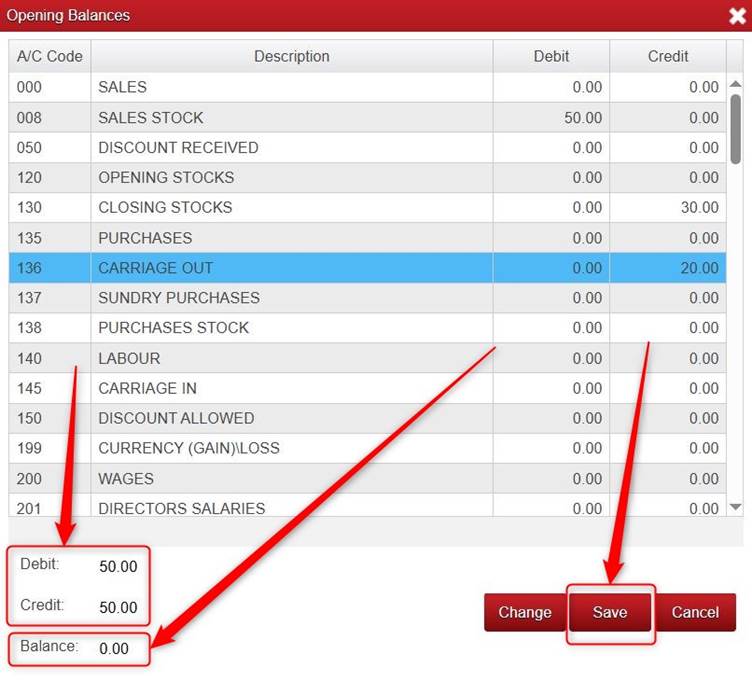
Please note that after this:
- The Debit and Credit boxes match now.
- The Balance shows 0.00 now.
- Click Save.
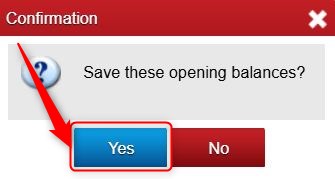
Click Yes.
Was this article helpful?
That’s Great!
Thank you for your feedback
Sorry! We couldn't be helpful
Thank you for your feedback
Feedback sent
We appreciate your effort and will try to fix the article