Introduction to Analysis Categories
First, confirm with your accountant if you will be using Nominal Accounts, if not, this will not apply to you. Though we generally would recommend using them, we understand some smaller businesses may not have the need or desire to use them.
If you are using Nominal Accounts, Before you can use any of your daily books in Big Red Cloud, you must set up Analysis Categories for each of the books (Cash Book, Payments Book, Purchases & Sales Books) and link them to the relevant Nominal Accounts.
Using Analysis Categories that post to Nominal Accounts allow you to slice and dice financial data for deeper insights—like seeing profitability per project, department, or salesperson etc. Reports can then be run by you or your accountant to see for example, the amount received/paid per period, per category and so much more.
Analysis Categories are just the names given to Nominal Accounts from within your different books.
You can tie them to any Nominal Code and the Analysis Category is where you can choose a name that reflects the Nominal Code in the background.
Creating Analysis Categories
- Go to Setup (on the red bar at the top of the screen).
- Click on Analysis Categories (in the drop down menu).
- Select the Book you want to add the category for.
- Enter your new Analysis Category Name and existing associated Nominal Code.
You can have up to 60 Analysis Categories for each Book.
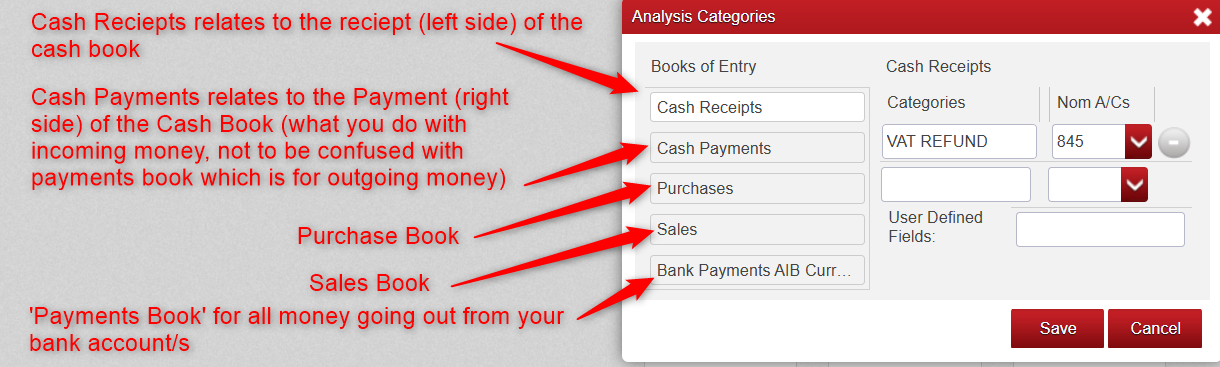
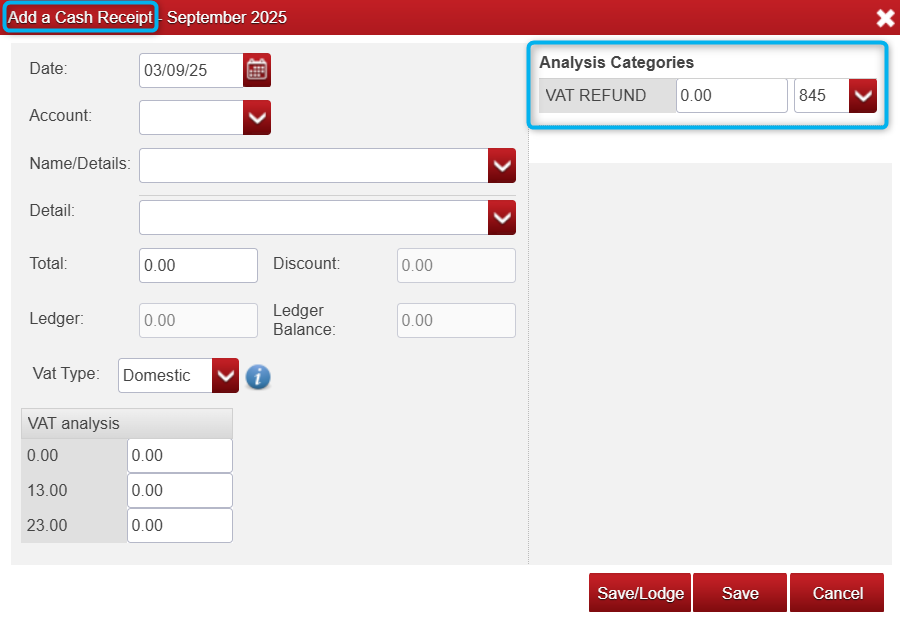
In the example above, I created an Analysis Category on the cash receipt side of the Cash Book and called it "VAT REFUND" and linked it with my Vat nominal "845".
Below you can see how this then looks in the Cash Book when adding a Cash Receipt.
Using Analysis Categories
Once you have created your Analysis Categories for the relevant books.
When adding an entry to one of the books (Cash Book, Payments Book, Purchase or Sales Books) and
before saving the entry, you can 'Analyse' the amount against one of your Analysis Categories.
You can find out how this is done in the Notes for each Relevant Book.
Your accountant should be able to give you a list of what analysis categories/nominal accounts should be attached to each book (these can often be quite business specific), if they can give you a list per book of what's needed then we can assist in creating the categories for you.

Was this article helpful?
That’s Great!
Thank you for your feedback
Sorry! We couldn't be helpful
Thank you for your feedback
Feedback sent
We appreciate your effort and will try to fix the article