Click Lookup

Click Bank Accounts, select the relevant Bank Account, click Bank Feed.
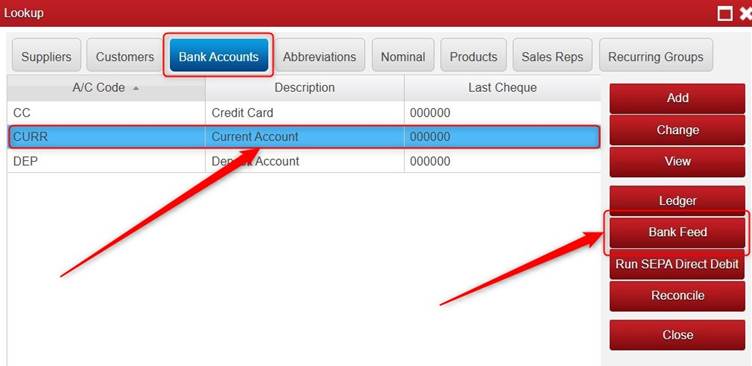
OR Open the Payments Book and select the relevant Bank Account (at the bottom of the screen) and click Bank Feed.

Click Import from Open Banking.
Select the relevant Date Range and click OK.
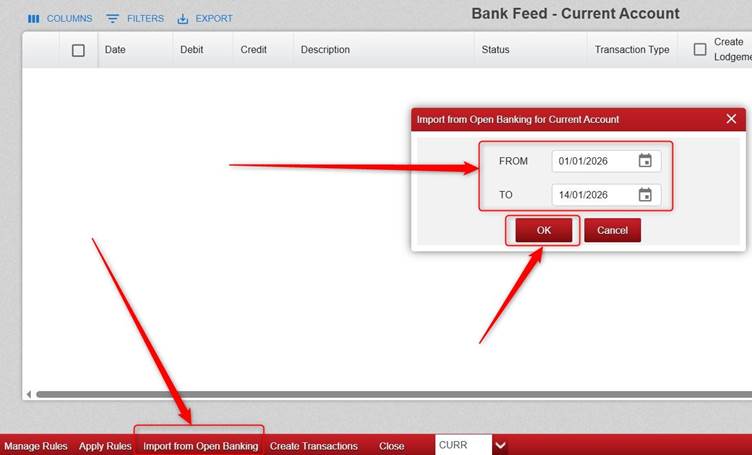
It will display the transactions.

You can use the horizontal bar at the bottom of the screen to move over to the right to see the other columns.
You can set up Rules which you can apply to get Big Red Cloud to select a certain customer/supplier/analysis categories/nominals – saving you even more time. We have a separate article in our Knowledge Base on this.
You can manually select the relevant customer/supplier/analysis category/nominal. You can also tick lodgement to include a record of the lodgement.
If you want to select a customer/supplier you can tick Ledger, and then select the relevant customer/supplier.

If you want to select an analysis category and nominal, you can tick Non-Ledger and choose the analysis category (this will automatically assign the nominal that is assigned to that analysis category – but you can change that nominal if you wish).

You can also manually change the customer/supplier/analysis category nominal on a transaction where you applied the rules.
It will allow you to change the Period and Reference also, and if it is an Intercompany Bank Transfer it will allow you to select the Bank that it is going into in the Transfer column.
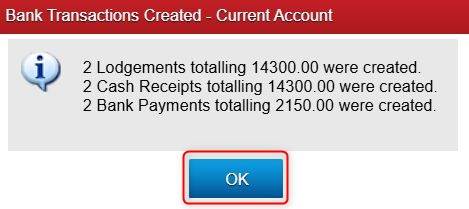
To import the transactions, with the relevant ones ticked, click Create Transactions (at the bottom of the screen). It will tell you how many of each type of transaction was imported.
Click OK.
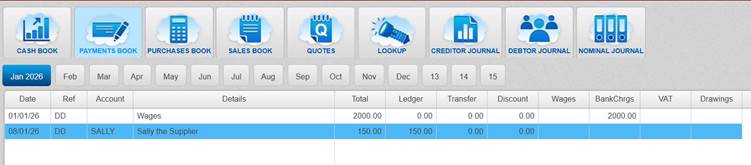
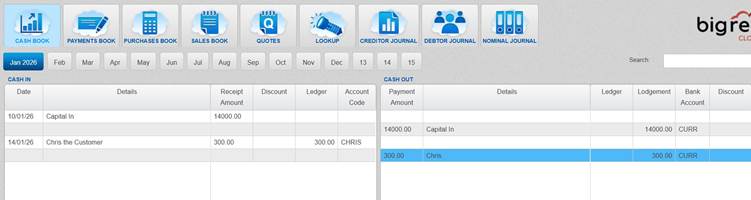
If you go to the Payments Book and Cash Book, you will see those transactions there.
Was this article helpful?
That’s Great!
Thank you for your feedback
Sorry! We couldn't be helpful
Thank you for your feedback
Feedback sent
We appreciate your effort and will try to fix the article