There are two parts to the setup:
- Your Microsoft 365 administrator adds and deploys the RED connector for your organisation.
- Each user connects RED in Copilot and then links the Big Red Cloud companies they are authorized to use.
Your organization will need:
- Microsoft 365 Copilot for each user who will query RED.
- A Microsoft 365 administrator with the permissions required to manage Copilot connectors.
- The RED production OAuth registration ID supplied by Big Red Cloud.
- Access to the Big Red Cloud company or companies the user needs to query.
For Microsoft 365 administrators: How to add RED
The administrator only needs to create the connector once for the Microsoft 365 organization.
- Open the Microsoft 365 admin center. Go to Copilot > Connectors and open the connector gallery.
- Create a custom federated connector. Choose Create a new connector, then select the option to connect to an MCP server.
- Enter the RED production details.
Display name
RED
Description
Connect Big Red Cloud accounting data to Microsoft 365 Copilot.
MCP endpoint URL
https://red.bigredcloud.com/mcp/copilot
Developer name
Big Red Cloud
Website URL
https://bigredcloud.com/
Privacy policy URL
https://bigredcloud.com/en/privacy-policy/
Terms of use URL
https://bigredcloud.com/en/terms-and-conditions/
Authentication
OAuth 2.0
OAuth registration ID
Use the production registration ID supplied by Big Red Cloud.
- Authorize RED. After entering the OAuth registration ID, choose Authorize and complete the Microsoft sign-in/authorization step.
- Create the connection. Save the connector. Microsoft 365 should confirm that the connection was created and the data source is linked.
- Make RED available to users.
Please note: Microsoft advises that connector changes can take up to 15 minutes to appear throughout Microsoft 365. |
For users: connect RED in Copilot
- Open Microsoft 365 Copilot Chat.
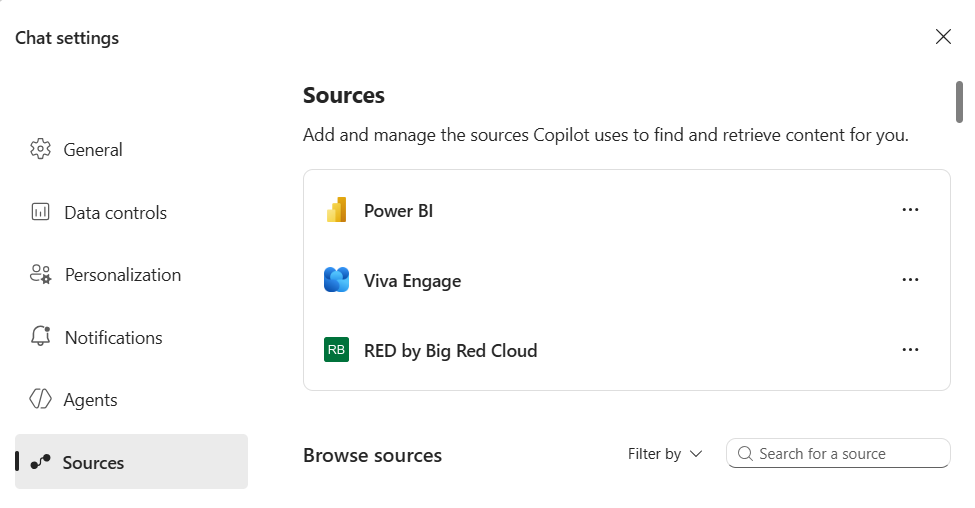
- Open Sources. Open the (…) menu in the top right corner, choose Settings, then select Sources.
- Find RED and choose Connect. Complete the Microsoft sign-in or connection screen if prompted.
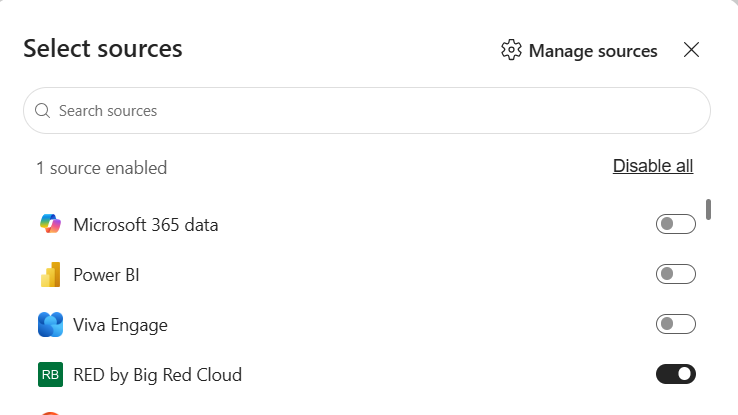
- Add it to your chat sources. After connection is completed go back into Copilot Chat> +> Change Data Sources. You should see something like this. Make sure Red is toggled 'on':
- Run a simple data test. For example, send this message in Copilot Chat: Using RED, show me my connected companies
Connect your Big Red Cloud companies
1. Open the company-management link returned by RED.
2. Connect the company or companies you need. Follow the instructions on the RED company-management page. Only connect companies you are authorized to use. API keys can be found on the your Big Red Cloud account at Admin>API Keys.
3. Return to Copilot and check the connection. Ask RED to show your connected companies again.
4. Run a simple data test. For example:
Using RED, show me the customer names for YOUR_COMPANY_NAME .
If RED returns data from the selected company, your connection is ready to use.
Keeping your connection secure
- Connect RED using your own Microsoft 365 account.
- Only connect Big Red Cloud companies you are authorized to access.
- Enter Big Red Cloud credentials or API details only on the secure RED company-management page, never directly in a Copilot chat.
- If RED ever shows a company you do not expect to have access to, stop using the connector and contact Big Red Cloud Support.
Troubleshooting
Issue | What to do |
RED does not appear in Sources | Refresh Copilot and confirm that your administrator has enabled RED for your account. If the connector was just created or changed, allow up to 15 minutes for the update to appear. |
Copilot says a company connection is required | Open the secure RED company-management link and connect at least one Big Red Cloud company. |
Microsoft authentication or token-store error | Disconnect RED from Copilot Sources, reconnect it and try again. If the issue continues, contact Big Red Cloud Support. |
A connected company does not return data | Check that you selected the correct company and that your Big Red Cloud access remains valid. |
Was this article helpful?
That’s Great!
Thank you for your feedback
Sorry! We couldn't be helpful
Thank you for your feedback
Feedback sent
We appreciate your effort and will try to fix the article