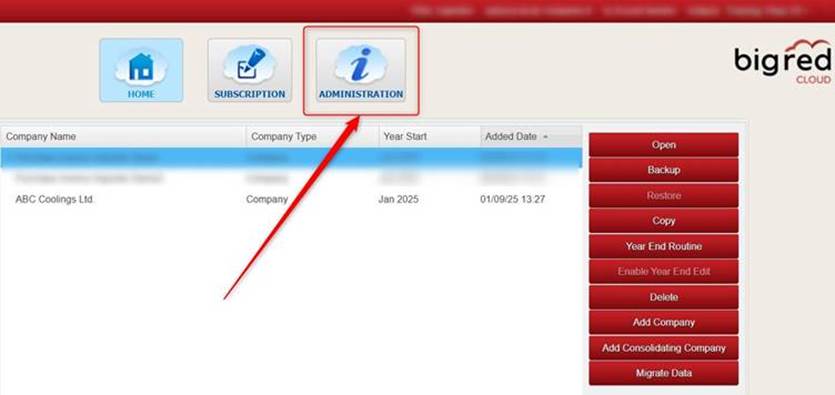
On the Company Selection screen, click the Administration button.
Note: Your Big Red Cloud company has just one Administrator. This is likely the person who initially set up your Big Red Cloud account (i.e. yourself or one of your colleagues). Only the Administrator has access to the Administration section.
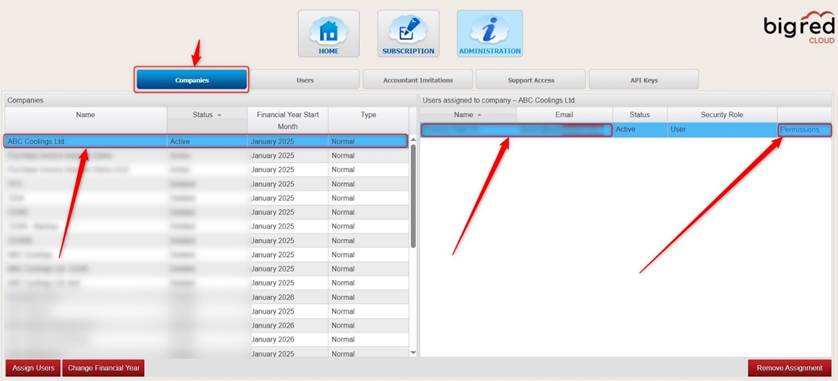
Click the Companies tab.
Highlight the relevant company on the left (if you have more than one company).
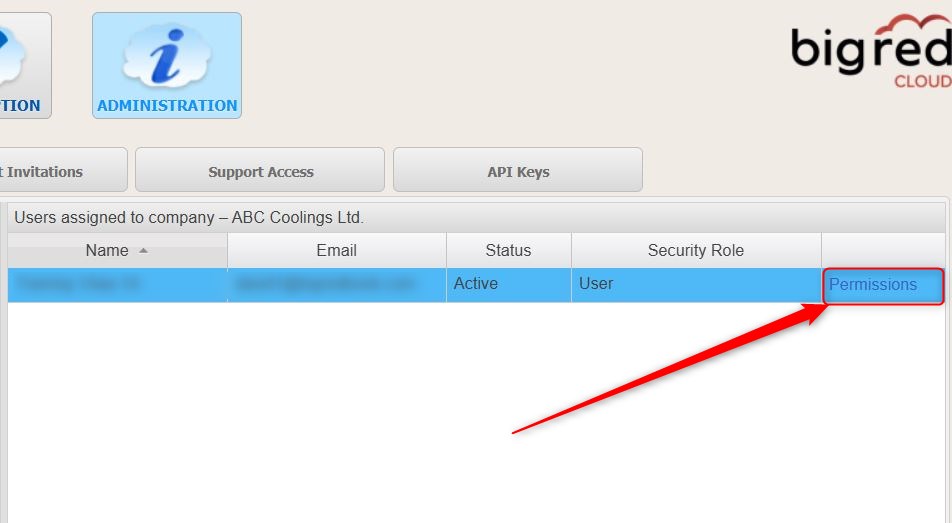
Highlight the relevant user or accountant on the right, and click the blue Permissions button to the right.
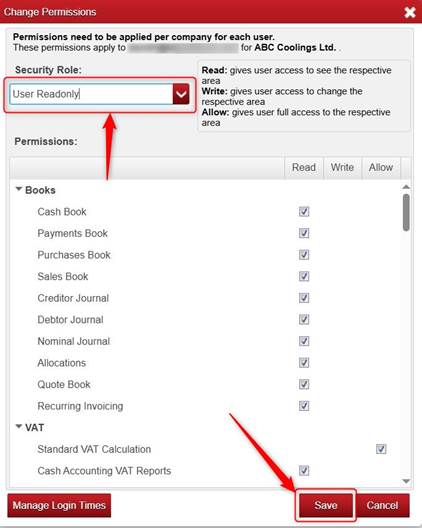
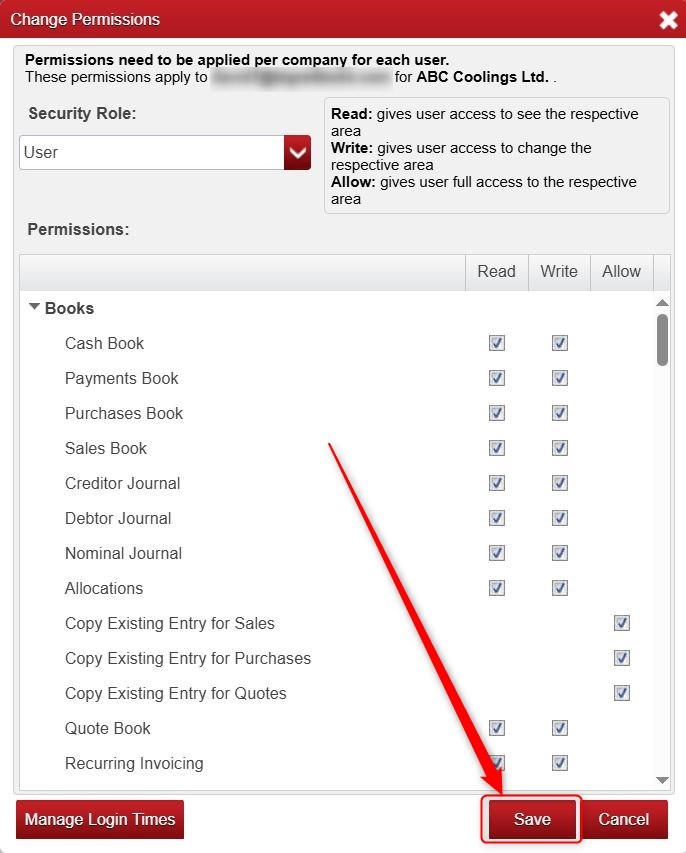
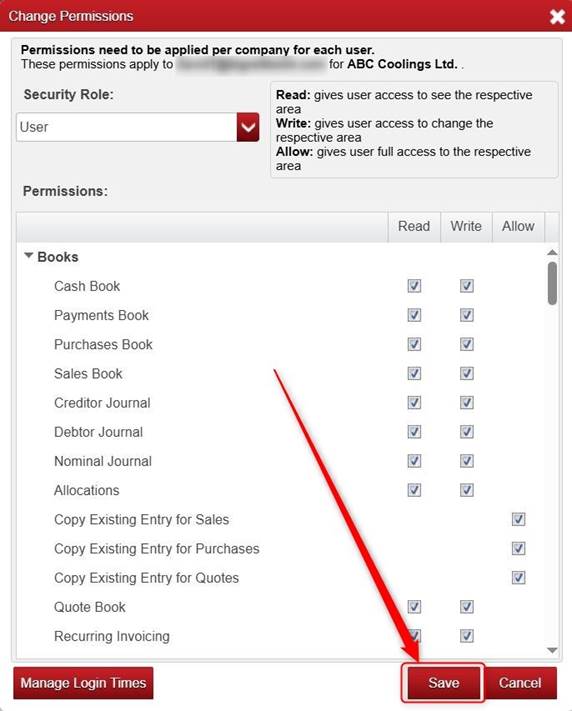
Under Security Role - you can change the user/accountant from User to User-Read Only (if you don’t want them to be able to add/change/delete anything) and click Save.
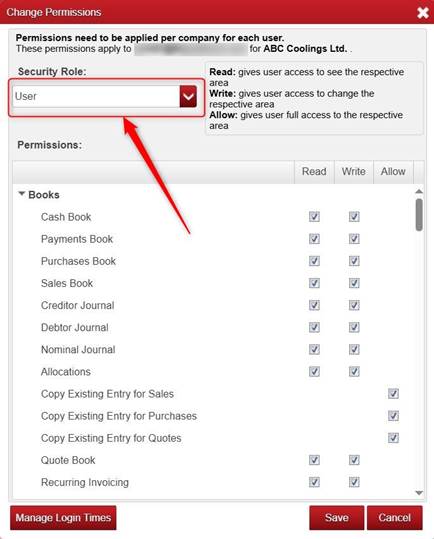
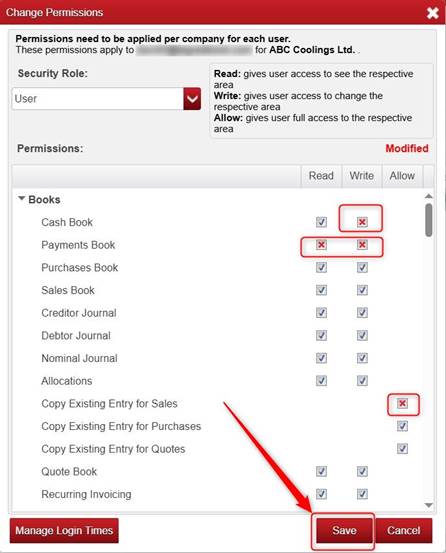
Alternatively, you can leave them set to User, and you can click on any of the boxes that you want to remove their access from.
The X in that box removes their access to that section.
Note: you can remove (X) Read Access to a section (viewing access) and you can remove (x) Write Access (add/change/delete) to a section.
Where it shows Allow it means with that section you cannot remove Write Access without removing Read Access also.
Once you are happy with the settings click Save.
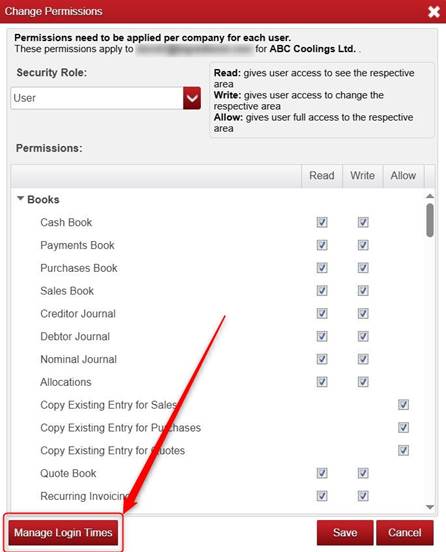
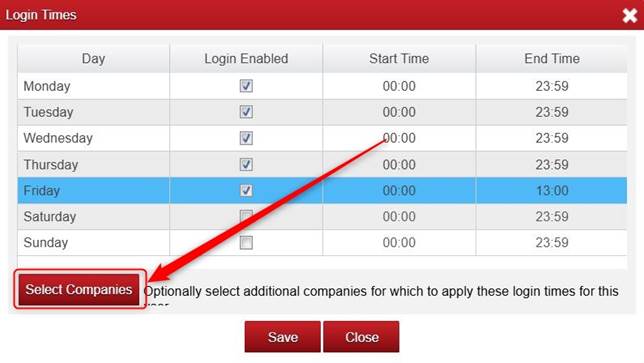
You can also manage what days and what times of the day the user can access the company in Big Red Cloud.
To do this, click Manage Login Times.
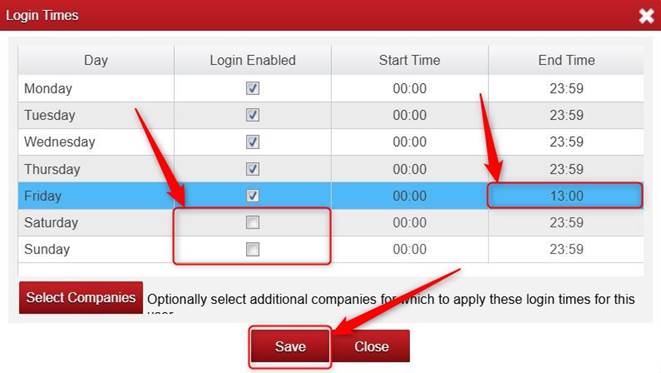
From here you can untick any days you don’t want the user to be able to access the company.
You can also adjust the times of the day that they can access the company.
Click Save once you are happy with the settings.
Click Save again on the Change Permissions screen.
Note: you can also apply this user’s access days/times to other companies of yours (if you have more than one company in Big Red Cloud) by clicking Select Companies.
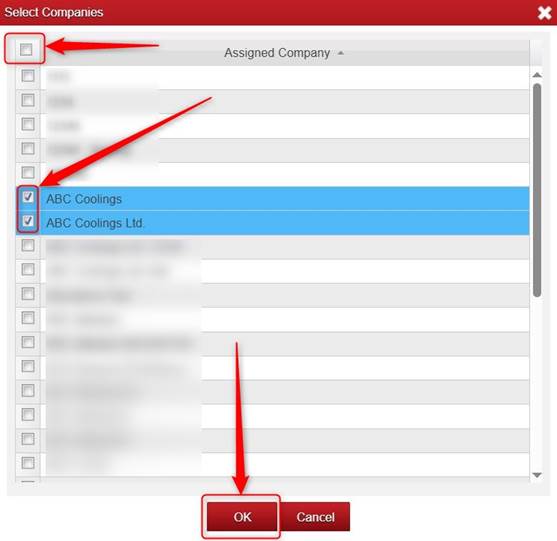
You can select ALL of the companies, or you can tick the relevant companies and click OK.
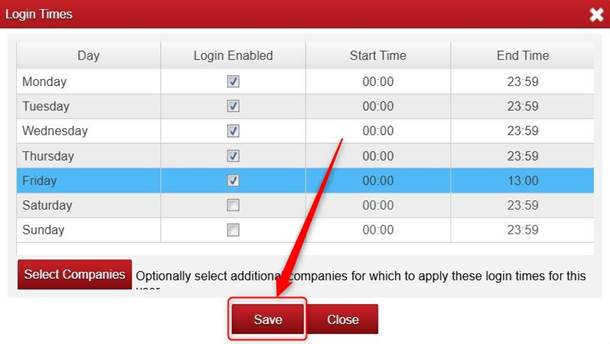
Click Save.
Click Save.
Was this article helpful?
That’s Great!
Thank you for your feedback
Sorry! We couldn't be helpful
Thank you for your feedback
Feedback sent
We appreciate your effort and will try to fix the article