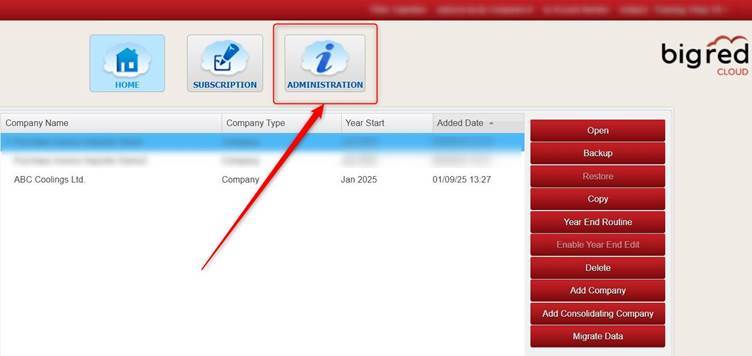
On the Company Selection screen, click the Administration button.
Note: Your Big Red Cloud company has just one Administrator. This is likely the person who initially set up your Big Red Cloud account (i.e. yourself or one of your colleagues). Only the Administrator has access to the Administration section.
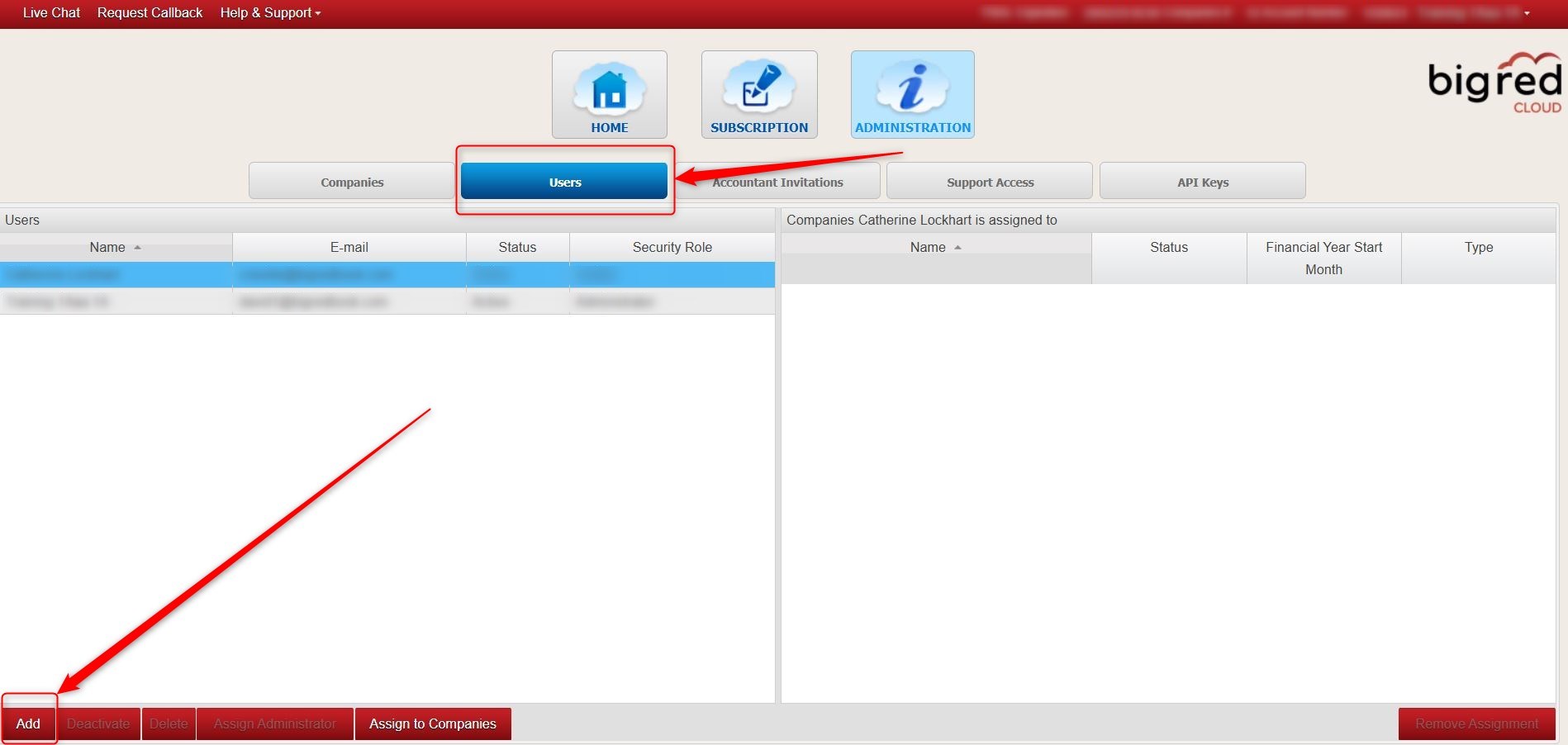
Click the Users tab and click Add.
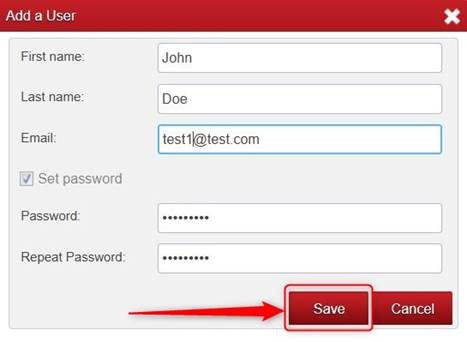
Type the details for the user and click Save. The Email is the email address that the user will sign into Big Red Cloud with. The Password is the password that the user will sign into Big Red Cloud with. The user will be able to change their password later.
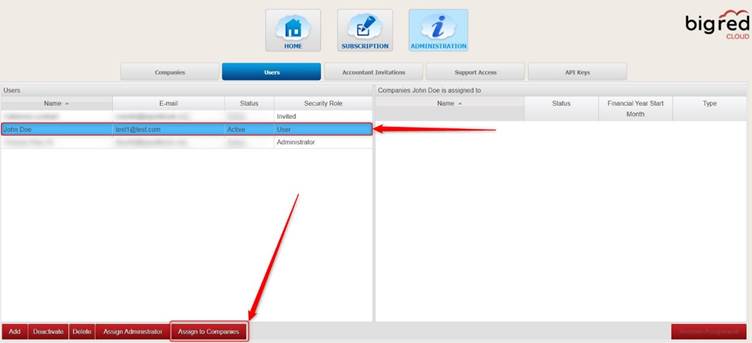
The user will now show on the left. Highlight the user and click Assign to Companies.
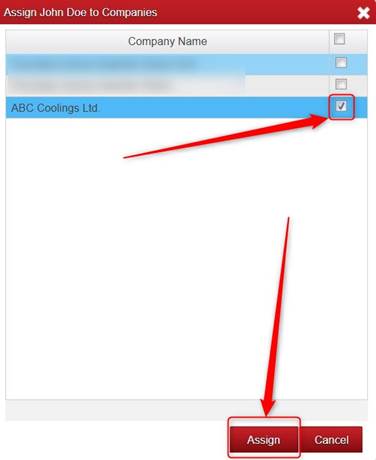
Tick the company (or companies) that you want to give the user access to and click Assign.
You will now see the user on the left, and the company (or companies) that the user is assigned to on the right.

Was this article helpful?
That’s Great!
Thank you for your feedback
Sorry! We couldn't be helpful
Thank you for your feedback
Feedback sent
We appreciate your effort and will try to fix the article