This How To Guide will assist you in using the Big Red Cloud Power Accounting Template in conjunction with the Big Red Cloud Power Accounting Add-in for Excel. Once you have connected this template to your company by entering the API Key, you can then import and export data to/from your company in Big Red Cloud.
Getting Started
- Open up Microsoft Excel on your PC
- Open a blank sheet
- Go to Home and select 'Add ins'
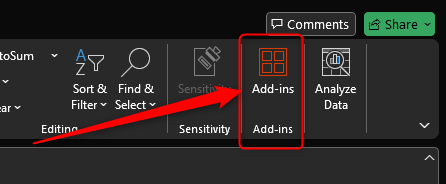
- Search for 'Big Red Cloud' and select 'Add'
- Select Download Template (on the window on the right side of your screen)
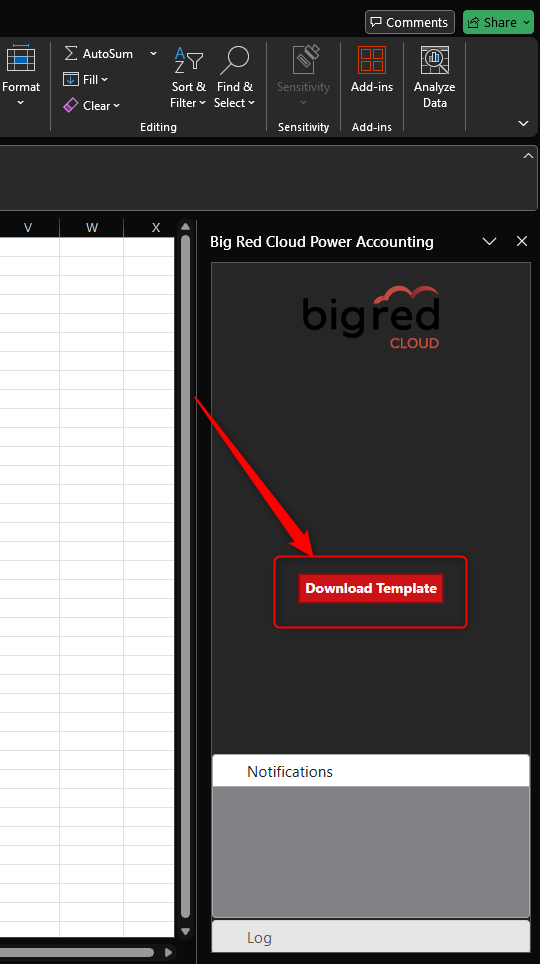
- Once the template file has been downloaded, close the blank sheet you have open the newly downloaded file.
- Look at the different sheets you have available in the template file (at the bottom of the screen).
- Then enter your API Key (using the below link which provides steps on how to create this API Key). (https://turboinventory.freshdesk.com/a/solutions/articles/157000367973?portalId=157000280991)
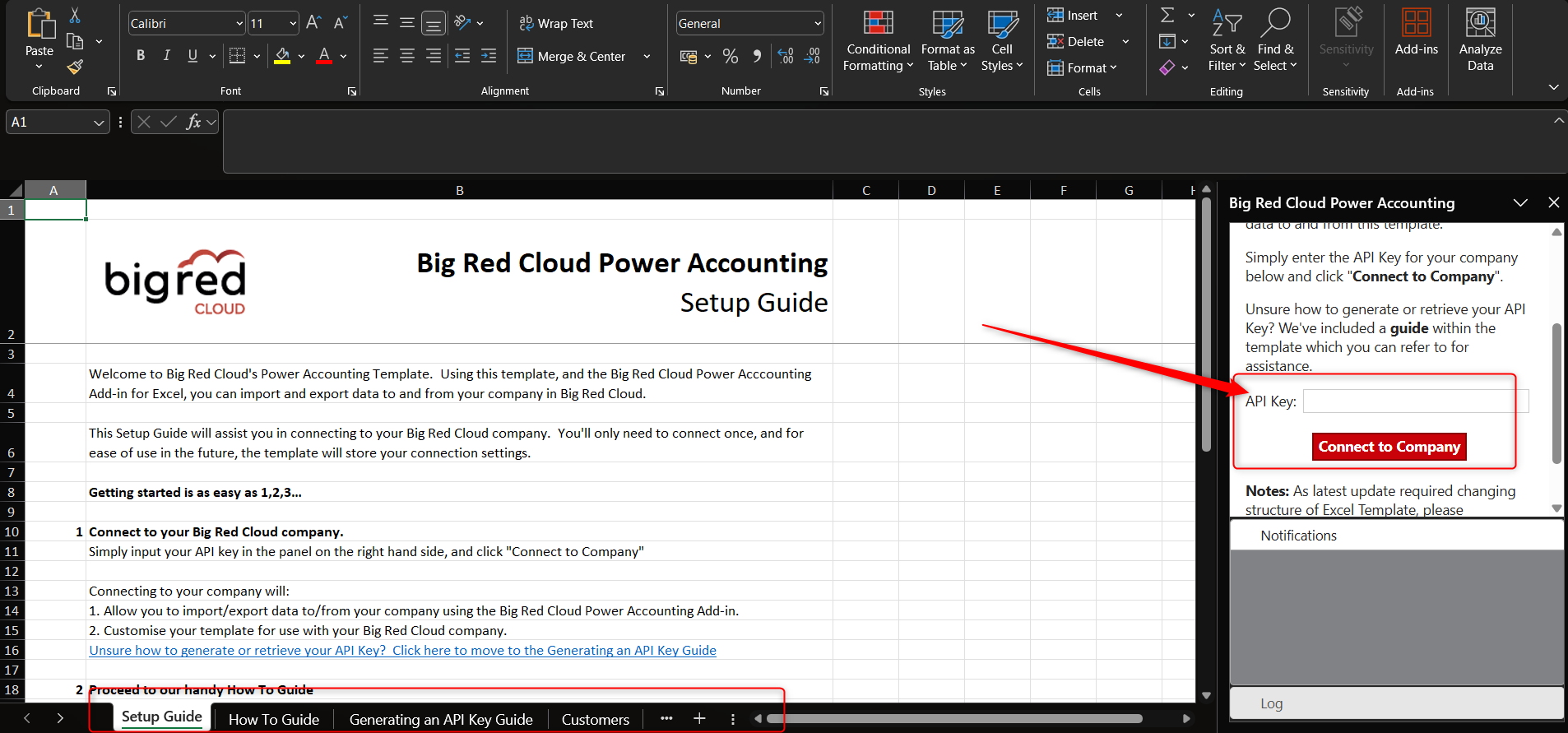
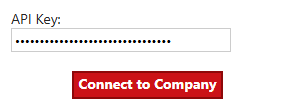
- Once you have entered your API Key, you can select 'Connect to Company'
The Sheets with the template are as below:

- If you then take a look at your different sheets within the template, and if for example we open Customers, we can see it is blank
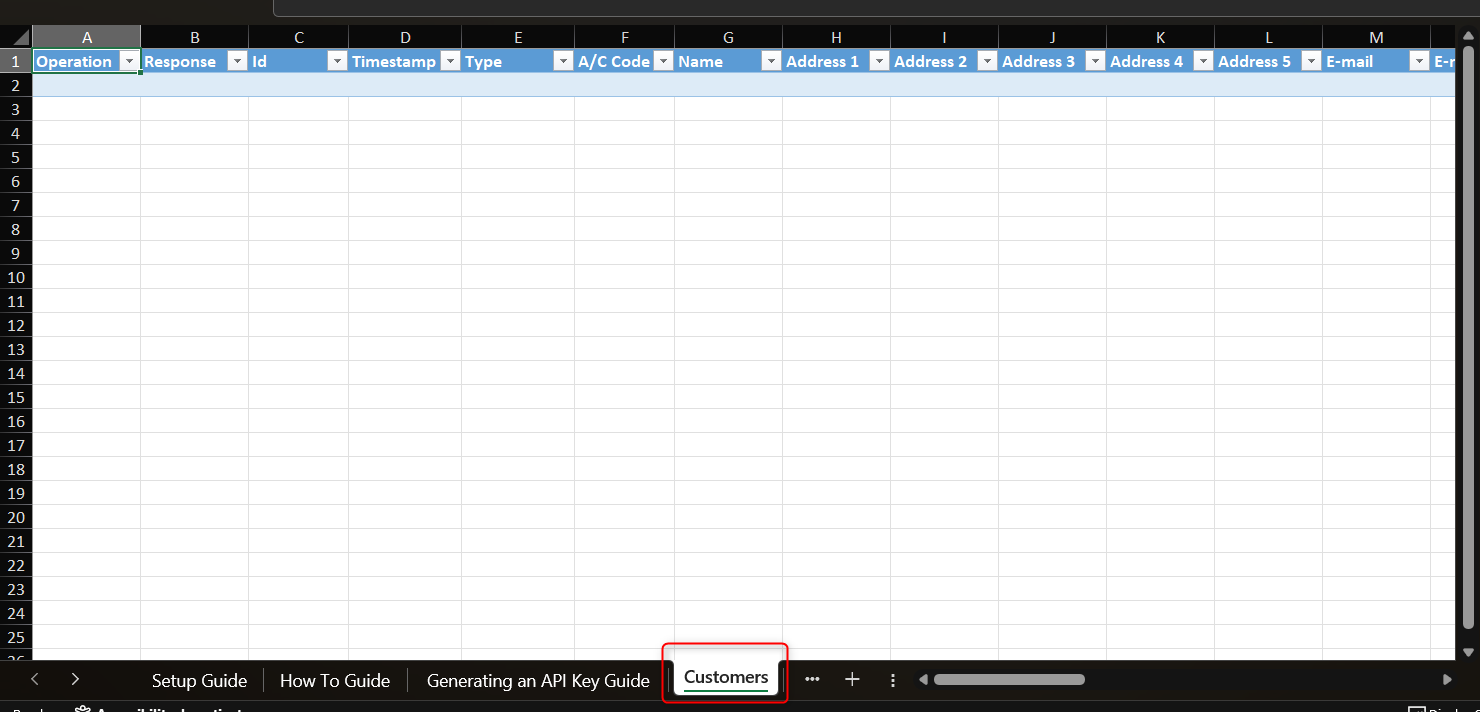
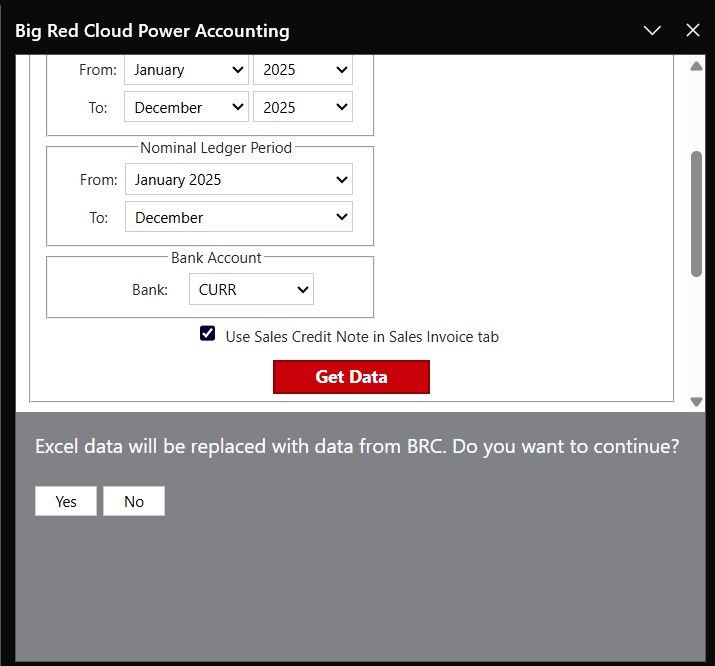
- If we go back to our Big Red Cloud 'Add in' window on the right hand side of your screen when the template is open and we set the date range for the export (or Get Data) as below.
- We then select yes on the confirmation message underneath.
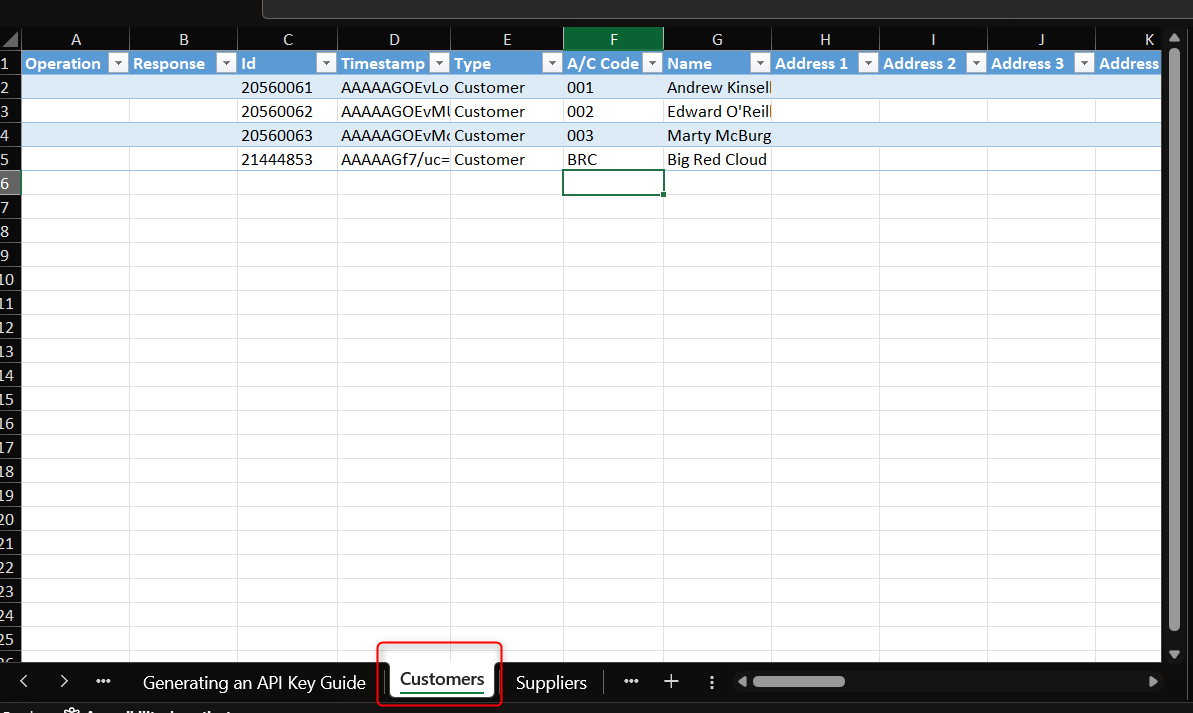
- If we then take a look back at our Customer Sheet we can see the Customers I have in Big Red Cloud are now displayed here.
- Lets say we want to add a new Customer on the template and send it to our Big Red Cloud Company
- Next I would enter:
A/C Code
Name
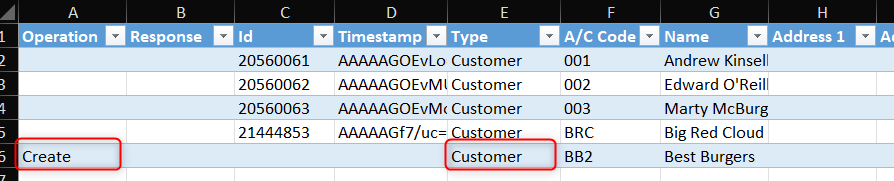
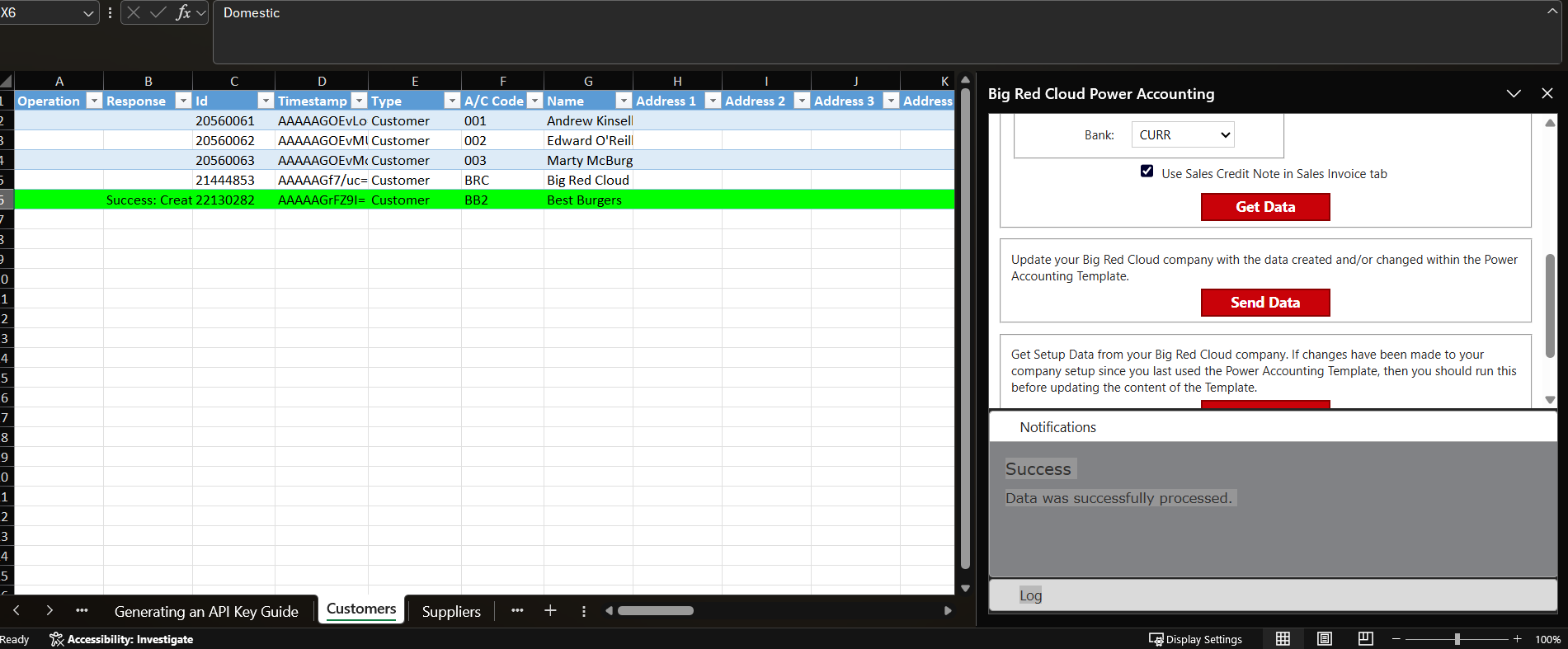
- I then select 'Create' under the Operation Column Header (see bottom left of below image)
- I selected 'Customer' under Type Column Header (see bottom centre of below image)
- I also selected 'Domestic' under the VAT type header (if you scroll to the right of the sheet you'll find this)
See what I entered below for my new customer 'Best Burgers'
- Also remember that the Cell Formatting on Excel should not be changed from its current format.
- I then Selected 'Send Data' and noted the Green confirmation.
Now if I go back to my Big Red Cloud company and check on my Customers, I can see this customer has been added by using the Power Accounting Template.
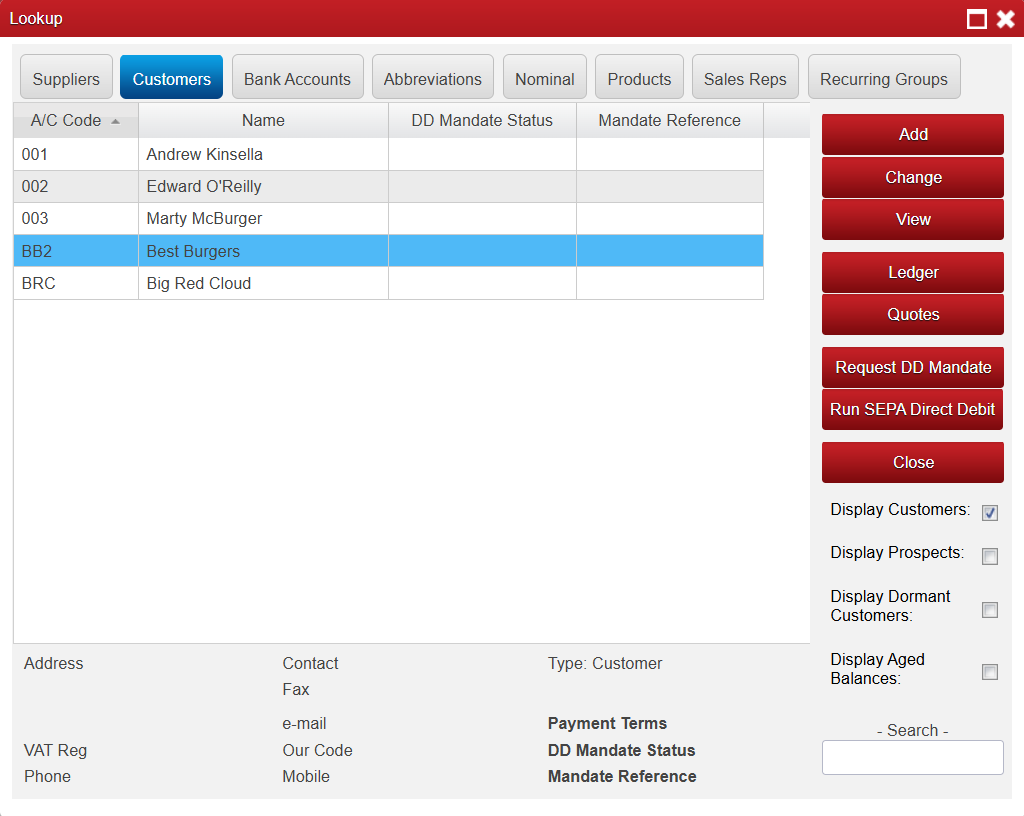
You can now successfully use the Power Accounting Feature to Pull info from Big Red Cloud to the Excel Template and Vice Versa.
You can do this for more than just customers, just take your time and ensure you are following the above steps and also please refer to the below guide which can help explain what you need to enter in each sheet for this to work correctly.
https://bigredcloud.com/support/big-red-cloud-power-accounting-guide/

Was this article helpful?
That’s Great!
Thank you for your feedback
Sorry! We couldn't be helpful
Thank you for your feedback
Feedback sent
We appreciate your effort and will try to fix the article