Open Banking with Big Red Cloud is very straightforward to use and can really help you keep your books up to date with minimal effort. Rather than recording all incoming and outgoing payments individually in the individual books you can pull in a list of all transactions for a specified time and make your way down through the list of transactions and point them to the correct place in Big Red Cloud.
Open Banking is a financial services initiative that allows consumers and businesses to securely share their financial data with authorized third-party providers through standardized and regulated application programming interfaces (APIs).
Getting Started
- Log into your Big Red Cloud company,
- Go to 'Setup' and then down to 'Bank Feeds'
You will be presented with the below screen.
The top half of the screen is for Open Banking while the bottom half is for mapping .CSV files (a lesser used alternative to Open Banking)
- Open Banking: Securely connects directly to your Bank through 'Plaid'
Allows you to pull your bank statements directly into Big Red Cloud..
This is preferred by the vast majority of users as its the easiest method and with least amount of input at user level.
- .CSV Bank Files: This is a file you would request from the bank with a list of transactions for a specified period.
You would then upload the file to Big Red Cloud, and you would map the columns of the .CSV file to the columns required for it on Big Red Cloud.
This requires you to keep getting the file from the bank and ensuring the mapping is correct.
This method would be much less used by Customers.
I'm going to be using Open Banking today in this example so we will ignore the bottom half of the screen.
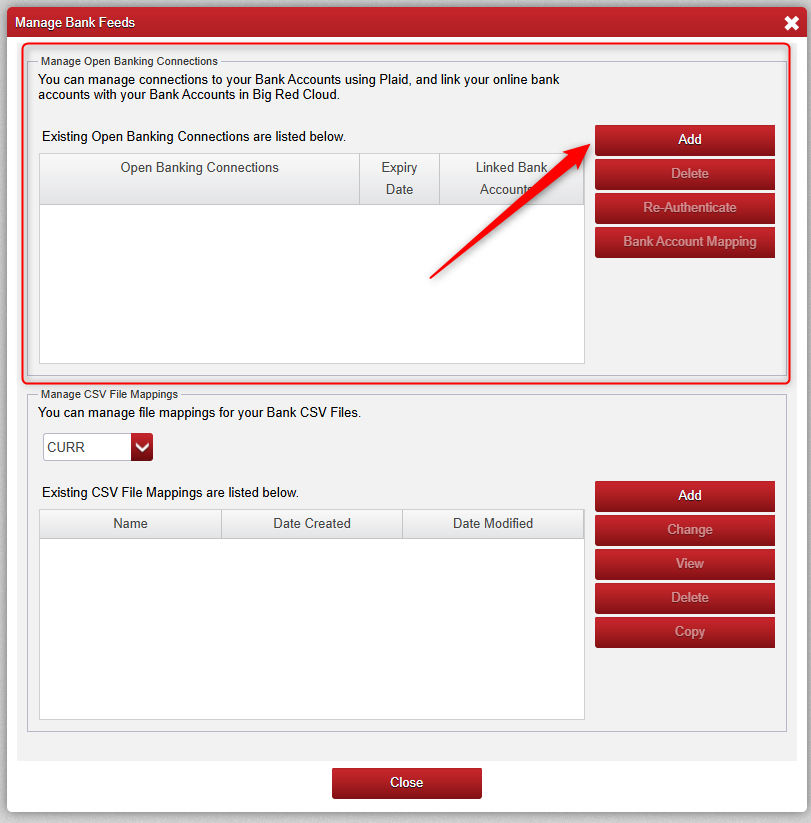
- After Clicking 'Add' above we will be presented with the below screen for Plaid.
Plaid is a service that securely connects users' financial accounts to apps and services, acting as a secure intermediary for financial data.
It allows users to link their banking and other financial accounts to third-party financial applications to facilitate transactions.
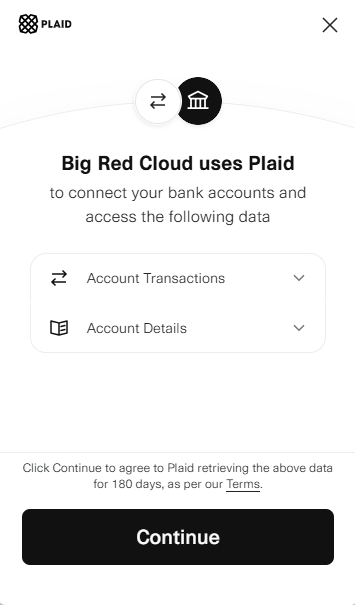
- After we click 'Continue' above we will be presented with the below screen where we can choose our Financial Institution and then log in to your Bank Account.
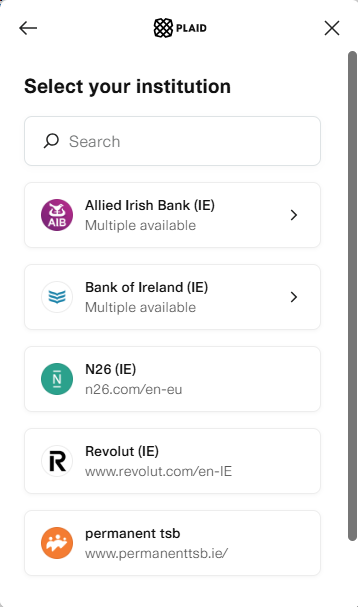
Once signed into your Bank/Financial Institution you should see your bank accounts that are available to be added through Open Banking.
Once you have added the accounts, you are now ready to start using Open Banking.
NOTE: Occasionally Customers wont see any available bank accounts when logging in at first, if this is the case for you, you will need to contact the bank and ask them to make your accounts eligible for Open Banking before completing this step.
Was this article helpful?
That’s Great!
Thank you for your feedback
Sorry! We couldn't be helpful
Thank you for your feedback
Feedback sent
We appreciate your effort and will try to fix the article