Let’s assume in this example that the V8 data is held/stored on Machine A.
Now consider are you looking to move V8 from:
Machine A?
- The machine that the V8 data is hosted on.
- i.e. the host machine, the server, the server machine etc.
- If you only have V8 on one machine, it will also likely be held on the host machine.
Or Machine B?
- Machine B in this example is pointing to Machine A.
- V8 is hosted on/stored on Machine A, and Machine B has a shortcut to the location that V8 is hosted on on Machine A.
- The V8 data is not actually held on Machine B.
If you are unsure whether it’s A or B, how can you check?
- Right click on the V8 shortcut on the machine you are looking to move V8 from, click Properties and see what it reads in Target.
- That should show where the V8 data is located.
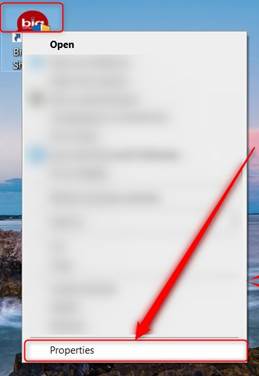
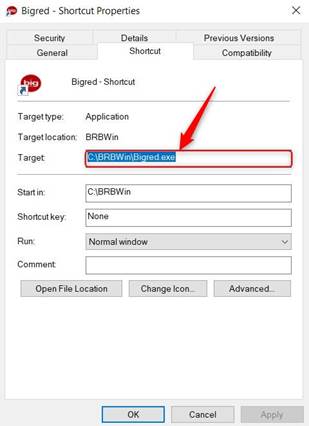
See below for the steps relating to Machine A and the steps relating to Machine B, and follow the relevant one:
Machine A Steps:
- On the old machine copy the relevant folder containing the V8 data. This is usually called BRBWin and it is usually on the C Drive). Paste the folder onto an external location (USB, external Hard Drive etc).
- On the old machine backup each of your companies/company slots to an external location.
- On the new machine download and install V8 (check the location it shows where it will install, and change it if necessary). V8 Install Link: http://www.bigredbook.com/downloads/SetupIR8.exe
- On the new machine rename the newly created folder (created by the install) from BRBWin to BRBWin.Old1
- On the new machine paste the V8 folder (most likely called BRBWin) from your external location to the relevant location (Likely to the C Drive) on the new machine.
- On the new machine create a shortcut onto the desktop of the bigred.exe (application file) from the folder you copied over.
Machine B Steps:
- On the new machine download and install V8 (check the location it shows where it will install, and change it if necessary): V8 Install Link: http://www.bigredbook.com/downloads/SetupIR8.exe
- On the new machine Map a Network Drive to the V8 folder on the host machine (likely called BRBWin) and create a shortcut of the bigred.exe (Application) file contained in that folder, to the desktop of the new machine.
Next Steps after A OR B
- On the new machine, click into the relevant V8 shortcut (you may need to run it as administrator).
- It should ask you to enter your
- User Number
- Access Code,
- enter these and click submit.
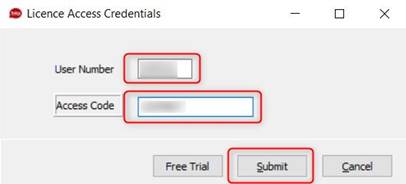
3. Select the relevant license (if there are more than one), click Reassign and follow the onscreen prompts.
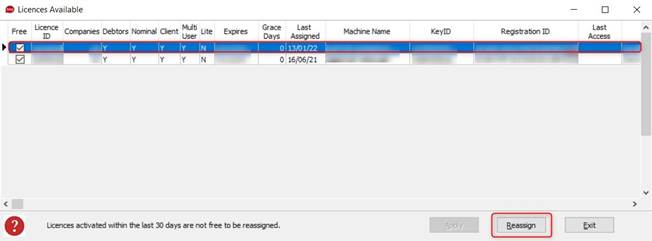
4. It is very important after the move is done, that you verify on the new machine:
- Whether the correct data/companies are showing when you open V8.
- Whether they are up to date (e.g. whether the latest transactions show).
- And whether the Location is correct.
Was this article helpful?
That’s Great!
Thank you for your feedback
Sorry! We couldn't be helpful
Thank you for your feedback
Feedback sent
We appreciate your effort and will try to fix the article