As of April 2026, you no longer have to run a Year End in Big Red Book. Contact our team to migrate to Big Red Cloud, bring all your data over now, and run your Year End in one click.
WARNING: There instructions are for running a Year End Routine in Big Red Book.
Note: In many of the books (as shown below) you will see the months of your financial year along the top of the screen. To the right of them are tabs 13, 14, and 15. These are Months 13, 14 & 15 which are the first 3 Months of the following financial year.
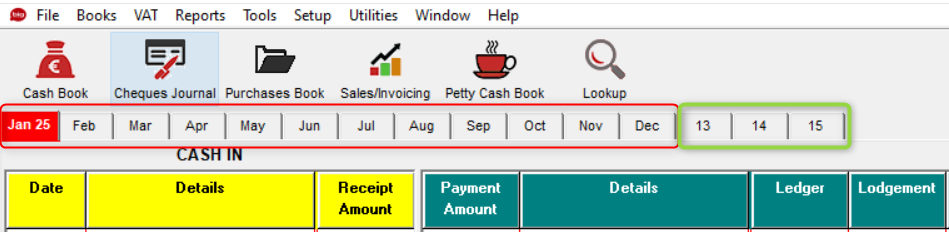
You only need to ensure Months 1 -12 are fully complete, Month's 13,14 & 15 are there to allow you 3 Month's of leeway to finalise Month 12. As soon as Month 12 is complete, you are in theory ready to do the year end (Always confirm with your accountant if you are unsure as to whether you are ready)
For example, if your financial year runs From January 2025 To December 2025, then 13 would be January 2026, 14 would be February 2026, and 15 would be March 2026.
When you run a Year End Routine in Big Red Book:
- All transactions posted to Month 13 will then show in Month 1 of the new year.
- All transactions posted to Month 14 will then show in Month 2 of the new year.
- All transactions posted to Month 15 will then show in Month 3 of the new year.
This allows you to post to the first 3 Months of your next Financial Year before you run your Year End Routine.
Steps for running a Year End Routine in Big Red Book:
The First Step you should take is to run a Backup of your company data and save it in multiple places. If you save it in at least two places (PC and a USB etc.) so if one ever fails you'll always have the other to fall back on. You would do this by:
- Select the company in question so it is highlighted in blue as seen below and then select Backup and choose the location you wish to save it to.
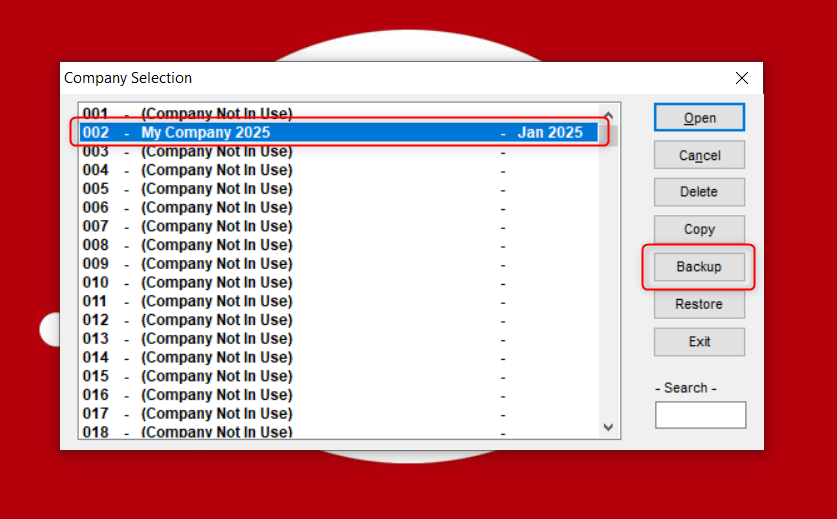
Once you are happy that you have multiple copies of your backup saved, you can then follow the below steps to make a copy of your company and place it in a free slot (please contact our Accounts Department first if you don't have any free slots available):
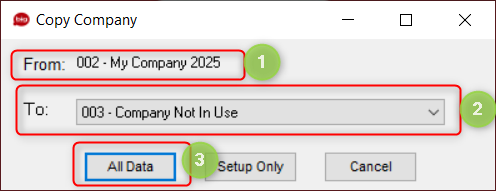
- Select the company in question so it is again highlighted in blue and this time select Copy and then choose which slot you want to save the copy to.

- You will then see a smaller window open up, and this is where you choose which free slot you wish to copy this company data to (I am taking a copy of Slot number 002 and putting it into Slot number 003).
- Ensure you select "All Data".
- Now we can see our Company in Slot number 002 and a Copy of our Company in Slot 003 (as below).
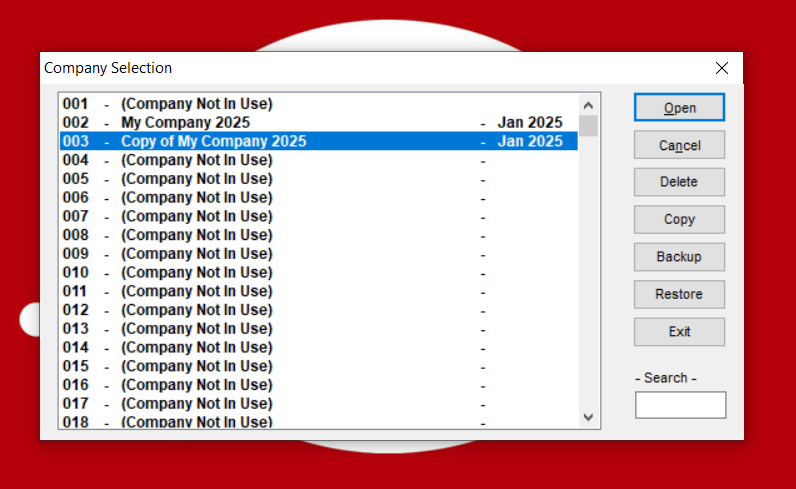
Now we are happy that we have a copy of our current year, we can go back to the original company in slot 002 and run the Year End Routine. This means Slot 2 will be our New Year and Slot 003 will be a Copy of our previous year which we can open and refer back to.
- To start the Year End Procedure, we highlight the Company (not the copy of the company) and open the company so that we see the below screen.

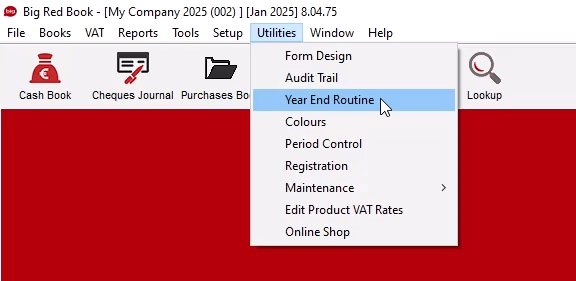
- Then we select "Utilities" from the menu at the very top of the screen, and "Year End Routine" in the drop down menu.
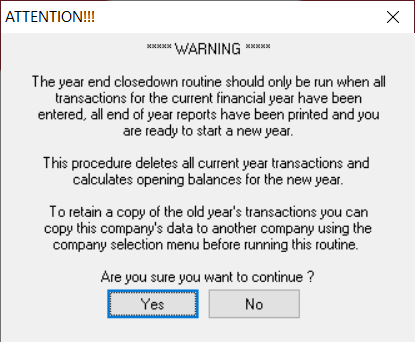
- After selecting "Year End Routine", you will be presented with the below window on your screen. Once you have read and accept the warning, you can click Yes to open the next window.
- Again, once you have read and accept the warning, type YES into the box to confirm and then select continue.
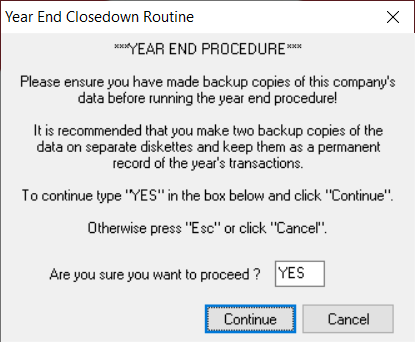
- After typing YES and clicking continue above, your Year End Procedure will officially start running.
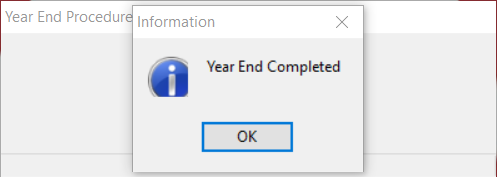
- Once it has successfully completed you will be presented with the below message.
PLEASE NOTE: Depending on the amount of data you have within your company, it may take some time to run. its usually within a couple of minutes but in some circumstances it could take up to an hour. Please DO NOT use your computer in the meantime while this is running as it may interfere with the process. If there is any issues preventing this from running please don't hesitate to reach out to us.
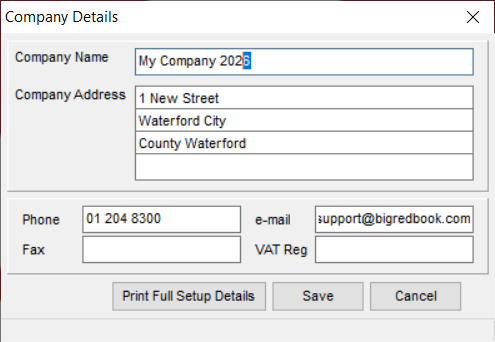
- If your company had the Year in the name (for example mine is called 'My Company 2025') then after running the Year End you can go to Setup > Company Details > General and rename it to 2026 etc.)
Was this article helpful?
That’s Great!
Thank you for your feedback
Sorry! We couldn't be helpful
Thank you for your feedback
Feedback sent
We appreciate your effort and will try to fix the article