Quotes can be used to securely store additional customer information that doesn't belong on invoices, such as:
- Next of kin details
- Emergency contact information
- Delivery notes
- Special customer instructions
- Any other account-specific notes
Because these quotes are never converted into invoices, they provide a convenient way to keep important customer information attached to an account.
Important: Creating a quote does not affect customer accounts or invoices unless an invoice is generated from that quote. To prevent this from happening accidentally, always close the quote once you have finished entering the information
Creating an Information Quote
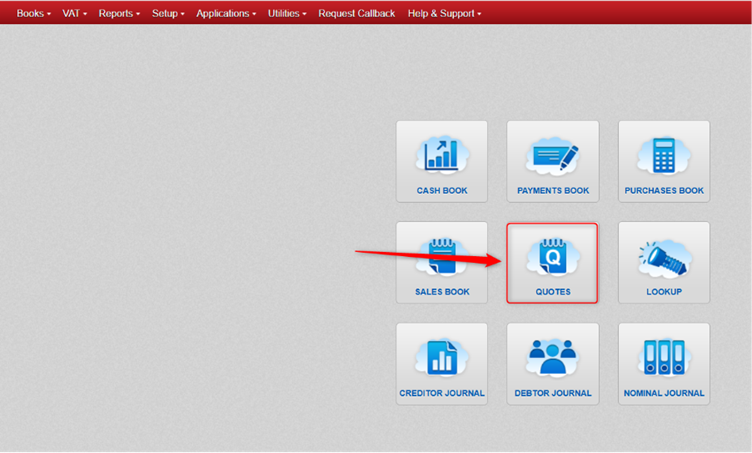
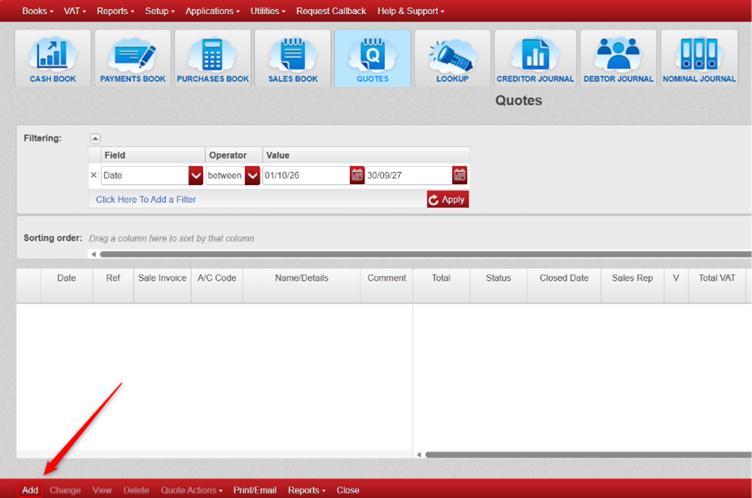
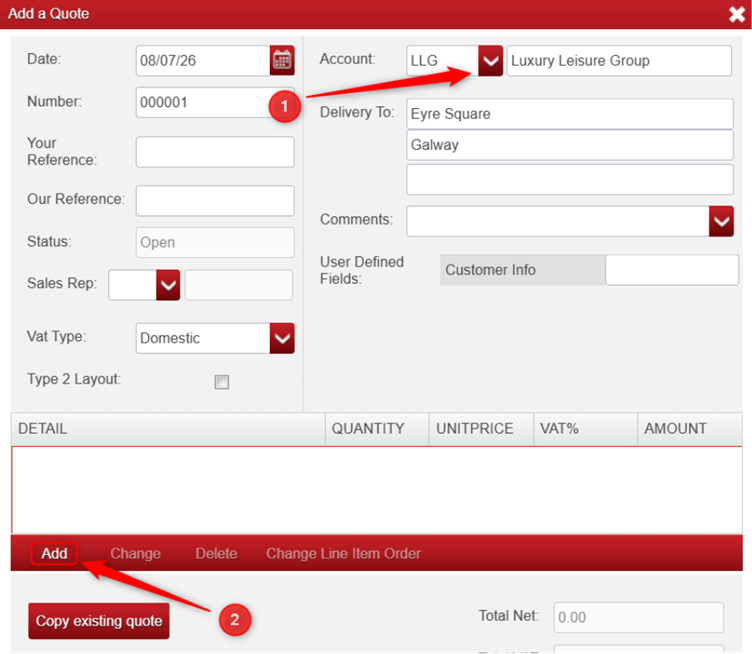
Select the customer account you want to store information against
Note: Only the customer account is important. The remaining fields (such as Date, Number and Reference) are optional. For easier identification, you may wish to:
- Use a quote number such as INFO1, INFO2, etc.
- Use the same date for all information quotes.
- Add a reference that clearly identifies the quote as customer information.
Then, in the Detail section, click Add
Enter the information you wish to store into the Details field. Leave the other fields such as product, quantity, unit price, VAT Rate, and analysis categories untouched/empty.
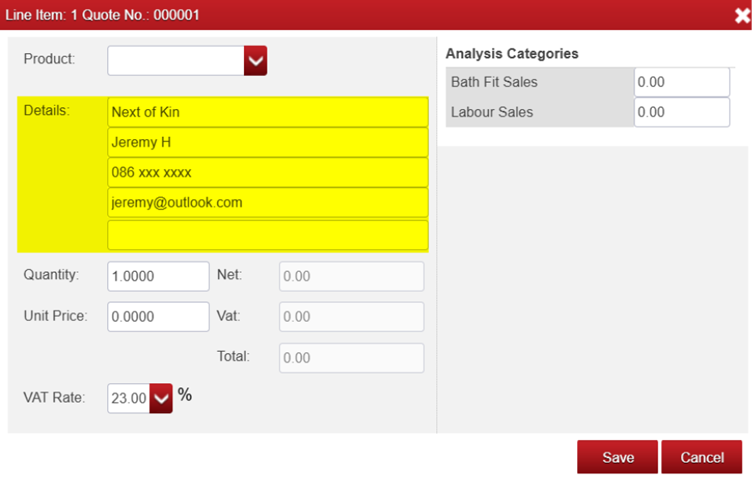
You can add as many detail lines as required. Using separate lines for different categories makes the information easier to read and update later.
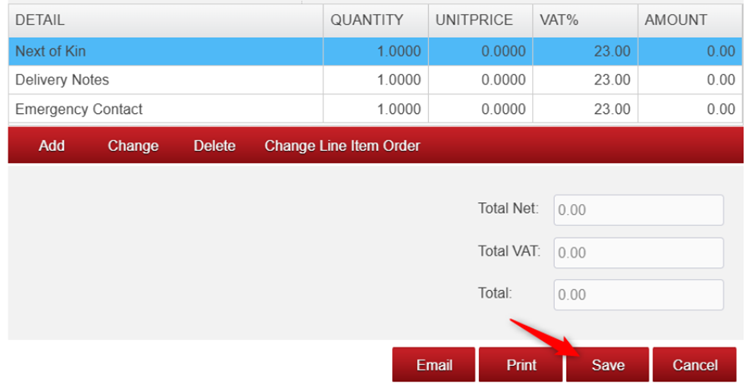
When finished, click Save.
After saving the Quote, select the Quote > Click Quote Actions > Choose Close Quote.
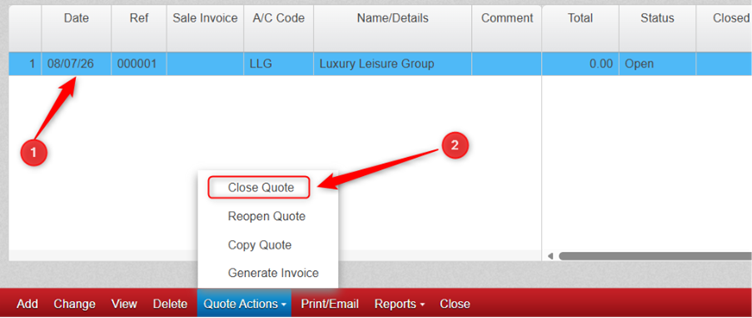
Closing the quote helps ensure it cannot accidentally be converted into an invoice.
Making Information Quotes Easy to Find
If you regularly use information quotes, creating a User Defined Field allows you to quickly identify and filter them.
To Create a User Defined Field
Navigate to Setup > Analysis Categories > Sales Book > User Defined Field
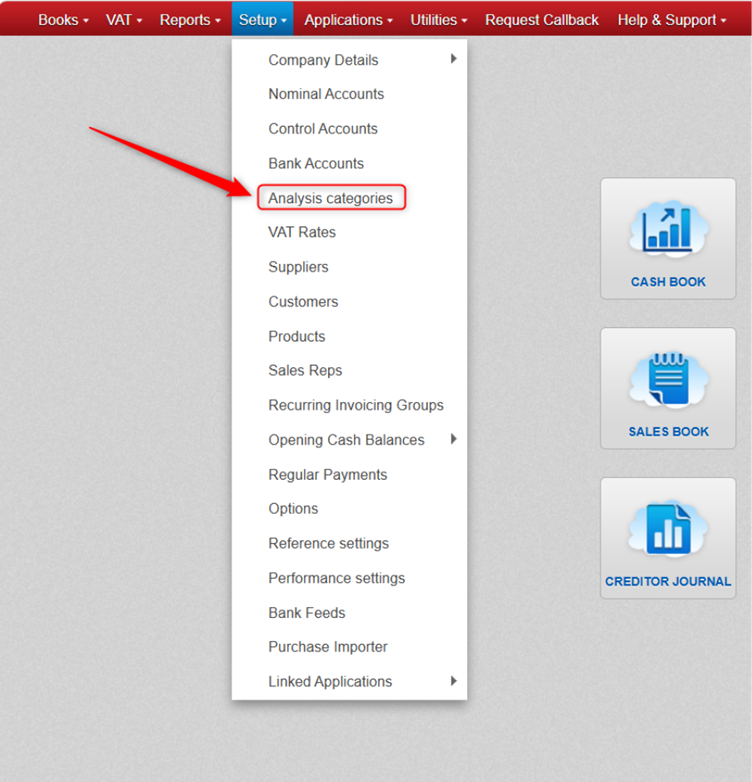
Create a field with a name such as Customer Information and Save your changes
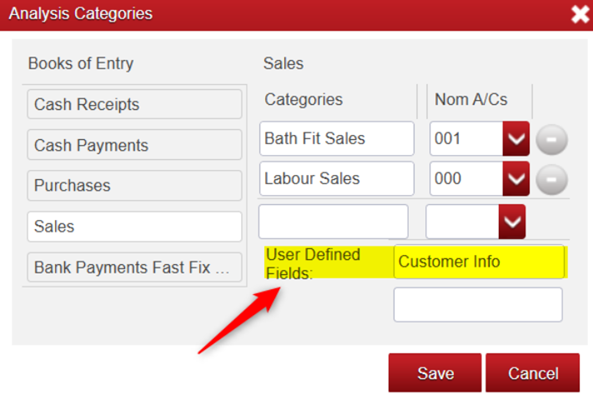
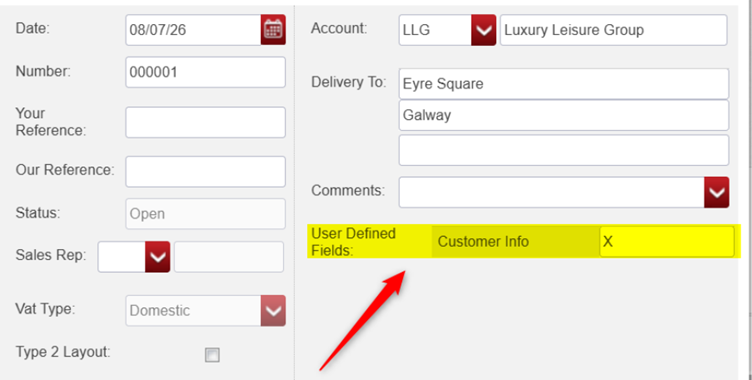
When creating an information quote, locate the new User Defined Field under the account information section.
Enter a simple marker, for example: X or INFO
Remember: Using the same value consistently will make filtering much easier.
Filter Information Quotes
To display only your information quotes, click add filter
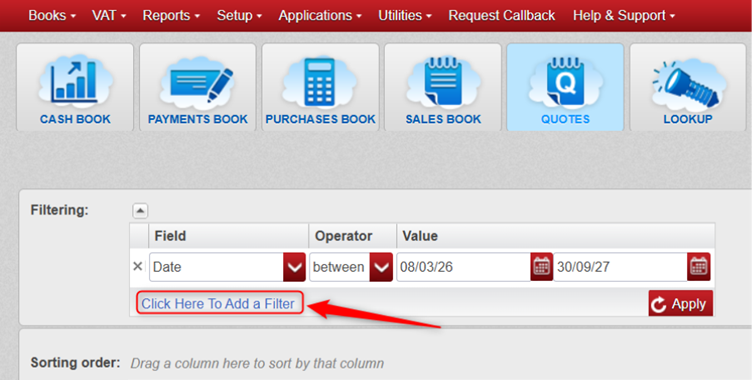
Field: Select the User Defined Field you created (for example, Customer Information).
For Operator: =
For Value: X (or a marker of your choosing)
And then click apply
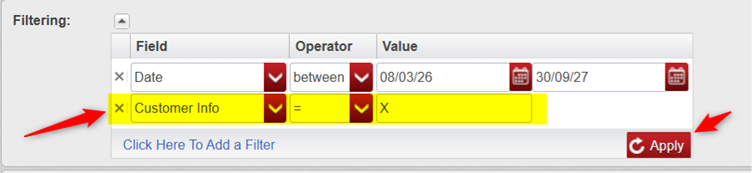
The Quotes Book will now display only your customer information quotes. If the info quotes aren’t showing up, ensure the date range is correct.
Lastly, to save the filter view for future use
In the Quotes Book, click Reports > Save Book View.
Give the view a name, for example: Customer Information Quotes
Save the view
Whenever you need to view these quotes again, simply click Reports > Load Book View > Choose Customer Information Quotes.
Was this article helpful?
That’s Great!
Thank you for your feedback
Sorry! We couldn't be helpful
Thank you for your feedback
Feedback sent
We appreciate your effort and will try to fix the article