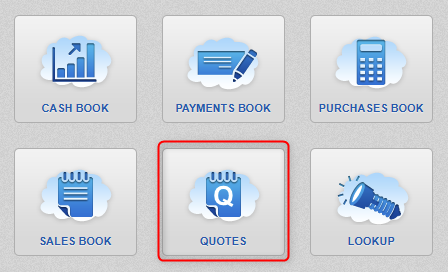
Creating Quotes on Big Red Cloud are very similar to creating Sales Invoices, you would just use the Quotes Book instead of the Sales Book.
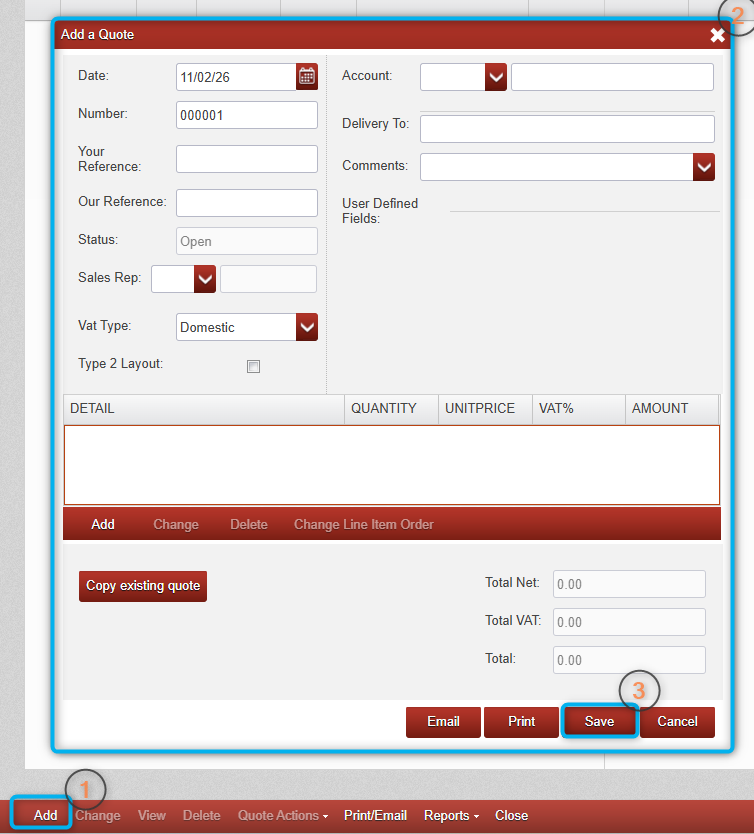
1. After opening the quotes book for the first time, you would click "add" at the bottom left of the screen in a similar manner as you would when creating a sales invoice in the sales book.
2. You would then fill out the neccessary details, such as the date, account name and the items you are quoting for.
3. When happy with the information entered you would click save to save the quote.
Once saved you will see your quote listed in the quotes book, if you select the quote so that it is highlighted in blue, you can then choose to print/email it by selecting this option at the bottom.
Once the Customer accepts the quote, you would select "Quote Actions" at the bottom of the screen and then "Generate Invoice" which will then transfer this quote into a sales invoice and place it in the Sales Book for you automatically.


Was this article helpful?
That’s Great!
Thank you for your feedback
Sorry! We couldn't be helpful
Thank you for your feedback
Feedback sent
We appreciate your effort and will try to fix the article