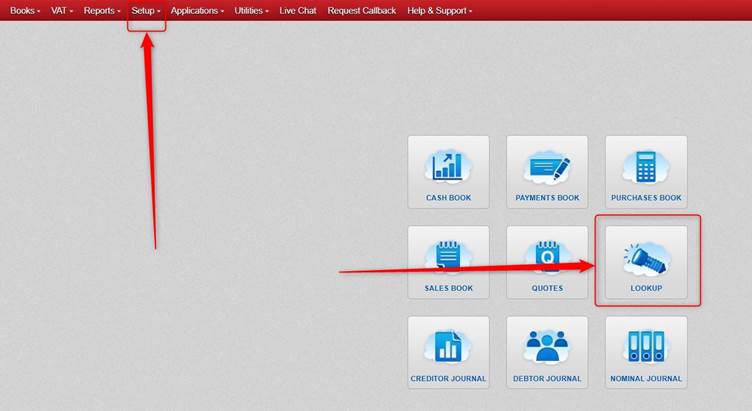
Click Lookup OR Setup.
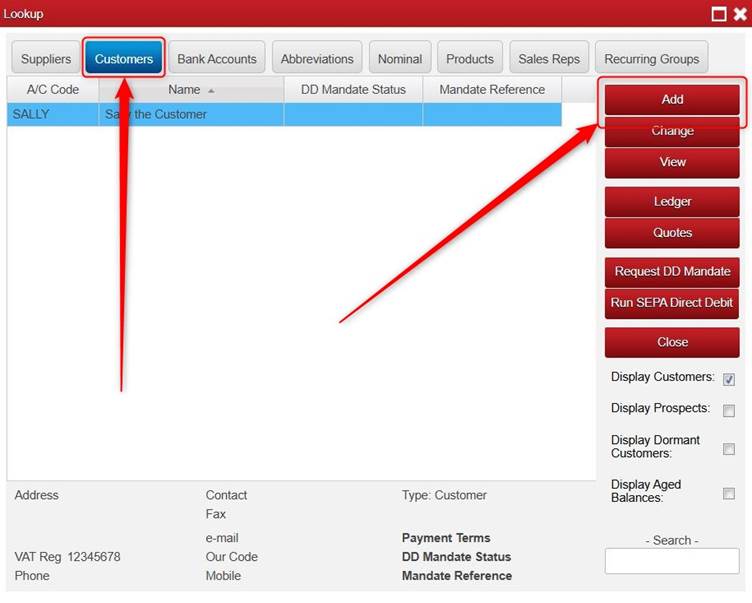
Click Customers > click Add.
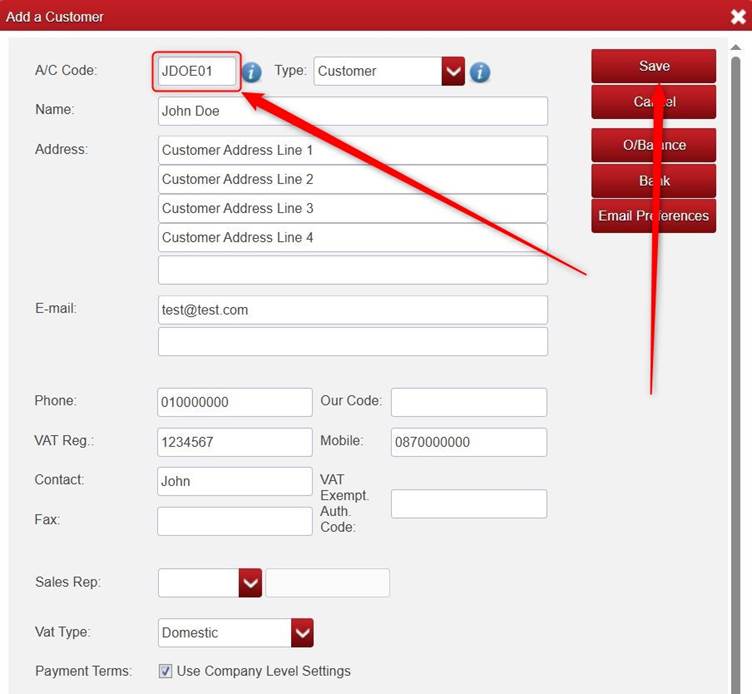
Fill in the relevant Details.
- Please note the A/C Code box is mandatory.
- You can set both a Customer Address (seen under name), and a Delivery Address (seen further down) if the addresses are different.
- You can select the relevant VAT Type (e.g. Domestic, Other E.U. etc) for that customer, and it will default to that VAT Type for transactions for that customer.
You also have options on the right to:
- Add an opening balance O/Balance.
- Add Bank details for the customer (BIC/IBAN etc.)
- Set Email Preferences on the customer, e.g. to set it so that when emailing Sales Invoices, they go to one particular email address of the customer, and when emailing Statements they go to two particular email addresses of the customer.
- WARNING: If you are doing these (adding an Opening Balance, Adding Bank Details, setting Email Preferences) please ensure that once you save them, that you also click Save on the Add a Customer screen).
Once you are happy with the settings you have added for the Customer, click Save.

Was this article helpful?
That’s Great!
Thank you for your feedback
Sorry! We couldn't be helpful
Thank you for your feedback
Feedback sent
We appreciate your effort and will try to fix the article