The Sales Book is where you record all your Sales Invoices to your Customers.
Its important to ensure you are always in the correct book and the correct month.
This can help save you from having to delete and re-enter transactions in the correct month.
Example Recording a Customer Sales Invoice we have received on Big Red Cloud.
Lets say we have sold goods on the 1st January to our Customer 'Marty McBurger' valued at €300 where the VAT was at 23%.
Follow the steps outlined below to see how this would be recorded
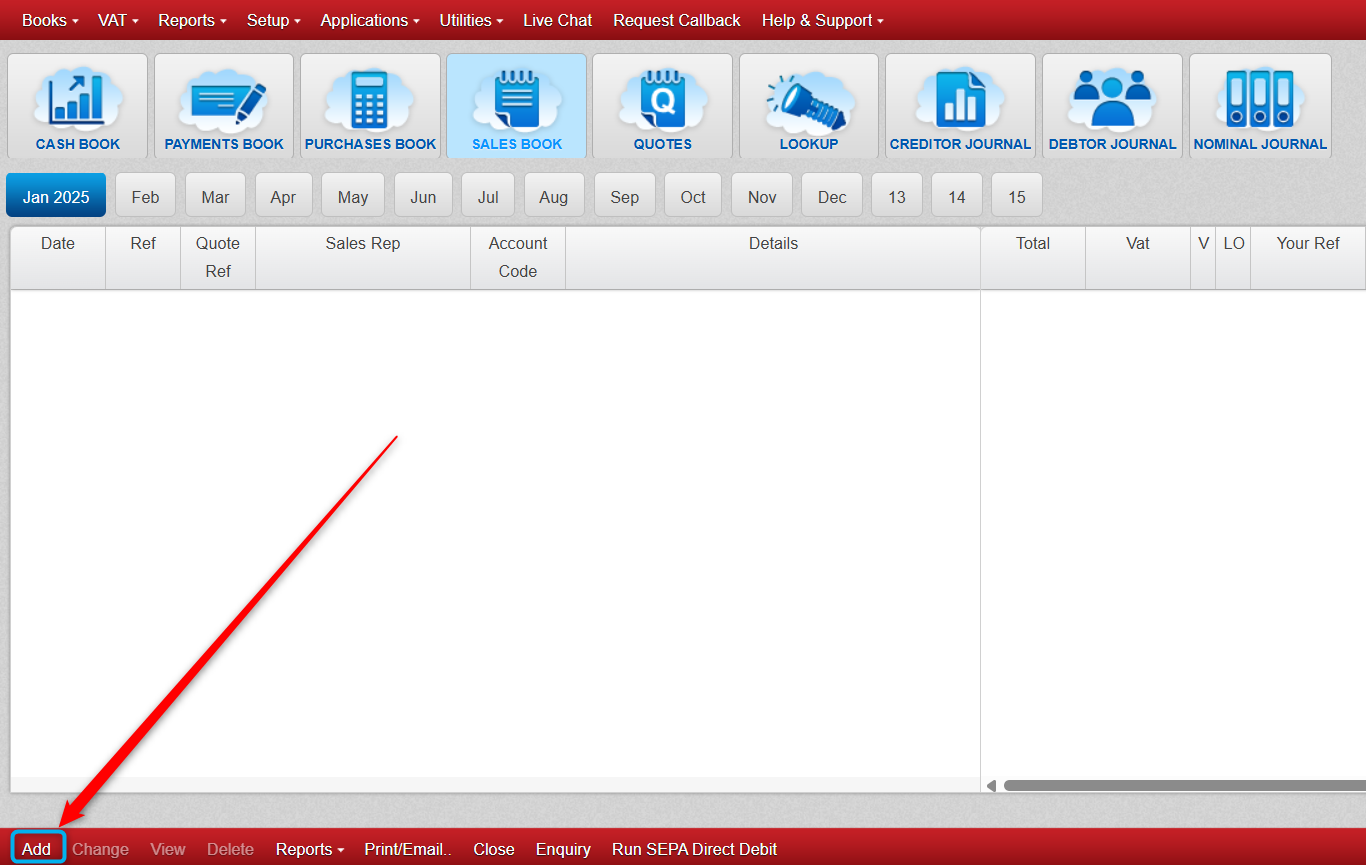
- When happy you are in the correct month tab, click 'Add' at the bottom left of the screen (highlighted below).
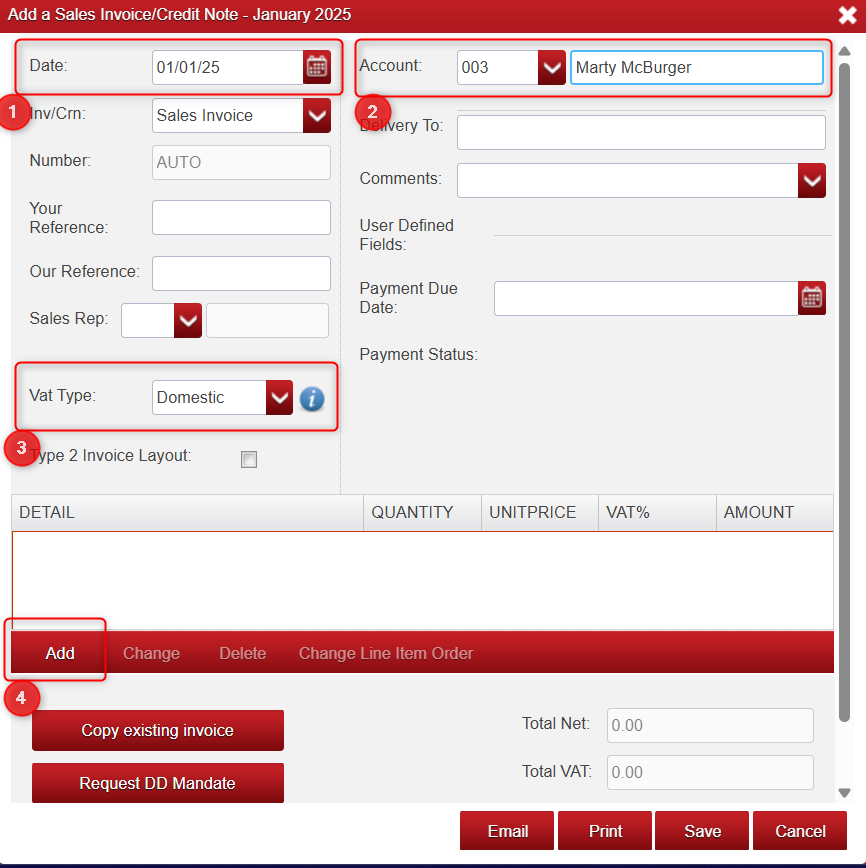
- You will then be presented with the below screen, fill in the highlighted details as seen.
- The Date (1), Account (2) and Vat type (3) are required (the rest of the surrounding fields are optional)
- Next we add the product we sold by Clicking 'Add' (4)
- After Clicking 'Add' at Step (4) above we will see the below screen.
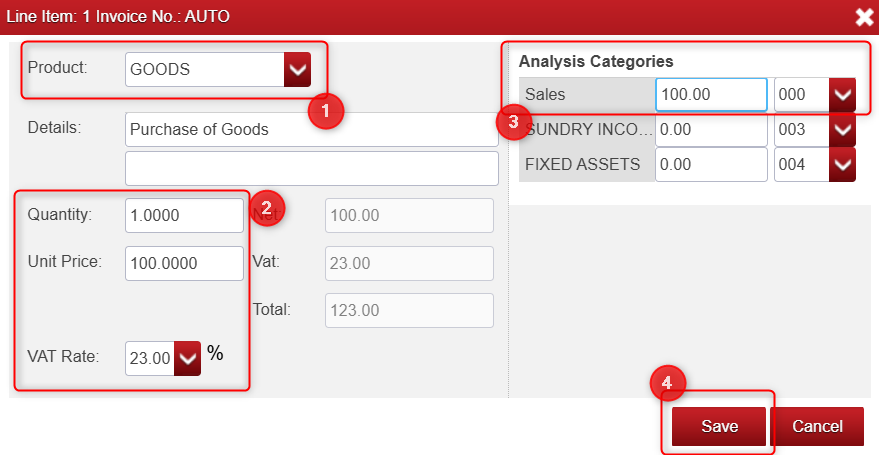
- Step (1) Above : Select your product (if already created, if not you can add a new product here now)
- Step (2) Above : Add your Quantity, Unit Price & Vat Rate.
- Step (3) Above : Double Click into the relevant Analysis Category.
- Step (4) Above : Click 'Save'
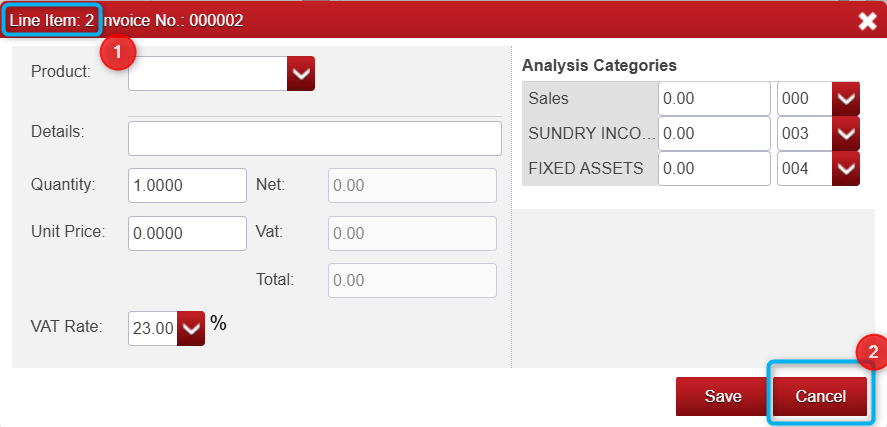
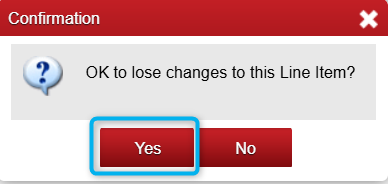
- After Clicking 'Save', it will automatically open a second product line item to fill out, if you are only adding the one product You can select 'Cancel' here then confirm 'Yes' and then save as shown in the 3 screenshots below.
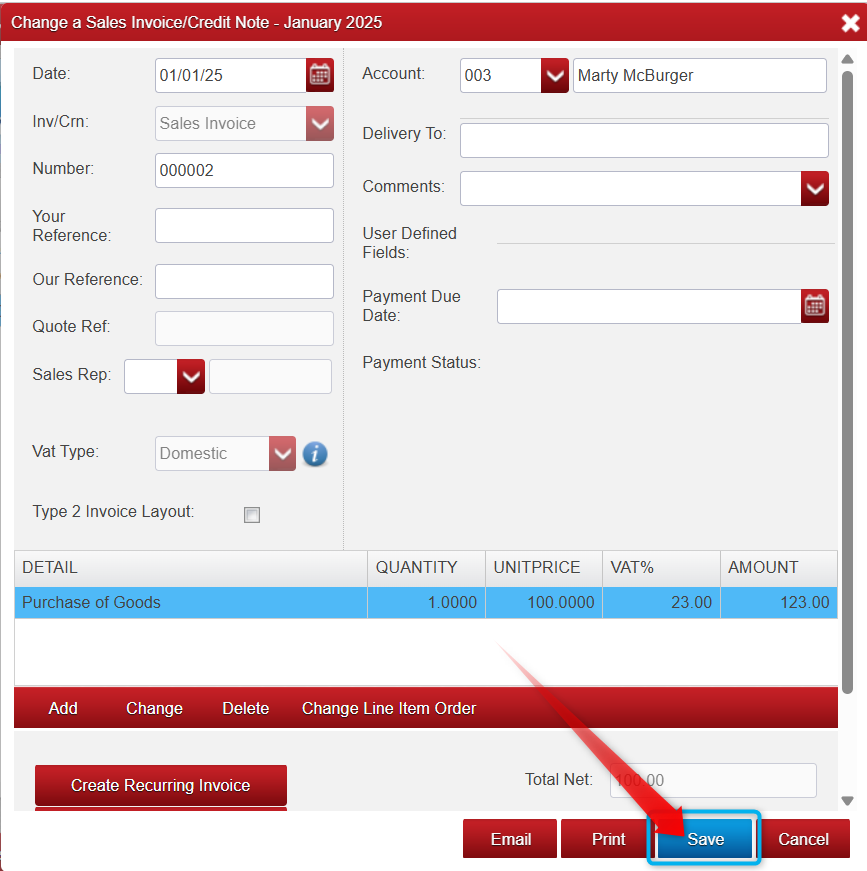
- You have now successfully created an Invoice to your Customer.
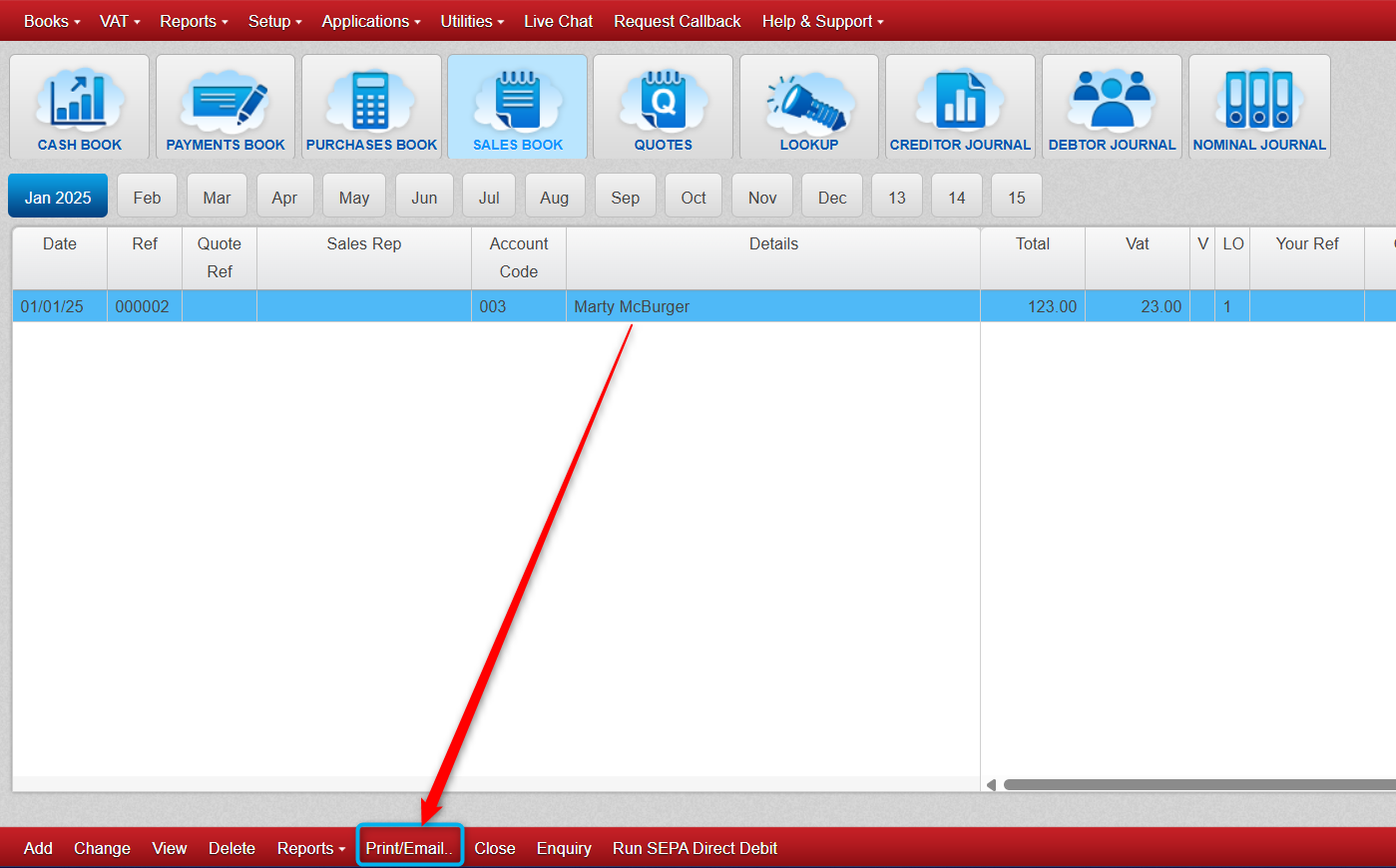
- Below is how our Sales Book looks after adding this Sales Invoice
- You can now Print or Email the Invoice directly to your Customer (once you have your email set up, if not please see Email Setup Notes).

Was this article helpful?
That’s Great!
Thank you for your feedback
Sorry! We couldn't be helpful
Thank you for your feedback
Feedback sent
We appreciate your effort and will try to fix the article