The Purchase Book is where you record your purchases in Big Red Cloud.
Its important for us to record these purchases so we can easily keep track of what we owe to our Suppliers.
NOTE: All new customers now also have free access to the Purchase Importer which is an option found on the bottom red bar when inside the Purchases Book.
The Purchase Importer allows you to automatically upload Purchases Invoices to the system and uses AI to populate the data from the invoice into Big Red Cloud. This is a game changer and has great time saving potential for Customers so we strongly encourage users to start using this feature. Please see our notes or webinars on the Purchase Importer for more details.
------------------------------------------------------------------------------------------
- When opening the Purchases Book, first ensure that you are in the correct month tab.
Its important to ensure you are always in the correct book and the correct month.
This can help save you from having to delete and re-enter transactions into the correct month.
Example: Recording a Supplier invoice we have received on Big Red Cloud.
Lets say we have received an invoice from our Supplier named 'Sally the Supplier' for €250 worth of goods at 23% VAT on the 1st of January 2025.
Follow the steps outlined below to see how this would be recorded
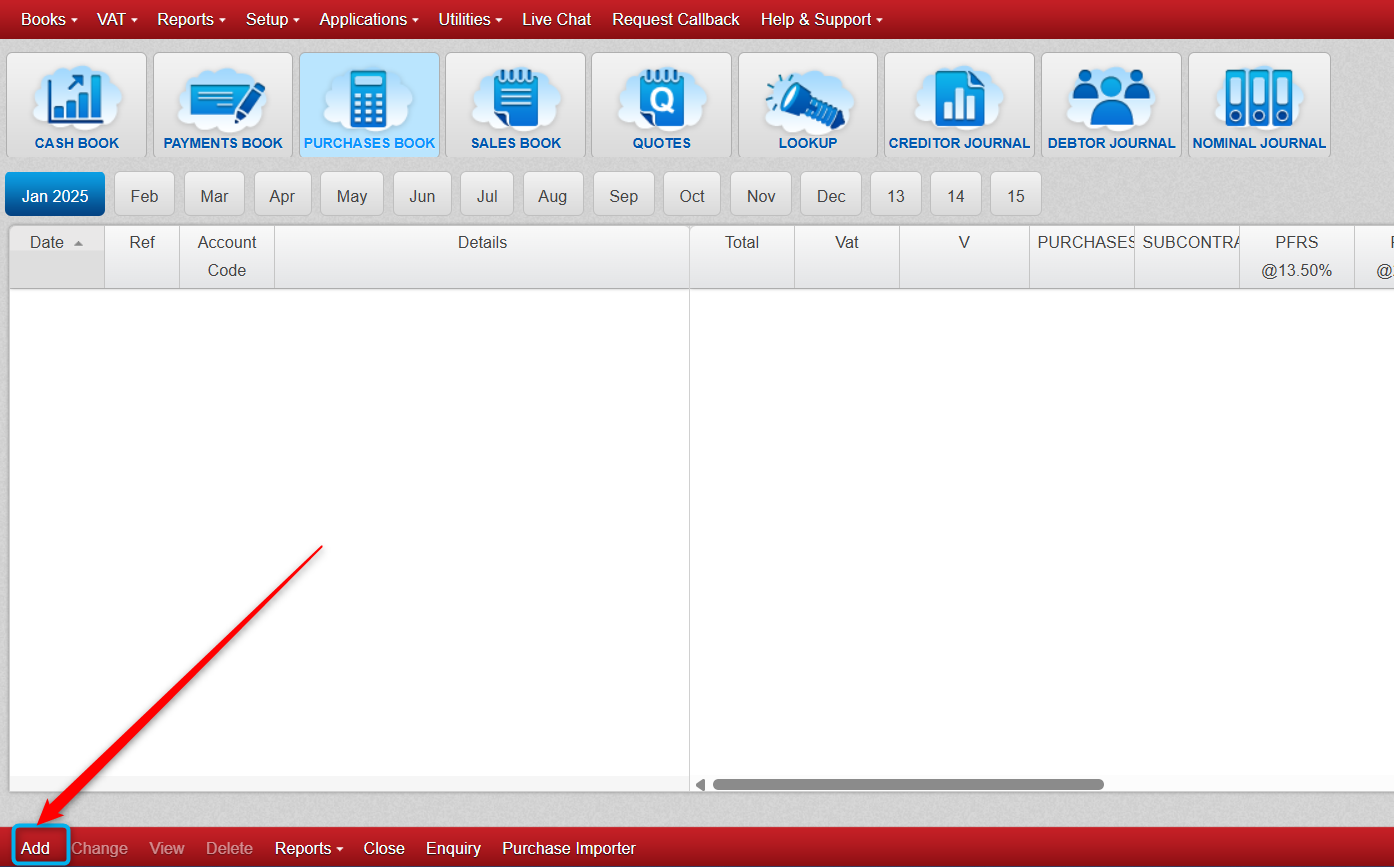
- When happy you are in the correct month tab, click 'Add' at the bottom left of the screen (highlighted below).
- You will then be presented with the below window, fill in the details as highlighted below.
Note: When you double click into the VAT % field at the bottom left, this will automatically populate your total VAT field with the correct VAT figure based on your chosen rate.
The 'Total' field is the only one where you need to manually type in a numerical figure. After this the remaining boxes can be double clicked into to populate them automatically.
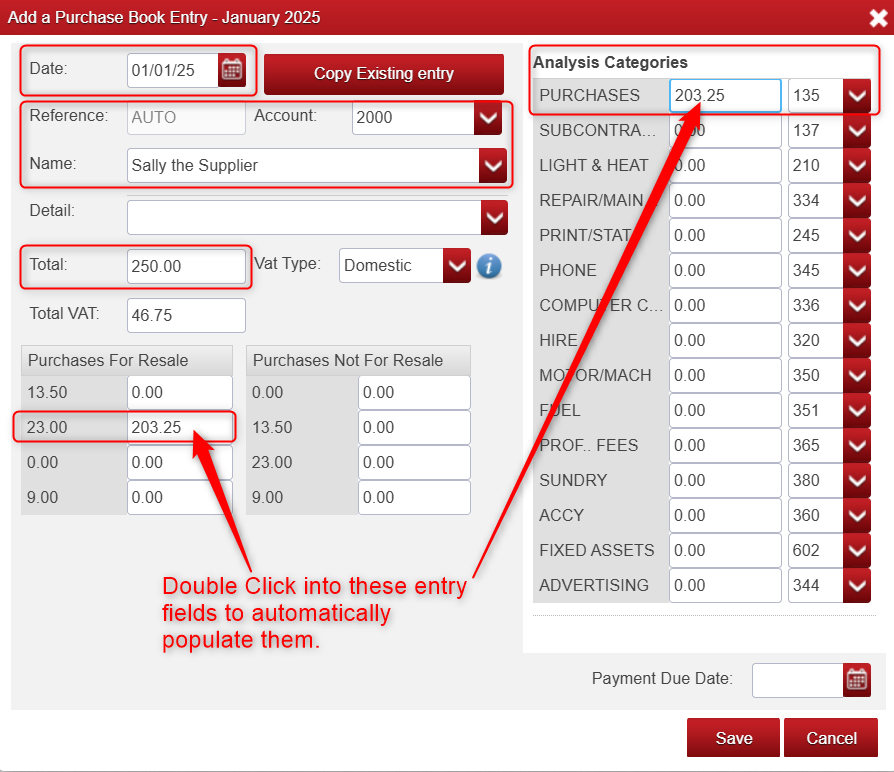
- If you then Click 'Save' on the above screen after entering all the required fields, this will create the Invoice for you.
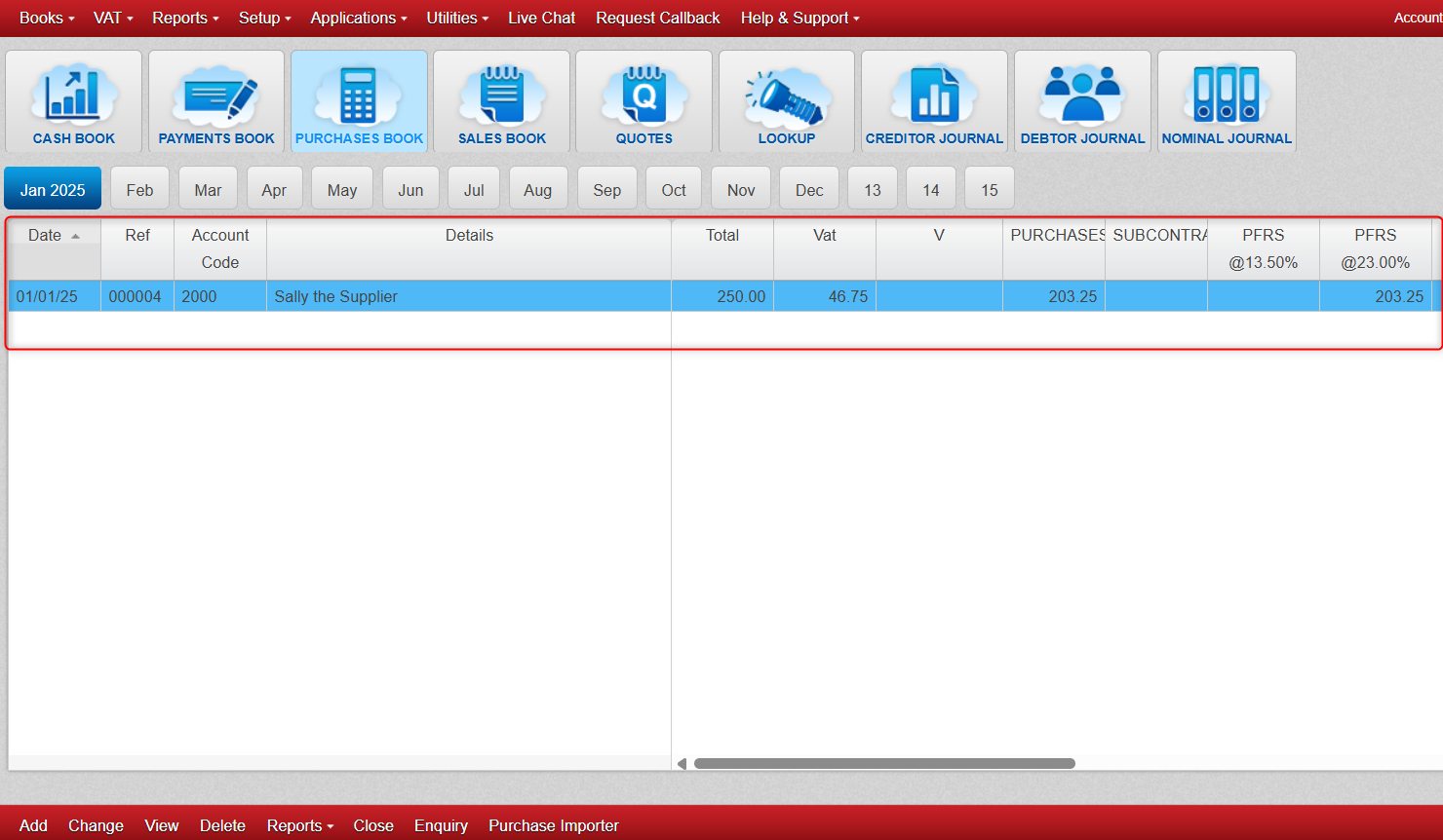
Below is how the Purchases Book looks after we have created this Purchase Invoice.
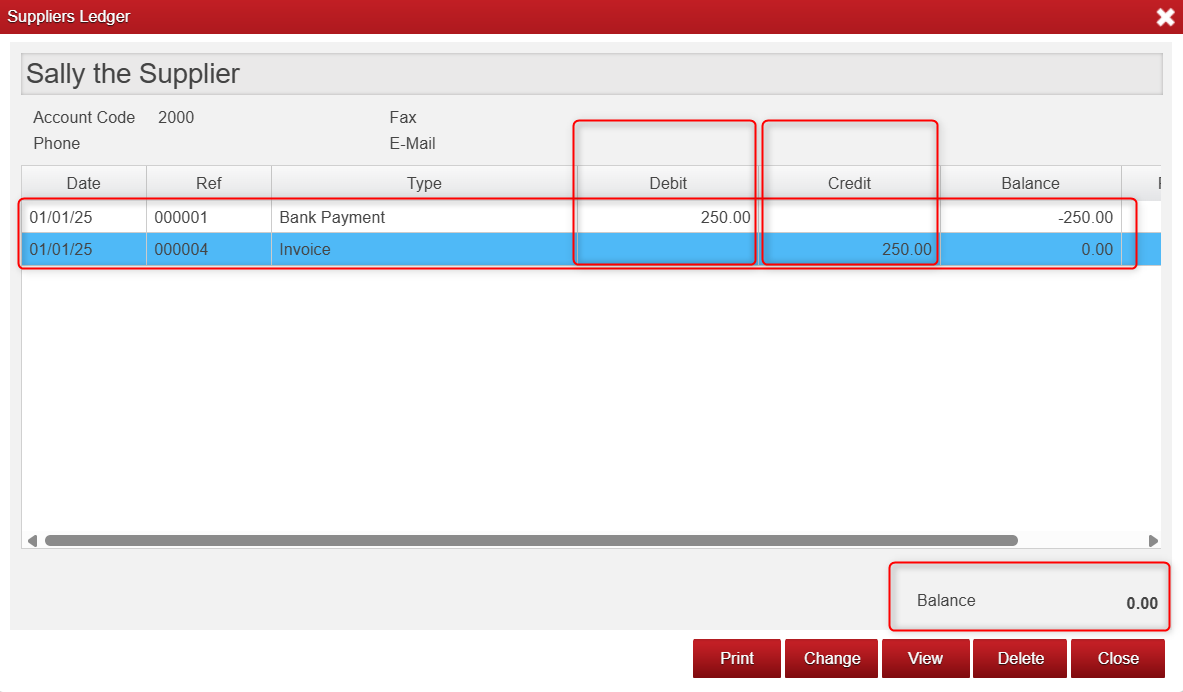
- If we go to 'Lookup' > 'Suppliers' > Find the Supplier in question ('Sally The Supplier' in this case) and click 'Ledger' you will see all the transactions related to that Supplier. We should see all Invoices from that Supplier along with all payments historically made to that Supplier.
- After creating this Purchase Invoice, I went to the Payments Book (see 'Payment Book Explained' Notes) to pay off this Invoice (On the same date 01/01/25) and so at the end the Balance owed to this Supplier was 0 as seen below.

Was this article helpful?
That’s Great!
Thank you for your feedback
Sorry! We couldn't be helpful
Thank you for your feedback
Feedback sent
We appreciate your effort and will try to fix the article