Important: Before you go through the below steps, we recommend that with your AI provider that you use a business account so that the AI provider does not train its models on your data — and we recommend you also turn off any general "improve the assistant" setting and turn off any setting in your AI provider that allows chat data to be used to improve/train the assistant.
Steps for setting up Red in Claude Desktop
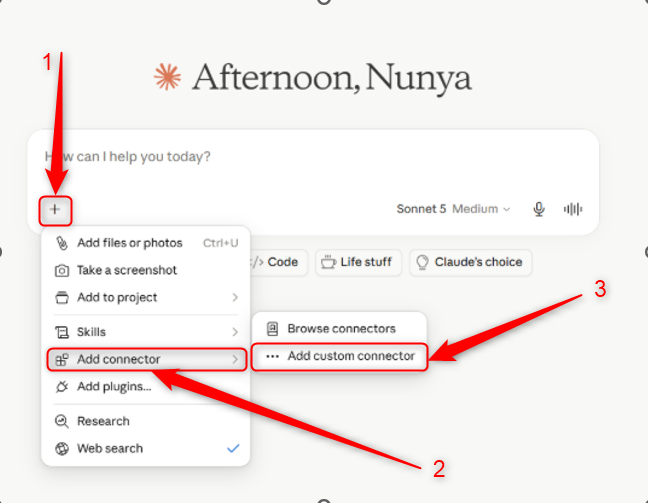
Go into Claude (the desktop or browser version) and press the + symbol next to the chat.
Click ‘Add connector’ and then click ‘Add custom connector’.
It will ask you for a name and URL, call the connector ‘red’ and paste in this URL: https://red.bigredcloud.com/mcp
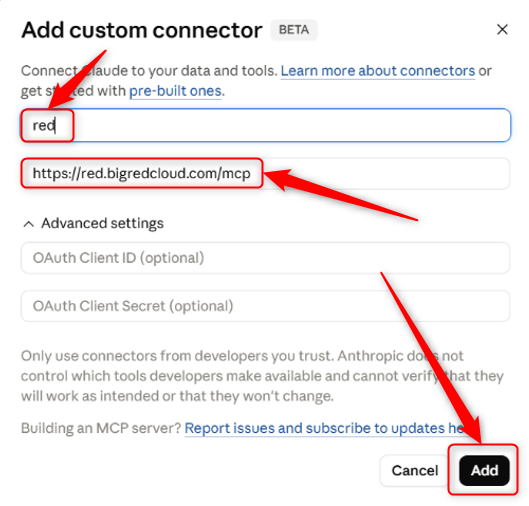
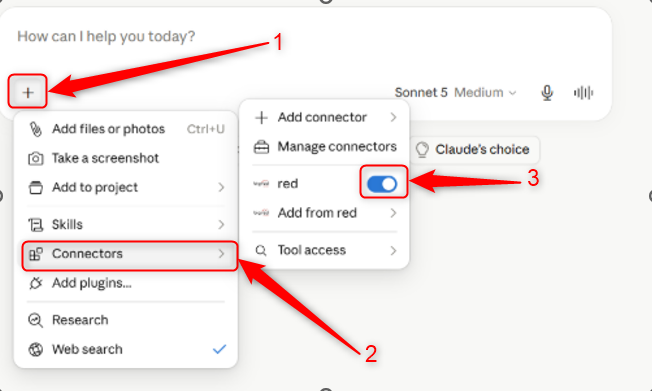
Click ‘Add’ and in the + dropdown > Connectors you should see ‘red’ listed as a connector, make sure its toggled on.
Was this article helpful?
That’s Great!
Thank you for your feedback
Sorry! We couldn't be helpful
Thank you for your feedback
Feedback sent
We appreciate your effort and will try to fix the article