Second-hand goods / Margin Scheme guidance — Sales Book entries only
1. Overview
Margin VAT is a VAT calculation method used where VAT is due only on the profit margin of a sale, rather than on the full selling price. It is most commonly used by businesses such as second-hand car dealers, where the item was purchased VAT-exempt (for example, bought from a private individual) and VAT is only chargeable on the difference between the purchase price and the selling price.
In Big Red Cloud, Margin VAT is available only as a calculator. It works out the VAT due on the margin for you, but it does not automatically apply margin treatment to a transaction — the resulting net and VAT figures must still be entered into a Sales Book entry manually.
Note The Margin VAT Scheme option in Big Red Cloud is a calculator only. It does not change how a transaction posts, and it is not available when creating a Sales Invoice. |
2. One-Time Setup: Enabling the Margin VAT Scheme
Before the Margin VAT calculator can be used, it must be switched on for the company.
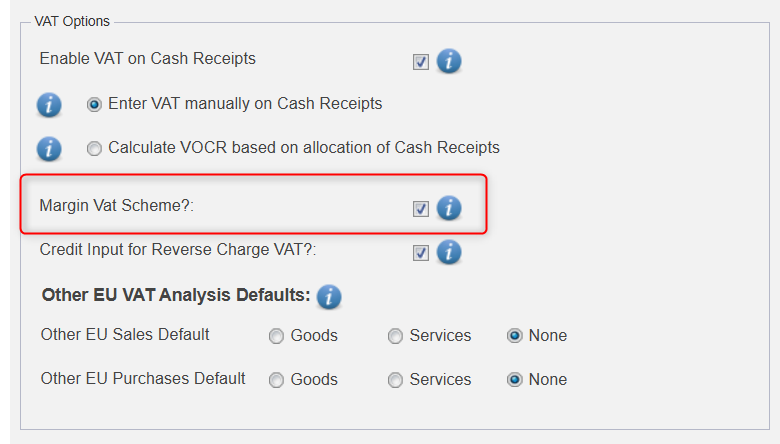
- Go to Setup, then Options.
- Locate the Margin VAT Scheme option.
- Tick the box to enable it.
- Click Save.
Screenshot: Setup → Options, showing the 'Margin VAT Scheme' tickbox.
3. Using the Margin VAT Calculator in a Sales Book Entry
Margin VAT applies to Sales Book entries only — it is not available on Sales Invoices. Businesses that use the Margin Scheme (such as car dealers) typically issue their own paper invoices to customers rather than invoices generated from Big Red Cloud, which is why the sale is recorded as a Sales Book entry rather than a Sales Invoice.
Book | Sales Book |
Customer | Customer account (or a cash/counter sale account, as normal) |
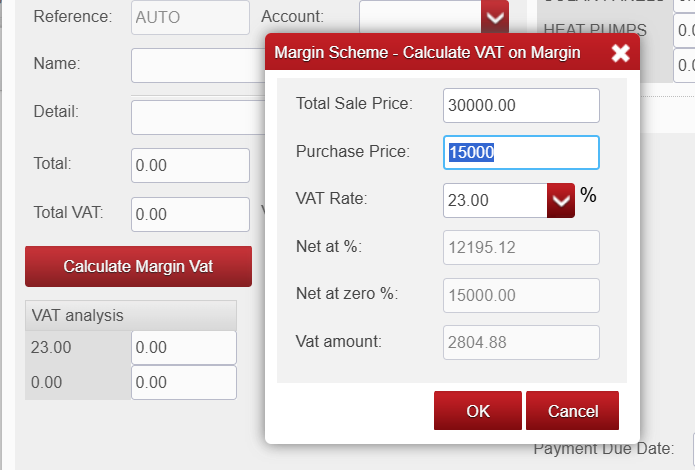
Margin VAT calculator | Use to work out the VAT due on the profit margin (selling price less the VAT-exempt purchase price) |
Net / Total on entry | Enter the figures calculated by the Margin VAT calculator into the Sales Book entry |
Result | VAT is calculated on the margin only, not on the full selling price |
Key points when entering the transaction:
- Confirm that the Margin VAT Scheme has been ticked in Setup / Options before the calculator is available.
- Only use the calculator for qualifying sales where the original purchase was VAT-exempt.
- The calculator determines the VAT on the margin — you then enter the resulting figures into the Sales Book entry yourself.
- This treatment is only available for Sales Book entries, not Sales Invoices.
Screenshot: Sales Book entry screen, showing the Margin VAT calculator.
4. Worked Example
A car dealer buys a used car from a private seller for €5,000. As the seller is a private individual, no VAT applies to the purchase. The dealer then sells the car for €6,000.
- Calculate the margin: €6,000 − €5,000 = €1,000.
- Use the Margin VAT calculator to work out the VAT due on the €1,000 margin.
- Enter the sale as a Sales Book entry using the net and VAT figures produced by the calculator.
- VAT is accounted for on the €1,000 margin only, not on the full €6,000 selling price.
5. Quick Reference Checklist
- Confirm the sale genuinely qualifies for Margin VAT treatment (the original purchase was VAT-exempt).
- Confirm 'Margin VAT Scheme' is ticked in Setup / Options (once-off, per company).
- Use the Margin VAT calculator to work out the VAT due on the profit margin.
- Enter the sale as a Sales Book entry — not a Sales Invoice.
- Enter the net and VAT figures produced by the calculator into the Sales Book entry.
- Review the Standard VAT Report to confirm the amount appears correctly.
6. Important Notes
- The Margin VAT Scheme option is a calculator only — it does not automatically post or reclassify a transaction.
- It applies to Sales Book entries only and cannot be used on Sales Invoices.
- Typically relevant to businesses, such as car dealers, that issue paper invoices outside of Big Red Cloud and record sales via the Sales Book.
- If in doubt about whether a sale qualifies for margin treatment, check with your accountant or the relevant Revenue guidance on VAT margin schemes.

Was this article helpful?
That’s Great!
Thank you for your feedback
Sorry! We couldn't be helpful
Thank you for your feedback
Feedback sent
We appreciate your effort and will try to fix the article