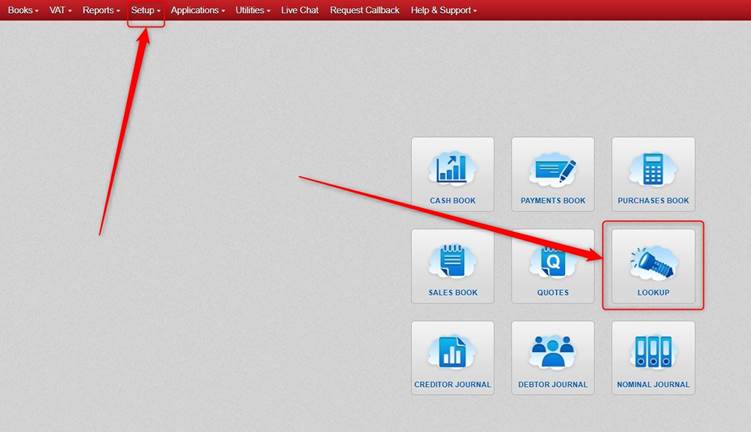
Click Setup or click Lookup.
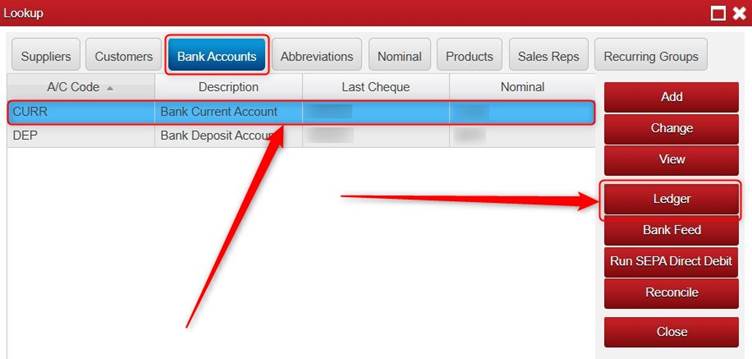
Click Bank Accounts > select the relevant Bank Account > click Ledger.
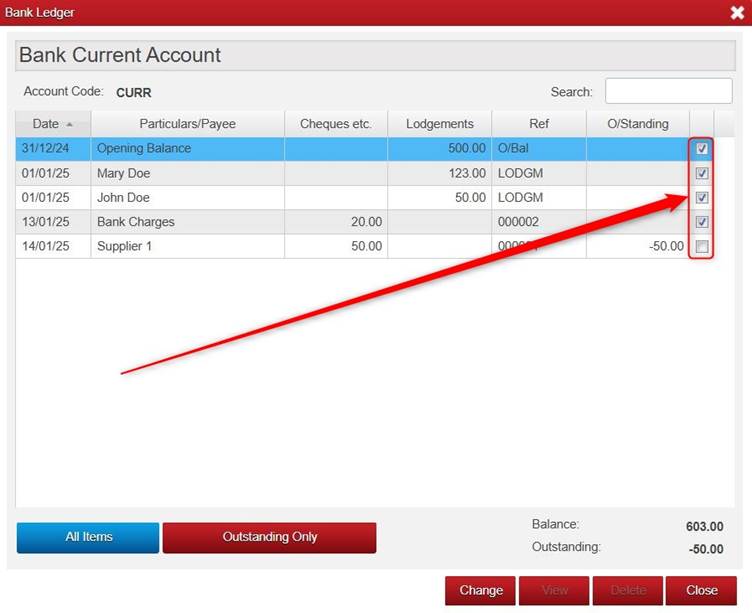
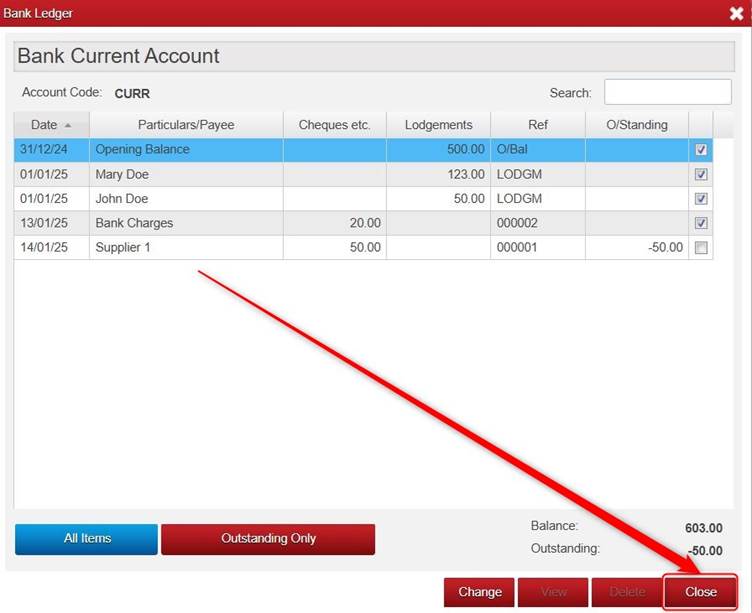
Next you tick (on the right) any transactions that have gone through the Bank Account.
Any transactions that have not gone through the Bank Account yet (e.g. Uncashed Cheques) you leave unticked for now.
Something to be careful of here. Say you are reconciling January 2025, and there is a transaction with a January Month/Date but it didn’t actually go through the Bank Account until February 2025. You would leave that transaction as unticked for now as it didn’t go through in January 2025.
In the below example we are saying that all transactions have gone through the Bank Account, aside from the one for 14/01/25 Supplier 1 for 50.00.
Please note Opening Balance will automatically show as ticked, and it cannot be unticked.
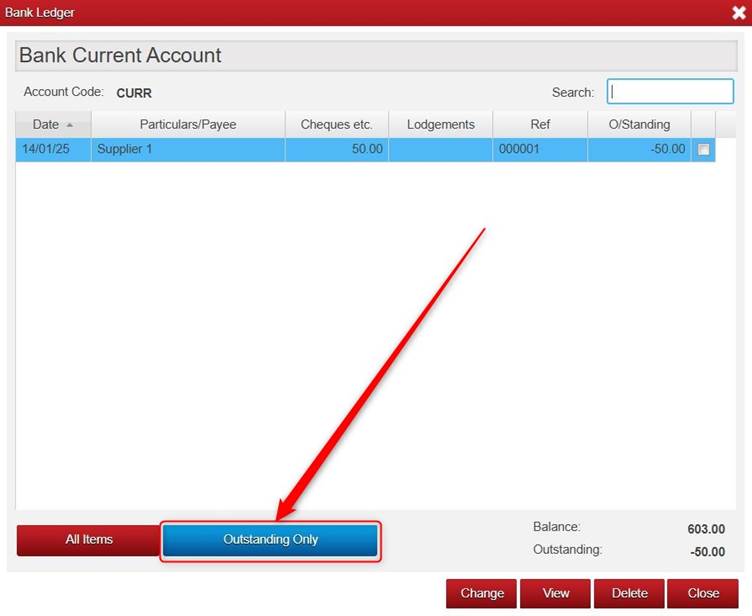
There is a handy Outstanding Only button. Once ticked it just shows the unticked transactions.
To return to the screen that shows the ticked and unticked transactions, simply click the All Items button (beside the Outstanding Only button).
Once you have ticked the relevant transactions click Close.
Next, with the relevant Bank Account still selected, click Reconcile.

Include Entries Up To: If we were looking to reconcile January 2025, we would select January 2025.
Bank Statement Balance: Enter the real Bank Statement Balance as of the end of the month selected e.g. in this case as of the end of January 2025.
Discrepancy: This will show if there is a difference between the real Bank Statement and the Bank Account according to Big Red Cloud.
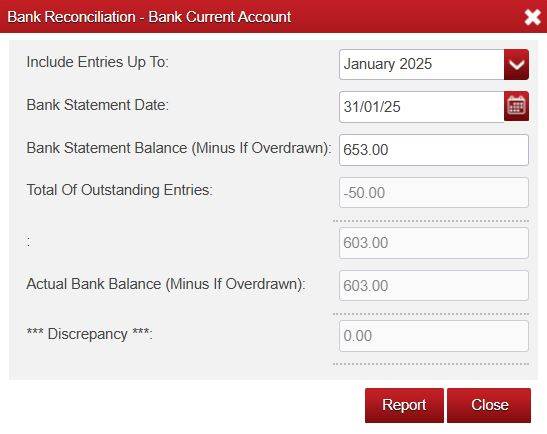
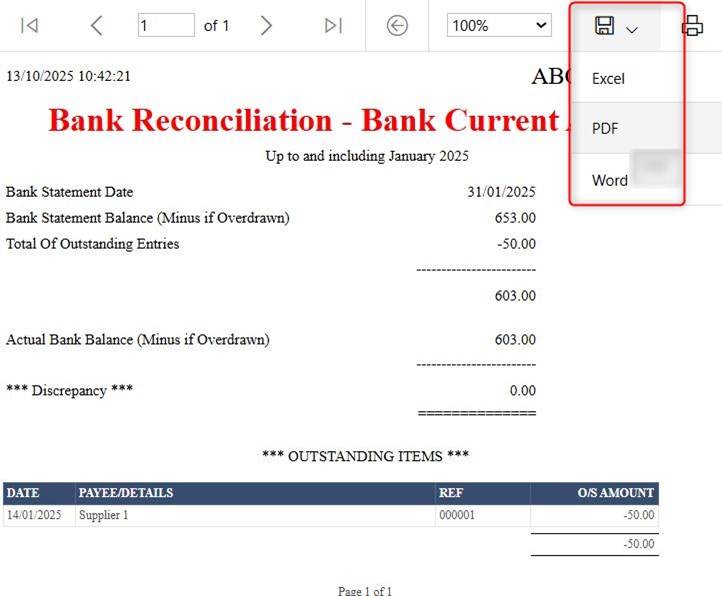
It’s a good idea to click the Report button (from that screen) after you do a Bank Reconciliation.
Once the report opens, you can the save the report into Excel, Word of PDF. This way you can keep a record of it.
Was this article helpful?
That’s Great!
Thank you for your feedback
Sorry! We couldn't be helpful
Thank you for your feedback
Feedback sent
We appreciate your effort and will try to fix the article