Multi-year customer reporting and statements
IMPORTANT: Support has been receiving questions about multi-year reporting. Red can review a customer’s available transaction history across multiple financial years and use it to prepare a continuous customer account summary (official Big Red Cloud statement).
Big Red Cloud may include older open or outstanding transactions even when the selected statement period is within the current financial year. The statement date range therefore does not guarantee that older outstanding items will be excluded. For example, I have an outstanding invoice for this customer in 2024, so it appears when I create/email a statement to the customer:
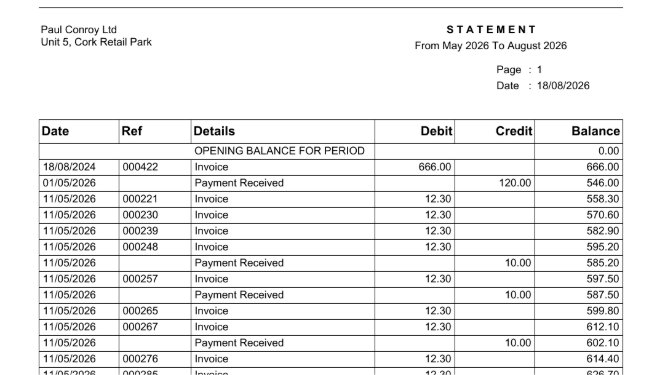
Verified example: the official statement covers May-August 2026 but includes reference 000422, dated 18 August 2024, for €666.00 because Big Red Cloud treated it as an older outstanding item.
The transaction must first be checked and, where appropriate, corrected or cleared up in Big Red Cloud (transactions from previous years should be handled in Big Red Cloud, not using Red). The users chosen AI platform can craft a separate filtered transaction summary, but that is not an official Big Red Cloud statement.
Example user prompts
- “Show me this customer’s full transaction history across all available years.”
- “Prepare a statement for this customer from 1 May 2026 to now. Then show me the email preview first.”
- “Check whether older outstanding transactions will be included on this statement.”
- “Show me a filtered transaction summary excluding reference 000422.”
Working with older transactions
UPDATED: Red can work more reliably with transactions from previous financial years. A date outside the current financial year is now treated as a warning rather than an automatic refusal. If Big Red Cloud's website does not allow action, Red explains that clearly.
Example user prompts
- “Show me this customer’s transactions from 2025.”
- “Compare this customer’s sales between 2025 and 2026.”
- “Change the note on this sales entry from last year.”
- “Show me purchases from the previous financial year.”
Finding the correct transaction
FIXED: Red is better at identifying whether an account transaction is a sales entry, invoice, credit note, purchase, cash receipt or cash payment. This reduces the chance of using the wrong action for a customer or supplier transaction.
Example user prompts
- “Show me a statement for this customer.”
- “Find transaction 000161.”
- “Change the note on this sales entry.”
- “Show me the details of this payment.”
Sales entry updates
UPDATED: Users can change more information on existing sales entries, including notes, references, descriptions, dates, customer information, amounts, VAT and accounting analysis. Red retrieves the current entry first and preserves information that was not requested to change.
Example user prompts
- “Change only the note on sales entry 161.”
- “Change the date of this sales entry to 30 June 2026.”
- “Update the description but leave everything else unchanged.”
- “Show me what would change before you update it.”
Sales credit note updates
UPDATED: Red can now change more information on existing sales credit notes, including notes, references, dates, customer or sales representative information, product lines and totals. Red checks that monetary information balances before posting.
Example user prompts
- “Change the reference on this sales credit note.”
- “Update the date on credit note 123.”
- “Change the product line and show me the new totals.”
Cash receipts
FIXED: Cash-receipt creation and updates are more reliable. Red better preserves existing ledger and analysis information, handles VAT correctly and supports note-only changes. It can also distinguish a customer receipt from a receipt posted directly to an analysis category.
Example user prompts
- “Create a cash receipt from this customer.”
- “Post this receipt to an analysis category instead of a customer.”
- “Change only the note on this cash receipt.”
- “Show me the full preview before posting.”
Cash payments
UPDATED: Users can ask Red to check whether an existing cash payment can be changed or removed. Supported changes may include amount, date, supplier, note, bank account and analysis information. Red will not assume deletion is always the correct solution.
Example user prompts
- “I entered this cash payment incorrectly. What can I change?”
- “Change the date on this cash payment.”
- “Update the amount but leave everything else unchanged.”
- “Remove this cash payment. Explain what will happen first.”
Batch requests
FIXED: Red is better at requests involving several records. Wording such as “create two cash payments” should remain a batch request instead of being treated as one record.
Example user prompts
- “Create these three customers.”
- “Prepare two cash payments.”
- “Add multiple suppliers.”
- “Create a batch of sales invoices.”
Quotes
UPDATED: Quote creation, updating, calculating and previews have been improved. Red shows fuller previews, checks required customer and company information, validates manual references, and handles rounding more consistently. It also explains that changing or deleting a quote does not automatically remove an invoice already generated from it.
Example user prompts
- “Create a quote for Customer A and show me the full preview.”
- “Change only the manual reference on quote 123.”
- “Create these quotes and show me the batch preview.”
- “Turn this quote into a sales invoice. Show me the invoice preview first.”
Confirming actions
FIXED: After showing a preview, Red now continues more reliably when the user confirms. The action remains linked to the correct record and company. If the user cancels, nothing is posted.
Example user prompts
- “Yes, create it exactly as shown.”
- “Delete it.”
- “Go ahead.”
- “Cancel that change. Do not post it.”
Correcting or undoing changes
UPDATED: Red now checks what changed and explains the available options before attempting an undo, reversal or correction. It does not invent previous values or opposite transactions, and it shows a new preview before making a correction.
Example user prompts
- “Undo the last thing I did.”
- “Change that back.”
- “I entered this payment incorrectly.”
- “Can you reverse this transaction?”
- “What are my options for correcting this?”
Reviewing changes made through Red
UPDATED: Users can ask for a simple summary of completed changes made during the current session. Read-only lookups and cancelled previews are not included in the audit log as completed changes.
Example user prompts
- “Show me the audit log”
- “What changes have I made through Red today?”
- “What did Red create?”
- “Which actions succeeded?”
- “Were there any failed changes?”
Support diagnostic reports
NEW: Red can be prompted to prepare a downloadable diagnostic report for a connected company. The report shows which actions were attempted for that company, which succeeded or failed, and information that can help the support team investigate an issue.
If a user has made changes to several companies during the same chat, Red can prepare a separate report for each company. Passwords, API keys and secure connection details are excluded.
Example user prompts
- “Generate a support report for Company A.”
- “Generate separate support reports for Company A and Company B.”
- “Show me the changes made across my connected companies.”
- “Prepare a diagnostic report for Company C that I can send to support.”
- “What went wrong with my last action in Company C?”
Help and guidance
UPDATED: Red is better at noticing when a user is asking for instructions rather than asking Red to make a change. It should return guidance and relevant resources without starting an accounting action.
Example user prompts
- “How do I create a sales invoice?
- “Show me how to add a customer.”
- “Where can I find this report?”
- “Is there a tutorial or webinar for this?”
Clearer user messages
UPDATED: Red now gives clearer guidance when information is missing, figures do not balance, an older transaction needs checking, a correction needs planning, or Big Red Cloud has rejected a request. Red will not invent customers, suppliers, amounts, previous values or accounting information.
Was this article helpful?
That’s Great!
Thank you for your feedback
Sorry! We couldn't be helpful
Thank you for your feedback
Feedback sent
We appreciate your effort and will try to fix the article