Turning your Sales Book and Purchase Book into VAT3 figures — T1, T2 and beyond
1. Overview
The Standard VAT Report is where the bookkeeping you've already done turns into the figures Revenue actually needs. Once sales and purchases have been recorded correctly during the period, Big Red Cloud reads the Sales Book and Purchase Book for the dates you choose and works out the relevant VAT3 boxes for you — including T1 (VAT on sales) and T2 (VAT on purchases).
In other words, there's no separate VAT return to build from scratch. If the transactions are right, running the report is quick — a couple of clicks, not a reconciliation project.
Why this is easy You don't prepare the VAT3 as a separate task. You prepare it automatically, every time, just by recording sales and purchases correctly as you go. The report simply reads back what's already there. |
2. Running the Standard VAT Report
To generate the report for a period:
- Click VAT from the top of your screen (as below), then click Standard VAT Calculations.
Screenshot: VAT menu, showing the 'Standard VAT Calculations' option.
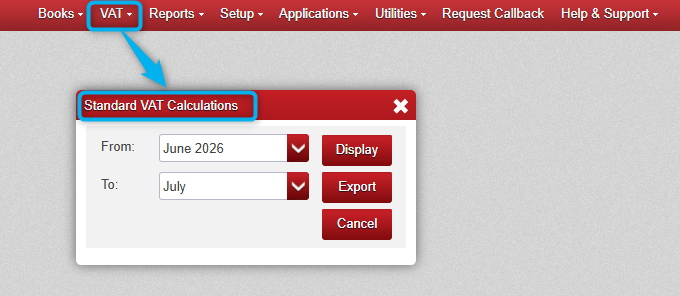
- Choose your From and To Month for the period you're reporting on.
- Click Display to view the report on screen, or Export to send it straight to Excel.
Screenshot: Standard VAT Calculations screen, showing the From/To Month fields and the Print and Export buttons.
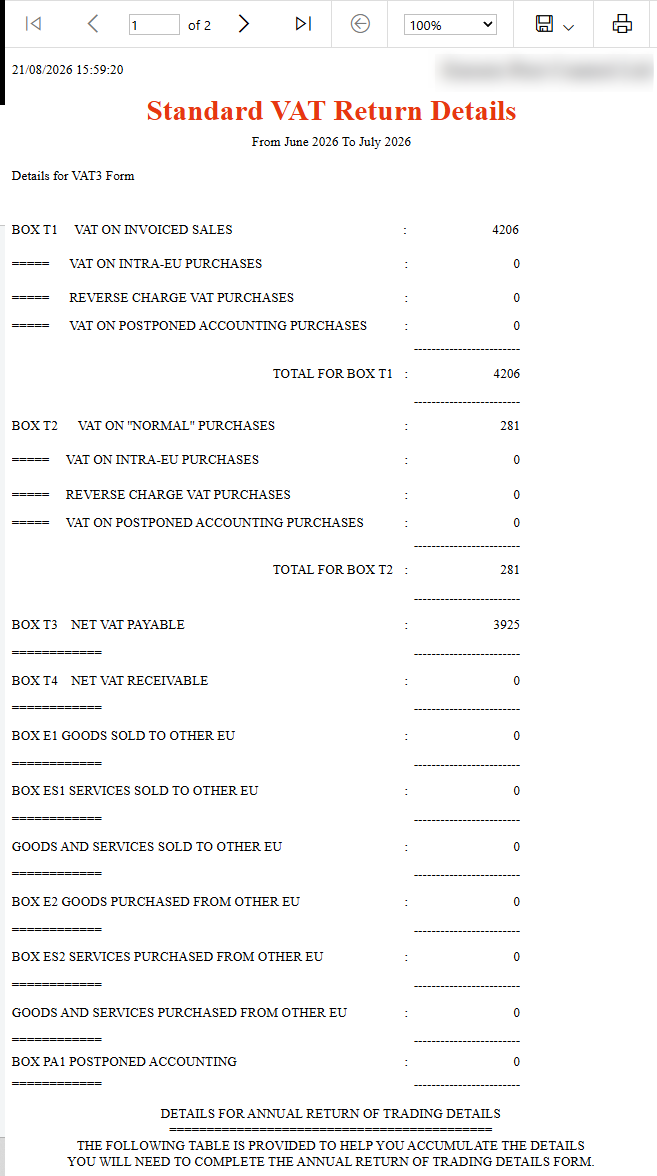
That's it — the figures for the period are calculated instantly from the Sales Book and Purchase Book. Just copy the figures for the relevant fields on your Vat Return.
3. Understanding the Key VAT3 Boxes
T1 — VAT on Sales | Calculated from Sales Book entries for the period |
T2 — VAT on Purchases | Calculated from Purchase Book entries for the period |
Other VAT3 boxes | Also calculated from the same underlying Sales Book and Purchase Book data |
Because T1, T2 and the other VAT3 figures come directly from your books, the accuracy of the return depends entirely on the accuracy of the transactions entered during the period — not on anything done at return time.
4. Checking the Figures with Supporting VAT Detail Reports
If a figure on the Standard VAT Report looks off, or you simply want to double-check it, Big Red Cloud's supporting VAT detail reports let you see the individual transactions that make up each figure. This makes it far easier to trace an issue back to its source, or to work through a query with your accountant using the same live figures.
- Use the VAT detail reports to drill down from a VAT3 box into the transactions behind it.
- Share the VAT detail reports with your accountant so you're both looking at the same records.
- Resolve discrepancies before submission, rather than after.
5. Worked Example
A company wants to prepare its VAT3 for March and April.
- Go to VAT > Standard VAT Calculations.
- Set From Month to March and To Month to April.
- Click Display to review the T1, T2 and other VAT3 figures on screen.
- Use the supporting VAT detail reports to spot-check any figures before filing.
- Click Export if the figures need to go to Excel, or to an accountant, before submission to Revenue.
6. Quick Reference Checklist
- Make sure Sales Book and Purchase Book entries for the period are complete and correctly coded before running the report.
- Go to VAT > Standard VAT Calculations.
- Choose the correct From and To Month for the period.
- Click Display to review on screen, or Export for Excel.
- Use the supporting VAT detail reports to verify any figure you're unsure about.
7. Important Notes
- The Standard VAT Report calculates figures directly from the Sales Book and Purchase Book — it does not correct or reclassify transactions for you.
- Both Display and Export use the same underlying figures; Export simply sends them to Excel.
- If a figure looks incorrect, check the supporting VAT detail reports first rather than adjusting the VAT3 manually.
- If in doubt about how a transaction should be treated for VAT purposes, check with your accountant or Revenue guidance.

Was this article helpful?
That’s Great!
Thank you for your feedback
Sorry! We couldn't be helpful
Thank you for your feedback
Feedback sent
We appreciate your effort and will try to fix the article