The annual VAT rate and transaction-type breakdown — found at the bottom of the Standard VAT Report
1. Overview
The Return of Trading Details (RTD) is the annual return that breaks down a company's sales and purchases by VAT rate and transaction type. Unlike the VAT3, which is filed periodically throughout the year, the RTD covers the whole accounting year in one go.
In Big Red Cloud, there is no separate RTD screen to fill in by hand. The RTD table is generated from the same place as the periodic VAT3 figures — it appears at the very bottom of the Standard VAT Report once you run it for the full year.
Key point The RTD table lives at the bottom of the Standard VAT Report. Run the report for the full accounting year, then scroll down past the T1/T2 VAT3 figures to find the RTD breakdown. |
2. Why Good Bookkeeping Matters Even More for the RTD
The RTD requires sales and purchases to be broken down by VAT rate and transaction type. That detail comes directly from how each Sales Book and Purchase Book entry was coded at the time it was recorded.
This means the RTD cannot be accurately reconstructed at year end if transactions weren't recorded correctly during the year. There is no shortcut at RTD time to fix coding that went in wrong twelve months earlier — the same discipline that keeps your VAT3 accurate throughout the year is what makes the RTD straightforward when it falls due.
3. Generating the RTD Table
To find the RTD figures for the year:
Click VAT (As below), then click Standard VAT Calculations.
Screenshot: VAT menu, showing the 'Standard VAT Calculations' option.
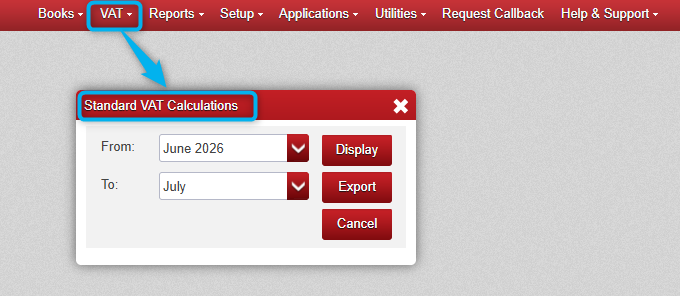
- Set the From Month and To Month to cover the full accounting year (e.g. January to December, or your company's financial year).
- Click Display to view the report on screen, or Export to send it to Excel.
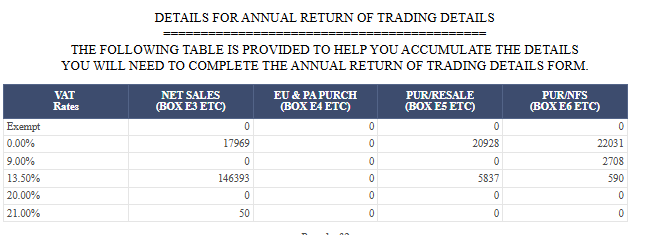
- Scroll to the bottom of the report — the RTD table appears below the standard VAT3 figures (T1, T2, etc.), broken down by VAT rate and transaction type.
Screenshot: Bottom of the Standard VAT Calculations report, showing the RTD table broken down by VAT rate and transaction type.
4. Checking the Figures with Supporting VAT Detail Reports
If a figure in the RTD table looks unexpected, use the supporting VAT detail reports to see the individual transactions behind it, in the same way you would for a VAT3 query. This lets you confirm which transactions were coded to which VAT rate, and work through any discrepancy with your accountant using the same live figures before you file.
- Use the VAT detail reports to trace an RTD figure back to the underlying transactions.
- Check that transactions were coded to the correct VAT rate and transaction type throughout the year.
- Resolve any discrepancies before submitting the RTD, rather than after.
5. Worked Example
A company with a January–December financial year needs to prepare its RTD.
- Go to VAT > Standard VAT Calculations.
- Set From Month to January and To Month to December.
- Click Display to run the report for the full year.
- Scroll to the bottom of the report to find the RTD table, showing sales and purchases broken down by VAT rate and transaction type.
- Use the supporting VAT detail reports to spot-check any figures, then Export (icon at the top of the screen) if the RTD figures need to go to Excel or to an accountant before filing.
6. Quick Reference Checklist
- Confirm Sales Book and Purchase Book entries for the full year are complete and correctly coded by VAT rate and transaction type.
- Go to VAT > Standard VAT Calculations.
- Set the From and To Month to cover the entire accounting year.
- Click Display or Export to generate the report.
- Scroll to the bottom of the report to find the RTD table.
- Use the supporting VAT detail reports to verify any figure you're unsure about before filing.
7. Important Notes
- The RTD table is part of the Standard VAT Report — there is no separate RTD screen. Run the report for the full year and scroll to the bottom.
- RTD accuracy depends entirely on how transactions were coded by VAT rate and transaction type throughout the year — it cannot be corrected retrospectively at year end.
- Both Display and Export use the same underlying figures; Export simply sends them to Excel.
- If in doubt about how a transaction should be classified for RTD purposes, check with your accountant or Revenue guidance.

Was this article helpful?
That’s Great!
Thank you for your feedback
Sorry! We couldn't be helpful
Thank you for your feedback
Feedback sent
We appreciate your effort and will try to fix the article