Use this guide to export reports, statements or full transaction lists from Big Red Cloud for backups, your accountant, an auditor or Revenue.
If for whatever reason, you need to export all data, you are best off playing it safe and running every single report within the program one by one for the required period and saving them all to a relevant folder on your pc, this will ensure all data from Big Red Cloud is contained within your saved reports.
Before you start
Answer these three questions to ensure you export the right data the first time:
- Which periods do you need? Note your financial year and any key periods, such as VAT return periods. If unsure, export more rather than less.
- What data has been requested? A specific report, all transactions for a period, customer or supplier details, or everything.
- Which format do you need to save the report in? Use Excel for accountants (they can sum and sort figures). Use PDF for printing or long-term storage.
If you need... | Use |
|---|---|
A specific report (e.g. Cash Receipts Listing) | Export a report |
Customer statements | Export a Debtors Statement |
Every transaction in a book for a period | Book Enquiry |
Export a report
Every report can be exported to Excel, PDF or Word.
- Click Reports in the red menu bar at the top of the screen.
- Choose a report category (e.g. Cash Book), then the report (e.g. Cash Receipts Listing).
- Set the From and To periods and click Display. The report opens in a new window.
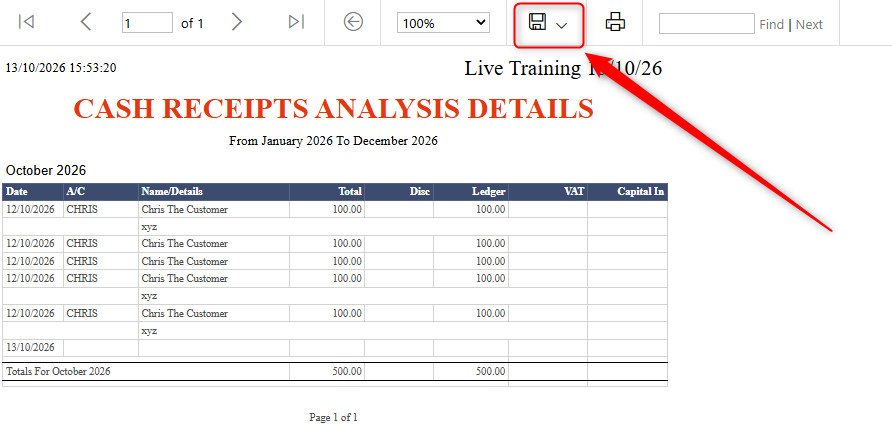
- In the grey toolbar at the top of the report, click the blue floppy disk icon.
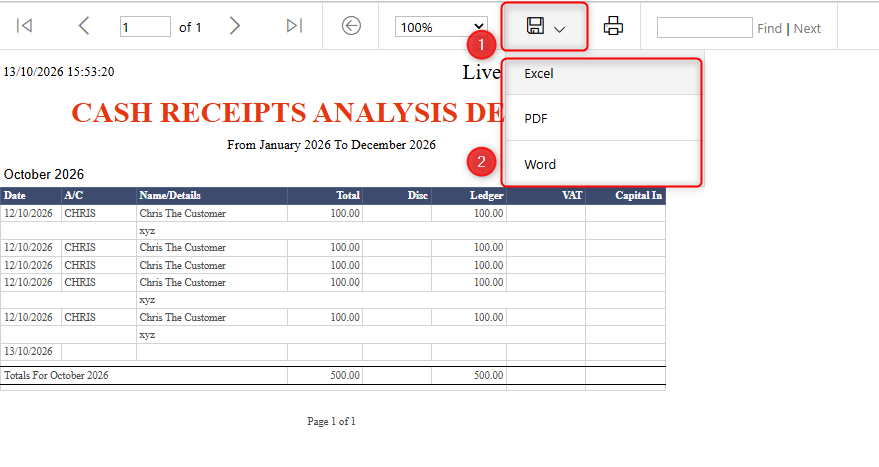
- Choose Excel, PDF or Word. The file downloads to your computer.
Export a Debtors Statement
Debtors Statements are found within the reports section.
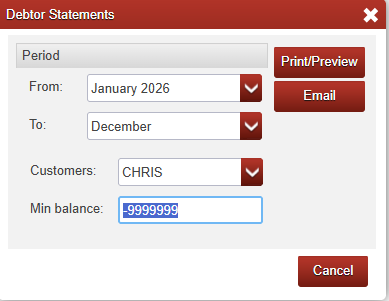
- Go to Reports > Sales Ledger > Debtor Statments, Choose your period, customer and minimum balance (set to -99999 to include customers with a minus balance).
- In the statement toolbar, click Save (1) and pick a format (2).
 3. To print every page, use the toolbar's Print button, not Ctrl+P or your browser's print option.
Format | Best for |
|---|---|
Adobe PDF | Long-term storage and printing (recommended) |
Microsoft Excel / OpenDocument Calc | Accountants who need to add up or analyse figures |
Data File (CSV/XML) | Importing into other software, only when requested |
Image File (choose PNG) | Saving a small number of single pages as images |
Avoid Word, Text and Rich Text formats for records, as the contents can be easily edited.
Export all transactions with Book Enquiry
Book Enquiry is the quickest way to export every transaction from a book, such as Cash Receipts, Sales Book or Nominal Ledger.
- Click Reports → Book Enquiry and choose the relevant book (or choose them all one by one if required).
- Payments Book only: select a bank account and click Select. Repeat the export for each bank account.
- Under Filtering, set the Month range (e.g. January 2017 to March 2017) and click Apply.
- Click Export in the red menu bar to download all transactions in the grid as an Excel file.
Optional: grouped or totals-only exports
Click Print instead of Export to group transactions with subtotals.
- Grouping: choose up to three levels, such as Month, Date, Account or Name/Details. For example, Month then Account gives monthly subtotals broken down by account.
- Only totals: tick this beside a grouping to show just its totals, without individual transactions.
- Show Totals Only: tick this for a summary of overall totals.
Click Display, then export the result using the floppy disk icon.

Was this article helpful?
That’s Great!
Thank you for your feedback
Sorry! We couldn't be helpful
Thank you for your feedback
Feedback sent
We appreciate your effort and will try to fix the article