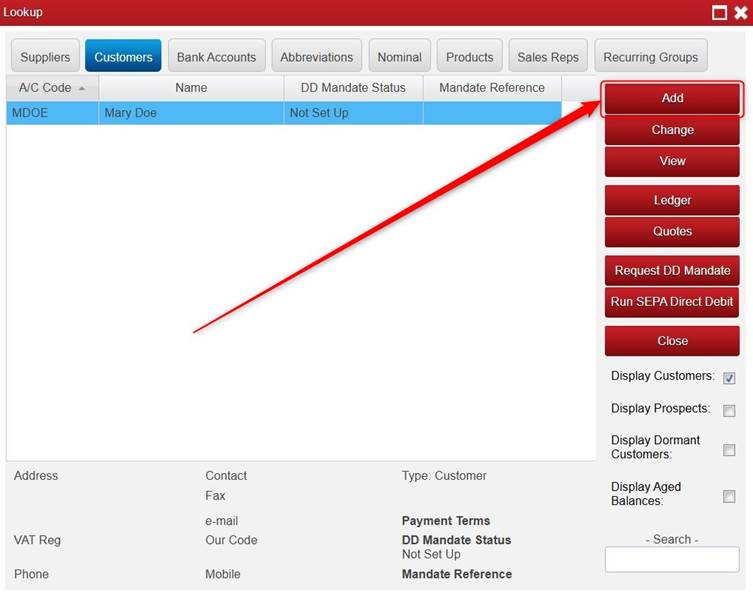
Click Setup or Lookup > click Customers > if the customer is already there then highlight the relevant Customer > click Change.

Or you can add a Customer by clicking Add. (Please note if you are adding a customer you will need to enter an A/C Code for them.)
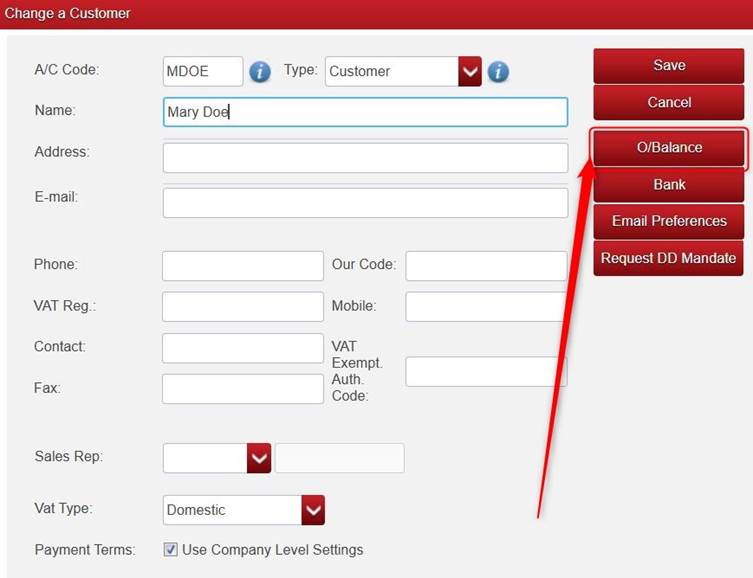
Click O/Balance.
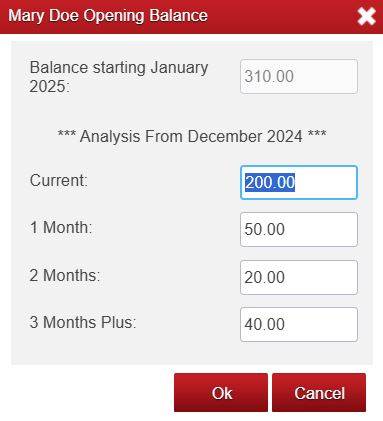
This next part will look different depending on whether you are using Receipts/Payments Manual Allocations or not.
If you ARE NOT using Receipts/Payments Manual Allocations, it will look like this:
- You can age the balance by typing the relevant figures into the applicable boxes Current, 1 Month etc. This will automatically update the top Balance Starting box.
- Please note the Analysis From Month/Date.
- Click OK.
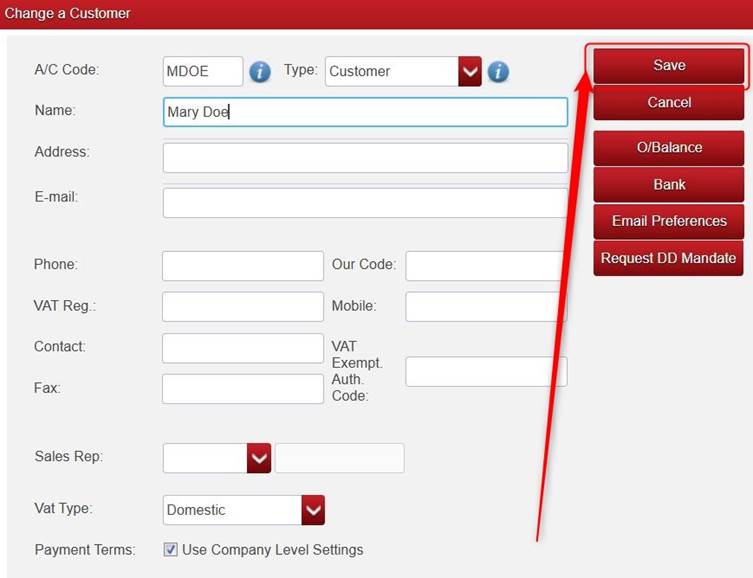
Click Save on the Change a Customer/Add a Customer screen.
If you ARE using Receipts/Payments Manual Allocations, it will look like this:
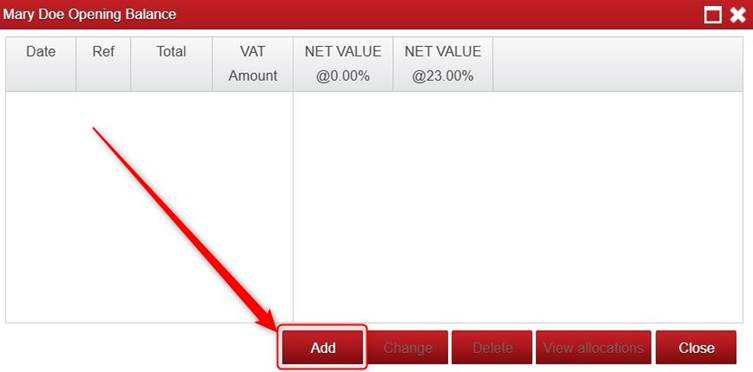
Click Add.
Note: with this setting, it allows you to enter multiple opening balances if you want to for the customer, for example you might decide to enter separate opening balances for the separate open/unpaid invoices that make up the opening balance.
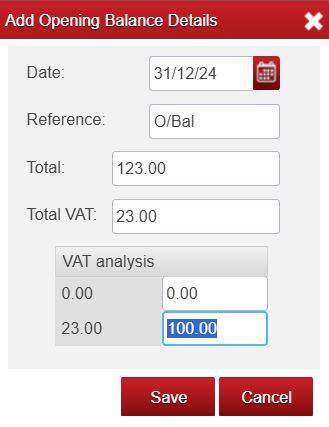
- Change the Date for that Opening Balance if required.
- Change the Reference if required.
- Enter the Total for that Opening Balance, and the VAT Breakdown (if you wish to) on it. Note: if you have Calculate VOCR based on allocation of Cash Receipts selected in Options, then it will include that VAT in the VAT on Cash Receipts report once you allocate a receipt against that opening balance. However, if you are considering changing anything in Options, please contact us first.
- Click Save.
- It will ask you if you want to add another Opening Balance for that customer. Enter it if you do and click Save or click Cancel if you don’t.
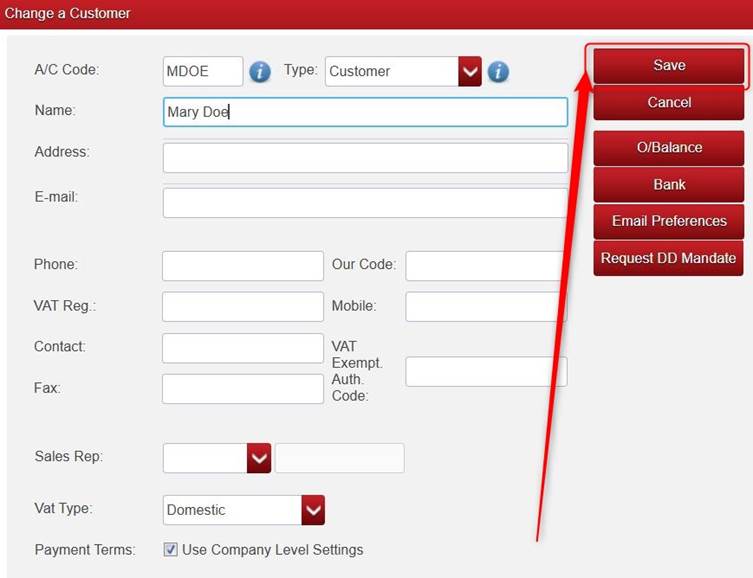
- Click Save on the Change a Customer/Add a Customer screen.
Was this article helpful?
That’s Great!
Thank you for your feedback
Sorry! We couldn't be helpful
Thank you for your feedback
Feedback sent
We appreciate your effort and will try to fix the article