- Go to Setup (along the top of the screen) > VAT Rates > Yes.
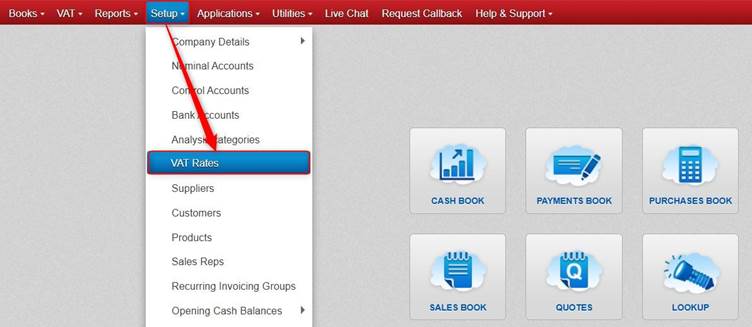
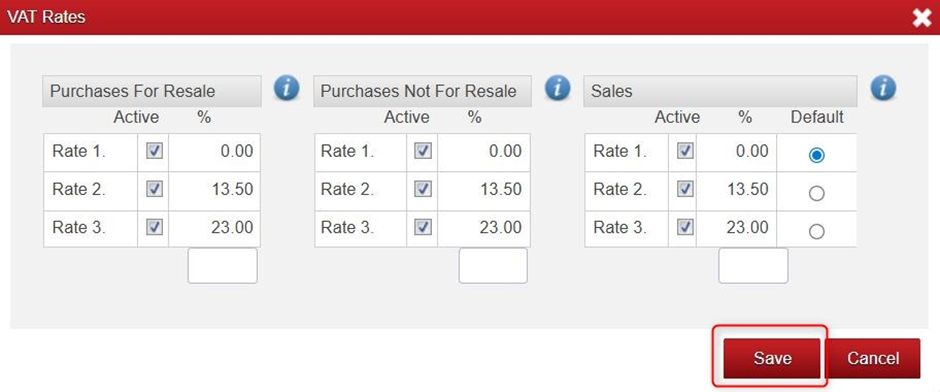
- Click into the blank box that shows under the relevant sections e.g. under Purchases for Resales, Purchases Not For Resale, Sales etc. From there you can type in a VAT Rate e.g. 0 (please ensure not to change an existing VAT Rate, when adding a new VAT Rate you should add it to a blank box).
- Then click the Tab key on the keyboard and the cursor should move into the next box underneath OR you can move into another box across or beneath by clicking into a different box using your mouse.
- Click Save once you have all the VAT Rates you want added to the different sections e.g. Sales, Purchases Not For Resale, Purchases For Resale etc.
Was this article helpful?
That’s Great!
Thank you for your feedback
Sorry! We couldn't be helpful
Thank you for your feedback
Feedback sent
We appreciate your effort and will try to fix the article